DASH 22.2 Release Notes

<BACK

Dash Self


Alternate Provider


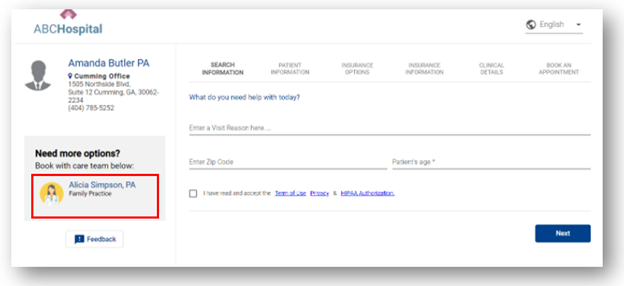
New improvements have been made to the Alternate Provider workflow, which guides patients to a suitable provider if their selected provider is ineligible either due to their scheduling protocols or their lack of availability.

If either of these conditions is met, alternate providers will be suggested to the patient at the following points in the scheduling workflow:

  • On the selected provider’s landing screen

  • After triage responses are collected

The Alternate Provider workflow will also support group-based scheduling scenarios. The application will surface alternate groups if the patient chooses a group that is ineligible due to either of the two conditions above. Alternate provider options will be sortable by either distance or availability, according to the patient’s preference.

Miscellaneous bugs were also repaired as part of this enhancement.

Specialty Landing Pages

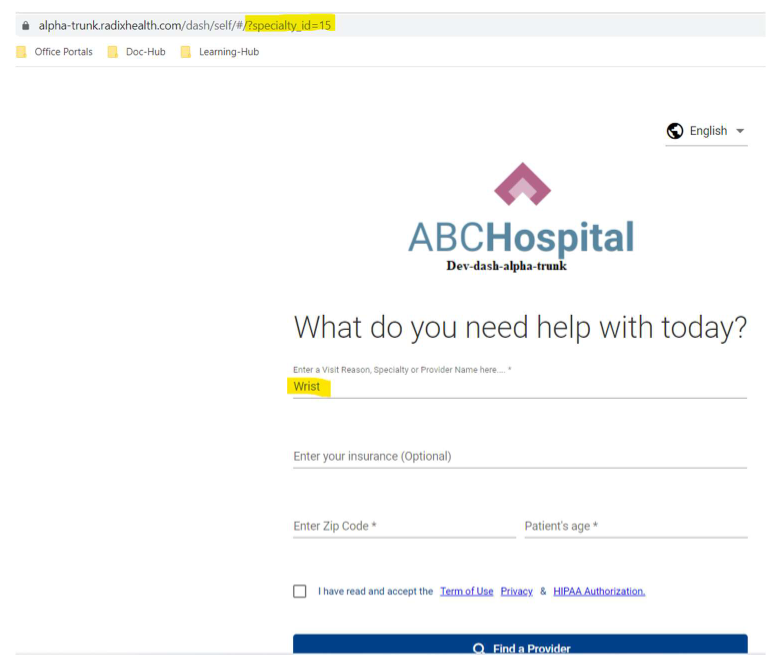
Clients can now create self-scheduling landing pages for one or more specialties within their practice. This enables creating specialty-specific links on their homepage. This is especially beneficial for multi-specialty clients and supports intuitive navigation for patients.
Messaging Opt-out

Today, patients can electively opt-out of receiving any future automated messages from the client by utilizing ‘OPTOUT’ or ‘STOP’ keywords via SMS. Starting in 22.2, this will change the ‘consent to text’ values to “false” in Dash Central, which will then update the patient’s record in the PM system. Previously, the opt-out commands were relayed directly to the PM system. For clients with PM systems that do not support bi-directional communication with Dash, Dash Central was not properly updating the patient’s preference. Moving forward, both the PM system and Dash Central will accurately capture the patients opt-out instructions in all cases.

Please note that this functionality will be supported for all clients, regardless of whether they are contracted for Dash Self and Dash Connect (e.g., via Waitlist availability SMS messages).

Appointment Confirmation Page

“Schedule Ride'“ button fix

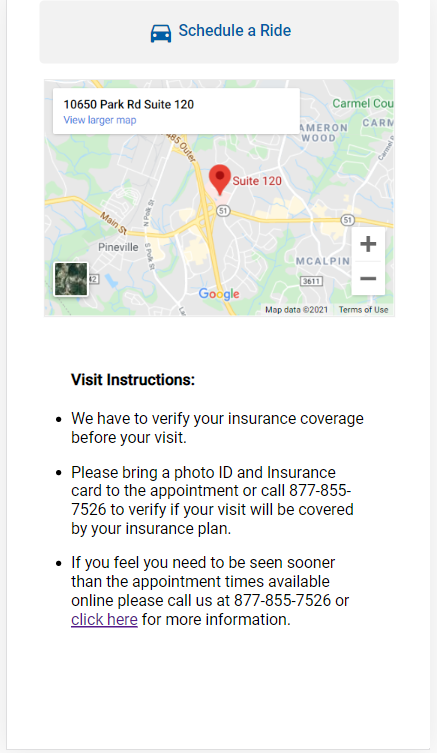
  • Repaired a bug that caused the Uber and Lyft icons not to display above their corresponding buttons when the “Schedule a Ride” button on the appointment confirmation screen is clicked. (Please note that this button can be enabled or disabled via a configuration key.)

  • Repaired a bug that prevented available time slots from displaying if a patient attempted to reschedule an appointment that they just booked in Dash Self (i.e., if the patient clicked the ‘Reschedule’ button on the confirmation screen presented after initially scheduling the appointment).

  • Repaired a bug that prevented the display of a message confirming that the patient was added to the waitlist in cases where the patient added themselves via the appointment details screen.

User Navigation

Scrollbars within the self-scheduling application have been made wider to improve patients’ ease of use.
Misc. Bug Fixes


  • Repaired a bug that caused chief complaint options to be truncated in the drop-down menu on mobile devices.

  • Repaired a bug that was allowing patients who were shown a “Please call the practice” message during the self-scheduling process to proceed with scheduling if they clicked the “Next” button multiple times. Moving forward, patients who are shown this message after a single click on the “Next” button will be restricted from proceeding further, and subsequent clicks of the “Next” button will result in the same message being displayed.

  • Repaired a bug that caused facility names in the left-hand filter menu to overlap if a name extended onto a second line of text.

  • Repaired a bug that prevented locations associated with the selected provider from being sorted by proximity to the patient’s ZIP code. This has been fixed both in the left-hand filter menu and individual providers’ associated facilities.

  • Repaired a bug that caused required screens to be skipped if the user clicked the “Next” button multiple times before the subsequent screen had fully loaded.

    An additional bug was repaired that created multiple appointments if the patient clicked the “Confirm” button multiple times before the initial click resulted in a confirmed booking.


Dash Central

Activity Log

  • The activity log will now record manual inventory sync activities for audit purposes.

    When a manual inventory sync is run by a user, the following information will be captured seen in the Activity log:

    Name(s) of the provider, selected date range, user, and time stamp. The activity type will be captured as ‘ProviderInventorySync.’

  • Find Activity logging for Today's Appointment page

    The activity log can now capture a more detailed report on today’s appointment page activities. Currently Activity log only captures an activity when the patient’s name is clicked. With this enhancement, it will now log activity when the patient's name is clicked, or the checkbox is selected. The log will include additional details including patient ID, patient's first and last name, DOB, appointment ID, etc. This will allow practices to audit today’s appointment page in more detail. 

  • Activity logging for Appointment Add/Update

    The activity log can now capture a more detailed report on appointment activities. The log will include additional details such as the search date range, names of the selected provider(s), appointment type, location(s), and appointment status. This will allow practices to audit scheduling activities at a granular level and export Excel reports.


Appointment Scheduling

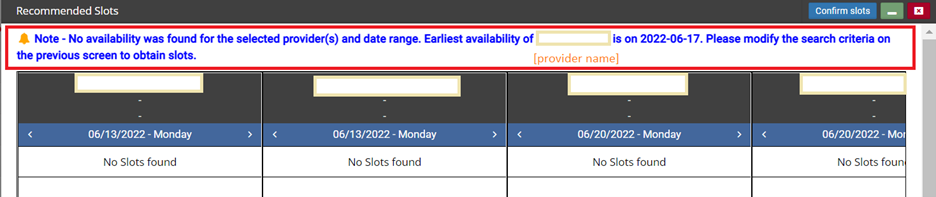
  • Previously when the system was unable to find appointment slots for some reason (e.g., the provider does not have any availability for the selected date range), the error messages were displayed in red and had varied verbiage. The verbiage was not user-friendly, and the red alert gave the impression that there was a systematic error, which often confused schedulers when performing scheduling tasks.

  • Changes have been made such that all the different error messages (e.g., ‘Templated slots for service: Office visit, do not exist in DASH....’, ‘Providers (Dr. Test, Dr. Check) missing service configuration’ OR ‘Templated slots for appt types: Open Access 20, do not exist in DASH....’) have been replaced with a generic message that reads ‘No availability was found for the requested appointment type(s) and date range. Please try additional dates.’ This message will be displayed in a blue box (instead of a red color box) for all scenarios where the system was not able to return slots.

  • Repaired a bug that was causing unnecessary pop-ups to appear in appointment scheduling when they should not be. An optimization has been made on the backend, and now the pop-ups will only appear in the appropriate scenarios per the configured rules.

  • An enhancement has been made to support provider-specific mappings in appointment type to slot type mapping for short-term exceptions (e.g., open urgent slots to any appointment types if unfilled within 48 hours). Previously this feature was only available at the global level. If there were any provider-specific nuances that differed from other providers’, it had to be configured using a workaround. This was often a time-consuming task for the configuration team and cumbersome for ongoing maintenance.

  • Repaired a bug that was causing slots to be unavailable for urgent overbooking and no-show booking once the slots were booked in DASH or in athena. The slots were unusable until the next time that an inventory sync is run (manually or nightly). Now slots will be available for urgent overbooking and no-show booking even after slots are booked.

    Note: this bug fix is applicable to athenaOne clients only.

Misc. Bug Fixes

  • Storing Popup Responses from Triage Attributes

    In DASH Triage workflow, triage questions can be used to pre-determine the answers to pop-up questions based on how the scheduler/patient responds to triage. This allows the pop-ups to be not asked again when the scheduler searches for slots. However, this feature previously had some limitations - if an answer to a pop-up is already predetermined through Triage, the pop-up answers were not saved on the back end at the time of appointment booking. As a result, during rescheduling or follow up (using the Follow Up button), the pop-up questions were asked again, causing scheduling inefficiency. Now we can capture answers to the pop-up questions pre-determined via Triage responses and thus not ask them again at the time of rescheduling or follow up. 

  • Async config option added to the User Setup screen

    This feature is applicable for eCW clients only. For asynchronous integration clients, async configuration option has been added to the User Setup screen. Setting the toggle ON will enable async integration, setting the toggle OFF will disable async integration. For clients/users that currently do not have async configured, the toggle will remain OFF.

  • Spouse’s insurance displayed at the top (bug fix)

    This enhancement is applicable for NextGen clients only. Previously if a patient has more than one insurance on file and the subscriber is self for one plan and spouse for another, the spouse’s insurance was displayed at the top. This often-caused confusion to schedulers. Now if a patient has multiple insurances with the subscribe as self and spouse, the patient’s (self) insurance will be displayed at the top to avoid confusion.

  • Waitlist processing: Add a new way to find earlier slot matches based on Appt Type. Bypass Rule execution 

    Previously when the system processes the waitlist and searches for an earlier appointment slot, it re-evaluated all the appointment type rules and preferences. In the process of doing so, the rescheduled appointment may result in a different appointment type than the one from the original appointment, if a different appointment type rule condition was met (e.g., the appointment was originally booked in PM as ‘Established Patient’. However, when the system searches for an earlier appointment slot, it evaluates the patient as a new patient because the patient does not meet the provider’s definition of ‘Established’ and corrects the appointment type to ‘New Patient’). Other times, the system could not find an earlier slot as it required answers to preference questions to fully evaluate appointment type rules and provider preferences. This usually happened for appointments that were originally booked in PM, as the DASH pop-up questions do not get captured in PM. To improve utilization, a new feature has been added to the waitlist to allow patients to reschedule to a sooner appointment date purely based on the original appointment type. This is a feature that can be enabled/disabled at the global level. The system default will be disabled - i.e., waitlist processing will re-evaluate all rules related to appointment type assignment and provider preferences. If you would like to utilize this feature in your environment, please contact your CSM or COM.

  • Configuration: mark specific demographic fields as un-editable

    A new configuration capability has been added to mark specific demographic fields as un-editable. This can be used to prevent accidental updates on important patient demographic fields (e.g., SSN, DOB). If a field is locked for editing, the field will be greyed out at the time of viewing a patient’s record in DASH. However, the lock edit capability will not take effect at the time of creating a new patient record in DASH – i.e., all demographics fields collected in DASH will be available for editing. If you are interested in utilizing this feature, please contact your CSM or COM with the specific field(s) you would like to mark as un-editable in DASH

  • Repaired bug: causing certain rules to fail in DASH Connect and Dash In

    Repaired a bug that was causing some rules to fail in DASH Connect and Dash In. These were rules that utilized a specific appointment ID variable, and as a result, some patients were receiving the wrong check-in forms.

  • Patient’s appointment history

    Previously in the patient’s appointment history, only appointments with the exact status of ‘scheduled’ were sorted at the top of the list. Other scheduled appointment statuses, such as ‘voicemail - appointment confirmed’, were excluded from this behavior, and thus were not at the top of the appointments list. This has caused limitations, particularly in client environments that have different kinds of scheduled appointment statuses - schedulers manually sorting through the appointments list to take the appropriate actions on the scheduled appointment.

  • Add a system config key that will allow the care team to auto-linking in follow-up/reschedule

    The care team linking feature provides the ability to automatically select associated providers when one provider is selected. Currently, this feature is available in the New Appointment workflow only, and to utilize this capability during the follow-up/reschedule workflows, the preselected provider must be de-selected and re-selected for auto-linking to be triggered.

    An enhancement has been made to allow the auto-linking capability during the follow-up and reschedule workflows, without having to explicitly deselect the preselected provider. A system configuration has been added that will enable or disable this feature in a client environment. If the feature is enabled, the associated providers (specified in the 'Support For' field of the Provider/Resource Set up page) will either automatically be preselected OR offered for selection (depending upon the client's preference), during the reschedule and follow up workflows.

  • Rule execution failing in certain scenarios where the rule contained a variable with multiple possible inputs

    Repaired a bug that was causing rule execution to fail in certain scenarios in which the rule contained a variable with multiple possible inputs. This only occurred when a specific kind of variable is used. When the system evaluated provider preferences at the time of searching slots, the rule randomly picked 1 input to pass, instead of all the possible inputs listed. As a result, the rules were not executed properly, resulting in scheduling errors.

Dash Analytics

Misc. Bug Fixes

  • Rescheduled appointment data

    Repaired a bug to improve the accuracy of data pertaining to rescheduled appointments.

  • Message failure errors in Dash Connect

    Message failure errors in the Dash Connect report have been simplified for clarity. Previously, this field contained extraneous code information. Now the field will display a succinct error reason (for example, “No record found with provider ID #12345”).

  • Dash Self Churned Patient report: display last provider

    If a patient churned out of the scheduling workflow with multiple providers in a single scheduling session, the Dash Self Churned Patient report will now display the last provider with whom the patient attempted to schedule an appointment. Previously, the report displayed the first provider attempted for scheduling.

DASH 22.1 Service Pack #1 Release Notes

<BACK

DASHcentral


Central Scheduling


  • Repaired a bug that was causing rules for the Telehealth service to erroneously be applied to non-Telehealth services in some scenarios. 


Data Fidelity  


  • Any two-character abbreviation input in the “State” field on the Patient Demographics page will automatically be capitalized and sent to the PM system in that form. This will occur whether the abbreviation is entered manually or via Google API. This change will help prevent any potential downstream PM system processing issues caused by lower-case state abbreviations.  

Please note: This change will not retroactively capitalize any state abbreviations that are already lower case. Manual correction will be required to update these records. 

  • Repaired a bug that was associating comments in the Audit History tab with the username of the user viewing the record in DASH, rather than the username of whoever posted the comment. (This occurred specifically when a comment was added in Athena and then displayed in DASH.) Usernames for commenters will now be displayed accurately.  

  • Any Triage and Preference questions answered during the sequential scheduling workflow (i.e., scheduling a new appointment with one or more follow-up appointments) will now be displayed in the “Triage” and “Q&A” sections, respectively, of the Appointment Details screen for all scheduled appointments. 


Waitlist 

  • Repaired a bug that caused Appointment Notes information to be lost when rescheduling appointments via the Waitlist. Moving forward, any notes associated with an appointment that is rescheduled via the Waitlist will be seen in the rescheduled appointment, as well.

  • Repaired a bug that was causing the patient’s Preferred Provider and Preferred Facility to be updated when their appointment was rescheduled via the Waitlist. In these cases, the patient’s preferences were being overwritten with the provider and facility for the rescheduled appointment. From now on, Preferred Provider and Preferred Facility will remain constant unless updated in the patient’s Demographics. 


Today’s Appointments 


Repaired a bug that was affecting appointment type filters on the Today’s Appointments page. 

When a user accesses the Today's Appointments page for the first time, the UI will automatically display all appointments with the statuses that were specified during the client’s initial configuration. (For example, if the "Scheduled” and “Arrived” statuses were configured to display in the initial configuration, any appointments in this status will always display in the Today’s Appointment list.) 

All other statuses will be made available to the user to either include or exclude from the Today’s Appointment list. When the user first accesses the UI, any statuses other than those specified in the initial configuration will be included in the “Appointment Statuses to Exclude” field, and these appointment statuses will be excluded from the appointment list. To include one or more of these statuses, the user can click the ‘X’ next to the status in this field. 

To add a status to the exclusions list, the user can click in the field and select a status from the drop-down list.

Type-ahead functionality is also available when adding a status to the exclusions list.


Provider Data Management (PDM)

  • Repaired a bug that caused Visit Reason preferences created in PDM not to be considered during the follow-up scheduling workflow. Moving forward, Visit Reason preferences created in PDM will be applied equally to both new appointment scheduling and follow-up scheduling.

  • Repaired a bug that affected Visit Reason configuration in PDM. Visit Reasons that were enabled only for DASHself (i.e., were disabled for central scheduling) were not appearing in PDM searches. As a result, these Visit Reasons could not be added for providers.  

    The system will now return all Visit Reason search results with an “active” status, regardless of whether they are enabled or disabled for central scheduling.


DASHin

  • Repaired a bug to ensure that blank PDFs are not uploaded into the PM system. If the patient does not fill in any information on a form, it will not be uploaded.

  • Repaired a bug that prevented patients from being redirected to the correct check-in URL after a successful appointment confirmation. 

    Please note: This issue only pertains to environments in which check-in redirection from self-scheduling is enabled.   


DASHself 

Self-Scheduling

  • Appointment slot searches will now return results for a one-year period starting with the provider’s first availability. This follows a bug fix that caused the results range to be shorter than a year.

  • Repaired a bug that was causing the DASHself rules engine to fail in cases where a patient attempted to reschedule an appointment that was originally scheduled through the PM system. In these cases, the rules engine did not identify the correct appointment type and instead applied a default appointment type. This created a risk of patients scheduling in invalid appointment slots. The rules engine will now run properly during rescheduling, regardless of which system the original appointment was scheduled in.

  • Repaired a bug that occasionally caused a "No providers found" message to be displayed even when valid providers were displayed to the patient. From now on, this message will only appear if there are no providers to be displayed.

  • Repaired a bug that caused appointment confirmation messages to be sent to patients even if the appointment had already been cancelled. The system will now send confirmation messages only for appointments with a “Scheduled” status. 


Configuration

  • Repaired a bug that was preventing accurate line breaks from displaying in the “Summary” section for each provider in DASHself. New bullet points can be created in this section in PDM by inserting three colons (‘:::’) at the appropriate point in the text.  


Configuration UI (Provider Data Management):

Patient UI (DASHself): 


User Interface  

  • Improved the formatting and readability of appointment email reminders.

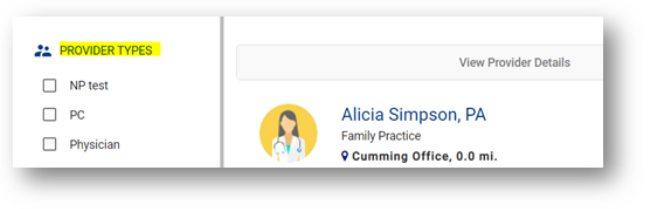
  • Made a code change to ensure that all valid “Provider Types” are available for filtering when a patient self-schedules. Previously, only a limited set of options was displayed. Now, the application will access all valid provider types from the backend database.

  • Repaired a bug that was causing the patient’s distance from a facility to be displayed prior to the patient entering their ZIP code. Now, no distance figure will be displayed until a ZIP code is provided. 

  • Repaired a bug that caused user interface distortion in the Provider Details view.  

  • Repaired a bug that was converting the character ‘&’ into ‘&amp;’ on some screens. 

  • Repaired a bug that was not displaying the left menu option on the cellphone browser. This has been fixed.  


Coordinated Care

  • Repaired a bug that was permitting patients to self-schedule coordinated care appointments for scenarios that should only allow coordinated care in central scheduling. From now on, self-scheduling coordinated care will only be possible for scenarios that are explicitly enabled for DASHself.

  • Repaired a bug that was preventing some coordinated care slots from being displayed in sequential order.


Alternate Provider   

  • Repaired a bug that was preventing some eligible providers from being displayed on the Alternate Provider screen.

  • Repaired a bug that was preventing provider images from being loaded on the Alternate Provider screen.  

DASH version 22.1 Release Notes

<BACK

DASH version 22.1 contains new features and functionality for DASHcentral and DASHself, as well as minor bug fixes. Please contact your Client Success Manager with any questions.

DASHcentral 


Follow-Up & Sequential Scheduling 


Appointment Notes 

Previously, when scheduling an appointment via the Follow Up button, the appointment notes from the original appointment were always carried over to the Follow Up appointment. A new configuration capability has been added to control this behavior. When this configuration is enabled, the original appointment notes will not be carried over to the Follow Up appointment. By system default, the original appointment notes will carry over to the Follow Up appointment.  

If you wish to disable appointment notes from carrying over to Follow Up Appointments, please contact your Client Success Manager or Client Operations Manager for assistance.  


Disable New Patient Flag 

DASHcentral can assign a New Patient flag to a provider on the scheduling screen with each new search that will move them to the top of the Provider/Resource window regardless of their availability. This flag is automatically assigned to guide the scheduler to select the provider that is next in line to be scheduled for a new patient.  

If this feature is utilized, DASHcentral can also provide the ability to track the reasons why a user did not choose the provider with the New Patient flag. If the user does not choose the provider with a new patient flag for whatever reason, this field on the Confirmation screen will prompt the scheduler to identify the reason. 

Currently the New Patient flag is displayed in all scheduling scenarios: new appointment, reschedule, and follow up using the Follow Up button. In most cases, follow-up visits are scheduled with the original provider, hence the New Patient flag can be irrelevant in such scenarios. This results in the scheduler having to necessarily answer the Recommended provider selection question on the Appointment Confirmation page, resulting in an extra step during the scheduling process. 

An enhancement has been made to hide the New Patient flag during follow-up scheduling.  

Please note: The New Patient flag and the Recommended Provider will continue to show for the New Appointment and Reschedule workflows (depending on the configuration). 


Follow-up + Sequential Scheduling 

In DASHcentral, the Sequential Scheduling feature allows the user to schedule multiple occurrences of the same appointment at once with one or more providers. 

Previously, the Sequential Scheduling button was not available when scheduling a follow-up appointment using the Follow Up button. This caused inefficiency in the scheduling process when multiple follow-ups needed to be scheduled. As part of this enhancement, the Sequential Scheduling feature is now available in the Follow Up workflow. 

Additionally, when scheduling Sequential Scheduling in Follow Up workflow, the appointments will carry over the details of the original appointment (e.g., Appointment Notes, any PM-specific data defined in the Additional Details field). This information will be visible in the Appointment Details section of the appointment in DASHcentral and be sent over to the PM system. 

Sequential Scheduling: Auto-Display Earliest Availability 

During the Sequential Scheduling workflow, if no availability exists for any of the providers based on the specified search criteria, the system will now calculate and display a date for a provider that has the earliest availability. The scheduler can utilize this information to modify the search criteria and re-initiate slot search, without having to look elsewhere for availability-related information. The availability is checked for 60 days out from the provided ‘Start Date’ and the earliest available date is displayed. If no slots are available for the next 60 days, a message indicating no availability for any of the providers is displayed.  

Visit Reason Search 

Visit Reason search logic has been enhanced, especially for shorter search strings. This logic enhancement will now return results that are more accurate and relevant to the search string being entered. To achieve these results, the user will now have to enter a minimum of 3 characters (as opposed to the previous requirement of 2 characters) when searching a visit reason search on the scheduling page. 

Triage 


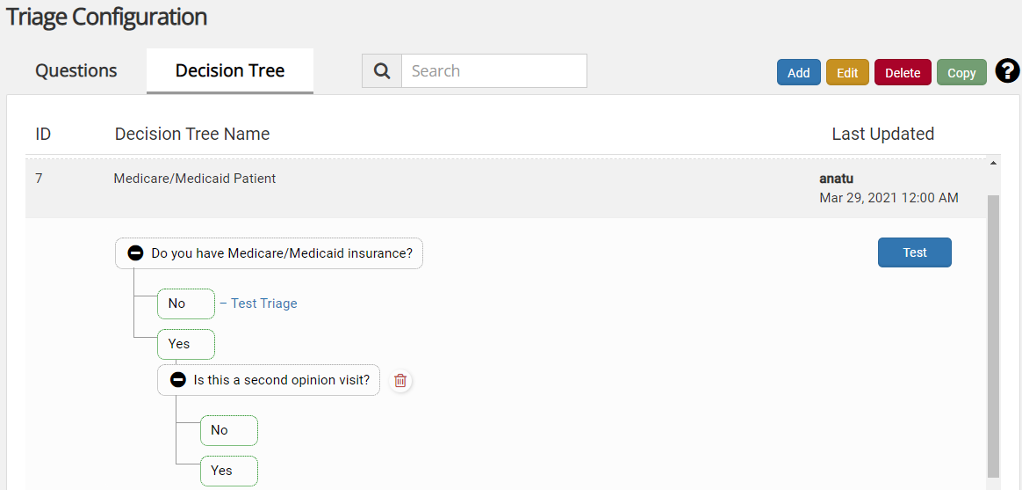
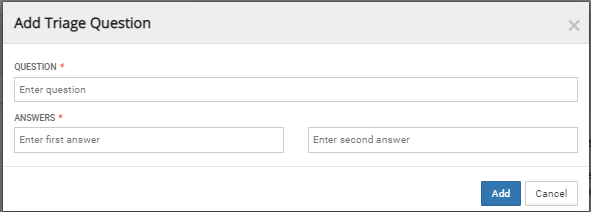
DASH’s Triage workflow takes the user through a guided series of questions to determine the right selection of service, specialty, provider, or any other selection criteria. Triage is a decision tree that is tied to a Visit Reason(s).  

The Triage Configuration screen lists all the decision trees that are configured. The Decision Tree screen will now display the visit reasons that are associated with each decision tree.  

On the Triage Configuration screen, this enhancement will enable the user to easily view the visit reasons that are tied to a particular decision tree for both DASHcentral and DASHself, and to perform any add/edit operations. 

For Triages that are associated with more than 3 visit reasons, clicking on the 'More' link will open a view-only dialogue listing all the visit reasons and let the user search from the list. 

Patient Demographics 


The ZIP Code field in patient demographics will now accept both 5- and 9-digit ZIP codes. When provided by the Google API, both formats will now be accepted by the user interface, stored by the database, and sent over to the PM system. Previously, this field accepted 5-digit codes only, and any digits beyond the limit were automatically truncated.  


View Appointments 


The DASHcentral View Appointments page has an option for users to export/download the appointments listed on the page to an Excel sheet.  

The columns and data in this Excel sheet have been modified to remove duplication and redundancy of data. Column labels have been updated to be readable and user friendly. Below are the specific column changes.

Telehealth 

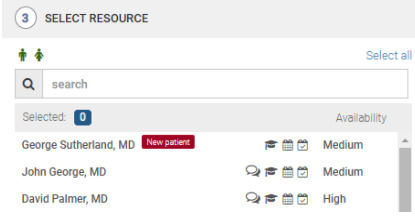
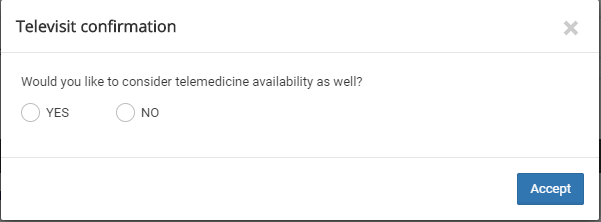
Providers whose templates are exclusively for telehealth appointments AND who have their templates mapped to another service in DASHcentral will now be seen in the list of scheduling resources upon selection of the other service. As a result, the scheduler will not be required to select “Telehealth” as a service to obtain a list of these providers for scheduling.  

Please note: This is applicable only when the configuration in DASHcentral maps the telehealth service to another service (e.g., Office Visit). 


PM-Specific Updates 


Allscripts: Indicate Coverage Type 

This enhancement is only applicable for the Allscripts PM. DASHcentral now provides a Coverage Type (e.g., Medical, Dental, Other) selection when booking an appointment. Schedulers can choose from the list of Coverage Types on the appointment confirmation page. This enhancement aligns with the behavior of the Allscripts PM system and ensures compliance. The Coverage Type selected will be sent to the Allscripts PM. If no selection is made during the scheduling process, the coverage type “Medical” will be sent to the PM by default. 

athenaOne: SSO Setup 

This feature is applicable to athenaOne clients only. For athenaOne clients that use Single Sign On (SSO) for login, an SSO configuration option has been added to the User Setup screen. Setting the “Enable SSO” slider ON will add the user to the list of SSO enabled users, setting the “Enable SSO” OFF will remove the user from the SSO set up.  

Please note: The addition of “EHR User ID” is mandatory at the time of enabling a user for SSO. Failure to do so will result in an error.

For clients/users that currently do not use SSO, the “Enable SSO” slider will remain OFF. Turning the slider ON will display a message “DASH is not setup for SSO.”

eCW: Waitlist Tasking 

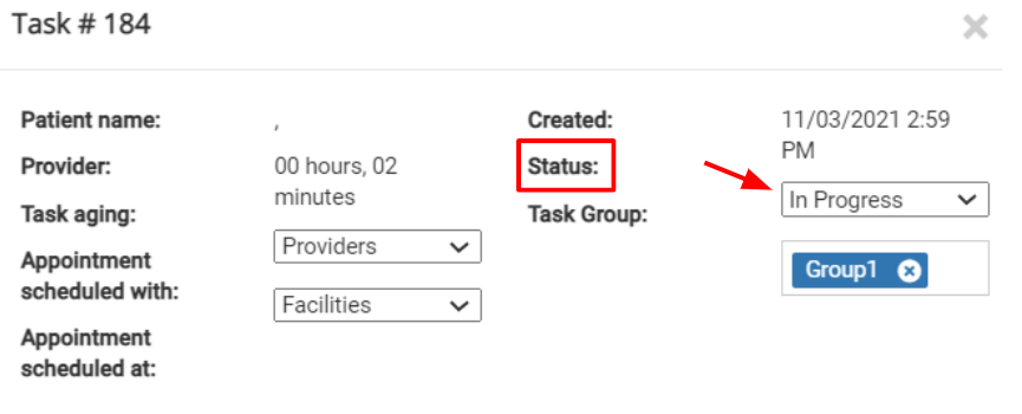
This feature is applicable to eCW clients only. When the system fails to reschedule a waitlisted appointment in the PM system, it will now automatically add an “Async Waitlist Task” to the Tasks List. All necessary patient and appointment details will be available in this task for user reference at the time of patient outreach and scheduling. The “Async Waitlist task” will support the standard Task List workflow.  

NextGen: Subscriber Info Alert 

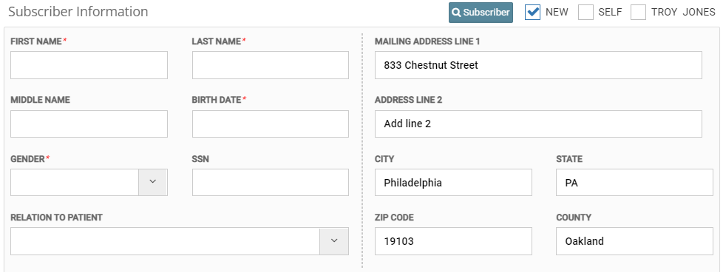
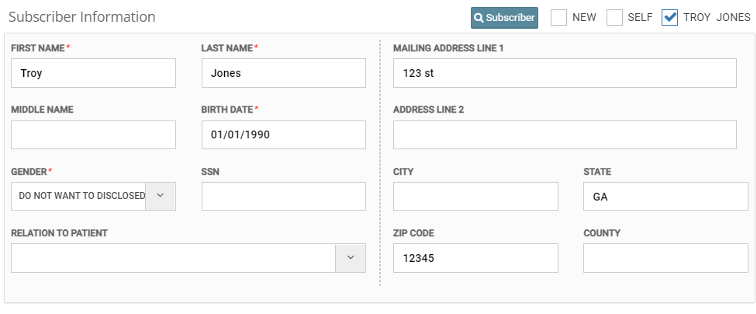
The system will display an error message indicating that any additions or edits to a patient’s subscriber information in DASHcentral (for example, changing the subscriber from Self to New) will also need to be made manually NextGen. Previously, no indication was provided that this step would need to be replicated in the PM. 


Responsible Provider Field  


A change has been made such that the 'Responsible Provider' field, when configured to be shown in the “Additional Details” section on the Scheduling page, will now display a list of in-practice providers to choose from, rather than from the National Provider IDs Table. This has been updated to avoid erroneous selection of providers that are outside the practice, and thus prevent any potential billing issues. 


Bug Fixes 


Alerts 

  • An error/alert indicating that the patient did not have any appointment history was displayed when a patient with no appointments was loaded. This alert has now been removed.  


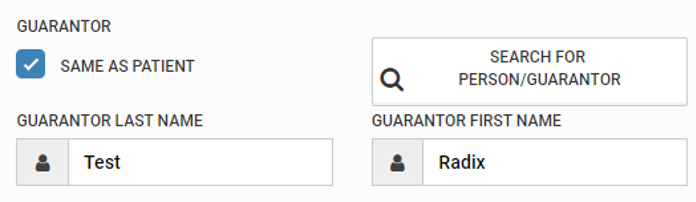
  • Fixed an issue related to the population of the “Guarantor Relationship” field on the Patient Demographics page in cases where “Guarantor same as Patient” is selected. Upon selection of this option, the “Guarantor Relationship” will now be automatically populated with “Self” as a response. This response will persist during any edit/update operations to the patient record, until a new guarantor (who is not the same as the patient) is selected for addition to the patient record and a relationship is selected. 


  • Repaired a bug that occasionally caused a service configuration error to display even in cases where providers were configured correctly in DASHcentral. This occurred when scheduling steps were performed quickly before the slot search was executed. Appropriate controls have been put in place to support rapid scheduling and to prevent the display of this error. 


Activity Log 

  • Clicking “Excel Export” on the Activity Log page will now generate a spreadsheet that contains the same data/rows as shown on the UI of the Activity Log page. This repairs an error that caused extraneous information to be included in the export.  


Appointment Details 

  • Repaired the “Print” button function on the Appointment Details and View Appointments pages.  


Insurance  

  • Repaired a bug that was causing the “Subscriber” entry to convert to “Self” when saving insurance updates in cases where the subscriber was someone other than the patient. This occurred when updating the patient’s insurance information with a new subscriber, but has now been rectified.  


Facility Preferences 

  • Fixed an issue related to the assignment of a specific facility (i.e., any option except for “All Facilities”) at the time of creating or modifying a preference for a provider. The user will now be able to select and assign a specific facility at the time of creating a new preference or copying from an existing preference, and the facility assigned to the preference will be considered at the time of rule execution. 


DASHself 


Alternate Provider 


Version 22.1 improves the self-scheduling experience for patients who need to change their selected provider partway through the scheduling process. 

The current Alternate Provider feature allows patients to continue their booking process without re-keying any information if the initially selected provider is ineligible (e.g., due to insurance restrictions or provider preferences). There are two new enhancements to this feature: 

  • Upon selecting an alternate provider, the patient will no longer be shown a pop-up modality displaying the provider's biographical details. The patient can instead move directly to the next step in the scheduling process (i.e., answering additional questions or selecting their appointment date and time). 

  • When presented with a list of alternate providers, patients will now be able to sort them according to one of two options: 

  1. By proximity, with providers at facilities closest to the patient’s home displaying first 

  2. By availability, with providers who have the earliest schedule openings displaying first 

  • The patient will have the option to select an alternate provider if the initially selected provider has limited availability. 


DASHself / DASHin Rerouting 


DASHself now provides an enhanced patient experience for clients who would like to route patients to the check-in process immediately after scheduling an appointment. Once the appointment is confirmed, the patient will be redirected to the check-in experience without having to re-enter login information.  The patient can then complete check-in during the same session in which they booked their appointment. 


Web view: 

Mobile View:

Appointment Cancellation 


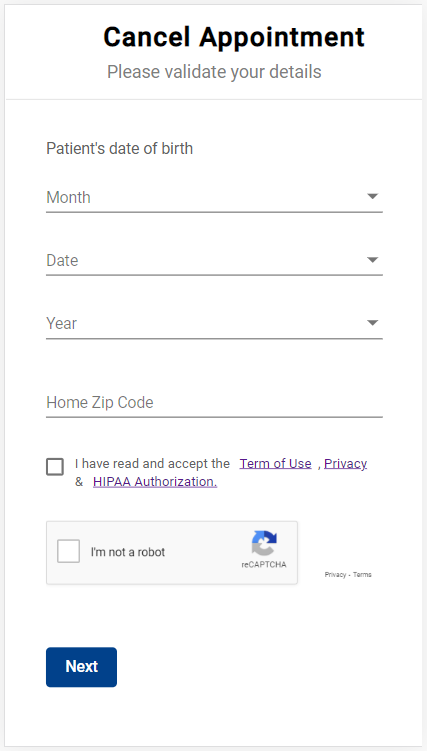
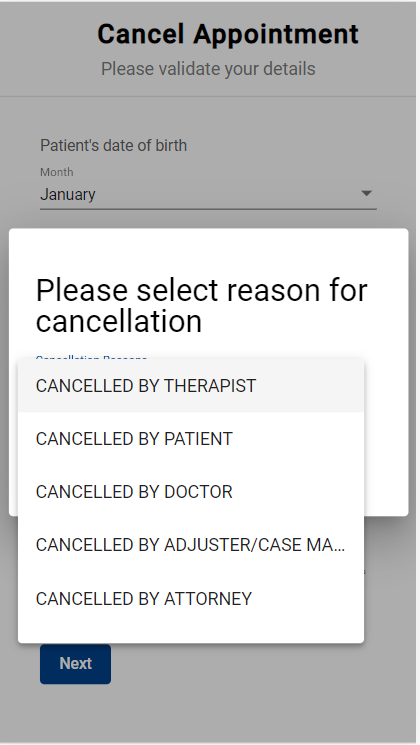
The cancellation workflow via DASHconnect has been enhanced to provide a better patient experience. The patient will be required to select the cancellation option on the authentication screen, rather than on a subsequent screen after hitting the “Cancel Appointment” button.  

This change will reduce the overall time it takes the patient to cancel the appointment via email reminders. Also, with this update, there will be fewer failed cancellations since this will eliminate the possibility of users not realizing that there is a subsequent step required to cancel the appointment. 

Facilities  

The application now supports the option to enable facilities for scheduling in DASHcentral only and disabling them in DASHself. Previously, disabling a facility for self-scheduling required disabling it for central scheduling, also. The new functionality prevents patients from seeing facilities that should only be visible to DASHcentral users (e.g., surgery centers). If you wish to utilize this feature, please contact your Client Success Manager or Client Operations Manager for assistance.  


Notifications Header 


Clients can now include any external webpage URL in the “Important Notification” header on DASHself. Patients will be able to click directly on the hyperlink to be routed to the client’s external website.  

This change will improve the user experience, as patients will no longer need to navigate to the appropriate webpage themselves.  

The message displayed on the Important Notification header is configurable (see the screenshot below). If you want to use this feature, please contact your Client Success Manager or Client Operations Manager for assistance. 

Messaging Consent 


User Interface 

From version 22.1 onwards, DASHself will display messaging consent prompts as Yes / No options instead of checkboxes. 

This change will ensure that all patients clearly understand their options and can easily indicate their preferences. These prompts will be provided to both new and existing patients for every new appointment scheduling instance in case patients’ preferences change over time. 


Voice Messaging Consent 

Patients are now presented with an option to either grant or deny their consent to receive voice messages. This prompt will be seen on the patient demographics screen, along with the previously available prompts for consent to receive SMS messages and email.  

This change will improve the patient experience by allowing patients to opt in or out of receiving voice messages. 

Please note: By default, the voice consent prompt will be shown on the patient demographics screen. If you do not want to display this option to patients, please contact your Client Success Manager or Client Operations Manager for assistance. 

User Experience 


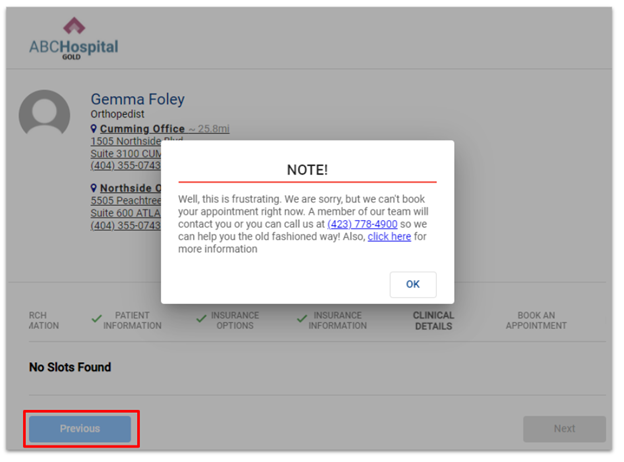
The color of the “Previous” button in the self-scheduling interface has been updated for ease of use. The new button is more easily visible and ensures that patients will not mistakenly interpret it as being disabled.

Bug Fixes 


Insurance  

  • Repaired a bug that prevented the patient’s insurance verification status from updating when booking their appointment online.  

  • Repaired a bug that caused the Insurance form to be displayed even if the patient selected the self-pay option. This issue occurred in cases where the patient initially selected self-pay and then returned to the insurance options from the additional details screen. The insurance form will now be displayed only when the patient selects a valid insurance option. 


Specialty Selection 

  • Repaired a bug that was preventing both the auto-selection of the specialty on the provider list screen, as well as the display of the correct provider list, when the patient searched for a specialty on the provider search screen. Specialty searches will now return only providers who are mapped to the patient’s searched specialty term and will auto select the specialty on the provider list screen.  


Triage 

  • Repaired a bug that was causing Triage questions to be presented twice each when the patient clicked on the “back” button and restarted the scheduling process without refreshing the browser. Now if a patient restarts the scheduling process by navigating back in the browser, the system will only ask each Triage question once, as intended. 

DashIQ

Chief Complaint Report

A new report, the Chief Complaint Report, provides insight into the distribution of appointments during the selected period according to patients’ Visit Reasons. Additionally, it contains the distribution of appointments across all providers, as well as a New vs. Established patient ratio graphic. (Please note: these views only show data from appointments scheduled DASHcentral and DASHself. Appointments scheduled directly in the PM system are not included.)

Third-Next Available Report

The Third-Next Available report now features an option to view data based on templated inventory, which will exclude any DASHcentral provider scheduling protocols from the calculation. For this view, select the “Template” option under the “TNA Based On” filter. Alternatively, the “FindSlot” option will calculate and display the data with provider protocols factored in.

Visual Customization

Certain report visuals will now include options for customization. By clicking the “Personalize this visual” button in the upper right corner of a chart or table, the user will be presented with options such as changing the visual type (e.g., convert a column chart to a line chart), changing chart axes, and changing the data displayed in the graphic.  

This feature enables the user to modify and analyze datasets within the PowerBI application, and without having to download raw data for analysis. The “Personalize this visual” button will be automatically presented for all applicable report graphics.  

“Personalize this visual” button:

Personalization options:

DASHconnect Report Enhancements

  • Fixes have been made to ensure a more comprehensive, more accurate dataset in the DASHconnect report.  

  • The DASHconnect report will now utilize message template descriptions instead of context descriptions. This change simplifies message context reporting. It also reduces the risk of data fidelity issues previously encountered in the report.

New Patient Flag

The “Request for Specific Provider” report now includes a view of New Patient flag usage vs. Appointments scheduled with the patient’s requested provider.  

In the example below, the “No” column represents the number of appointments scheduled with a given provider based on the New Patient flag, while the “Yes” column represents the number of appointments scheduled with a provider based on the patient’s request.  

Additional data (e.g., the distribution of patients’ reasons for choosing a specific provider) are also available where applicable.  

Additional New Filters

Four new options have been added to the filter menu in the drawer on the right side of PowerBI: 

  • Active Facilities  

  • Active Providers  

  • Enable for DASH 

  • Enable for Self 

All four options are binary “Yes/No” filters and will be available for all applicable reports.  

The “Active Facilities” and “Active Providers” filters can be used to query data for facilities and/or providers that are either active or inactive in the client’s DASH environment. These filters allow the user to screen out irrelevant data when evaluating historical information for a period that may encompass facilities and/or providers that are no longer part of the client’s organization.  

The “Enable for DASH” and “Enable for Self” filters can be used to query data for providers who are enabled (or disabled) for scheduling in DASHcentral and/or DASHself. These filters allow the user to analyze data on subsets of providers according to the channels through which appointments can be scheduled on their calendars.  

DASH 21.1 Service Pack #6 Release Notes

<BACK

DASH 21.1 Service Pack #6 contains bug fixes and minor enhancements for DASHcentral and DASHself. Please contact your Client Success Manager with any questions.

DASHcentral 

New Patient flag

  • Repaired a bug to ensure consistent database storage of the user’s reason for not selecting the “New Patient”-flagged provider. This will enable reporting and analytics on these cases for organizations that utilize the New Patient flag and recommended provider dropdown in the appointment confirmation screen. 

Specialty drop-down menu 

  • All specialties will be available for selection in the “Specialty” dropdown on the Appointment Scheduling page, including the “All” option, irrespective of the selected visit reason. 

    (Note: this update reverses a change that had been implemented in the version 21.1 Service Pack 5 release. Following this change, available specialties were narrowed based on the selected visit reason. This filtering will no longer occur.)  

View Appointments page 

  • Users will now be able to see the entire search result set on the “View Appointments” page.  

    Previously, the “View Appointments” page was limited to displaying 500 appointments. If a search returned more than 500 appointments, a message was displayed indicating this limit. Users were unable to see beyond the first 500 appointments without changing the search criteria and performing an additional search. 

    Pagination has been implemented such that each page will now list a maximum of 500 appointments. If the number of appointments exceeds 500, an option to navigate to the next page will be provided to view the next 500, and so on.  

    To prevent performance issues caused by large result sets, a restriction has been placed on the ‘To’ date field, such that dates beyond 7 days from the supplied ‘From’ date will be grayed out and unavailable for selection.  

    The feature that allows the user to download appointments to an Excel spreadsheet has also been modified. The user will now be able to download appointments listed on the page that is currently displayed, with a limit of 500 records. If the total number of records exceeds 500, additional downloads will be required by navigating to subsequent pages and exporting the required result set(s) to Excel. 

    The feature that allows the user to send messages to patients from this page has also been modified. Clicking “Send Message” will now send the message to patients listed on the current page. Users will need to navigate to the next page to contact additional patients. 

Template view display 

  • Fixed a bug that prevented the provider’s calendar from being displayed when clicking on the “Template View” icon next to the provider’s name in the Appointments listing on the landing page.

Waitlist 

  • Repaired a bug affecting the configuration key that controls the last possible date that a patient can be offered a waitlist appointment slot. Using this key, the user indicates the minimum number of days required between the date of the appointment offered and the date on which the appointment becomes available. For example, if the key indicates a minimum of two days, and an appointment becomes available on February 7th, waitlisted patients would be offered this appointment time if the date it becomes available is February 5th or earlier. For updates to this configuration key, please contact your Client Success Manager.  

Facility selection

  •  For Rescheduling and Follow-up workflows, the Facility selected for the original appointment will now always default to the top of the “Facility” list so that the user can easily select it for the rescheduled or follow-up appointment. Previously, in some instances original appointment facility was not visible during these workflows until the “More” option was clicked to load additional facilities. This risked user confusion about why the originally selected facility was not being displayed.  

Please note that this fix will affect the display sequence of the facility that is flagged as the patient’s “Most Visited” in cases where the originally scheduled appointment was at a different location. Previously, DASH displayed the patient’s two most visited facilities at the top of the list. With this change, the most visited facilities will be displayed AFTER the facility of the original appointment during the Reschedule and Follow-up workflows. 

Eliminated appointment slots 

  • Repaired a bug affecting the “Eliminated Slots” display. All slots that are eliminated because of provider preferences will now be displayed in the Eliminated Slots screen. Previously, these slots were not consistently displayed when the “Advanced” button was clicked to yield slots of a different appointment type. This fix addresses both the "Advanced” scenarios, as well as when performing a “regular” search.   

DASHself 

Duplicate patient records 

  • In situations where a patient has two matching records, but only one record is active, DASHself will now automatically utilize the active patient record for online scheduling.  

Provider information display 

  •  Repaired a bug that was preventing the display of associated providers’ information. This occurred when the patient entered a provider’s name or a chief complaint on the search screen and was directed to the provider landing screen. Associated providers’ photos were displayed, but names, titles, and roles were not. This issue has been resolved.  

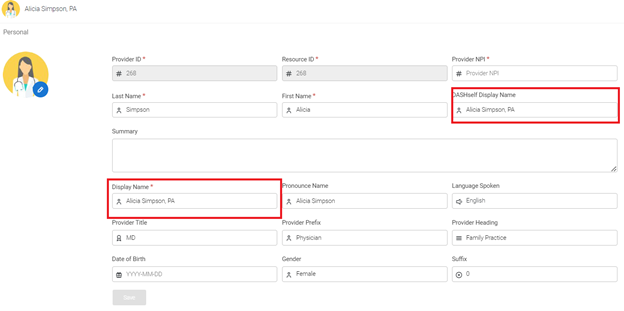
  • If a provider’s “DASHself Display Name” is not entered in Provider Setup, DASHself will now automatically display the provider’s name as shown in central scheduling.  


Facebook Analytics  

  •  DASHself will now support Facebook Analytics. This functionality can be enabled or disabled using a configuration key. If you currently use Facebook Analytics and want to enable this feature, please reach out to your Client Success Manager or Radix Support.

Chief complaint search

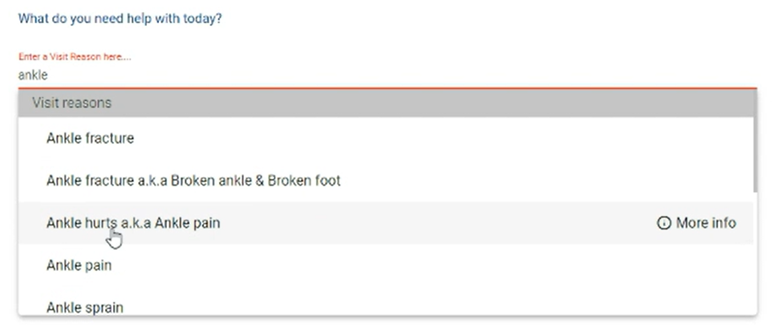
  • Fixed a bug that prevented synonymous chief complaints from displaying properly on the provider landing screen. Any associated chief complaints will now be listed following an “a.k.a.” term in the drop-down menu. 


Appointment rescheduling

  • Repaired a bug that prevented rescheduling via DASHconnect in certain scenarios. This was caused by the system executing DASHcentral rules, instead of rules specific to DASHself. Moving forward, when rescheduling an appointment via DASHconnect, the system will follow the DASHself configuration.  

Browser display   

  • Fixed a bug that prevented DASHself from displaying all available providers on the provider list screen when the browser scale is lower than 100%.  

Appointment search date range  

  • DASHself will now display a provider’s availability for a three-month period starting with their first available appointment date.  

Fax confirmation enhancement  

  •  Referral fax confirmation messages now support inclusion of the patient's last name and date of birth. Previously, only the patient's first name was a valid configuration variable, which was insufficient for referring providers to confirm the identity of the patient in their EHR system. With the patient's first name, last name, and date of birth, referring providers will be able to confirm the patient's identity, keep update-to-date records, and ensure continuity of care. 


DASH 21.1 Service Pack #5 Release Notes

<BACK

DASH 21.1 Service Pack #5 contains bug fixes and minor enhancements for the DASHcentral and DASHself. Please contact your Client Success Manager with any questions.

DASHcentral 

Coordinated care

  • Fixed an issue affecting provider combinations in coordinated care. If multiple providers were selected, combination slots were offered for providers that are not paired together. For example, in a configuration where Provider A is paired with Provider B and Provider X is paired with Provider Y, if the user selects Providers A and X from the displayed list of providers, the search results would show coordinated care slots for a combination of Providers A and X (despite being an invalid option). This issue was predominantly seen when slots for either of the providers in the set up were unavailable, causing the program to create an invalid pairing. This has now been rectified and provider combinations (and time slots) shown in coordinated care output will now follow the configuration set up. 

Guarantor 

  • Corrected an issue related to the pre-population of the “Middle Name,” “SSN,” and “Address Line 2” fields in the Guarantor Information section of the Demographics page. These fields did not pre-populate when searching for a guarantor that is not the same as the patient, even if the information was available on the guarantor’s Demographics page. The issue has now been rectified. 

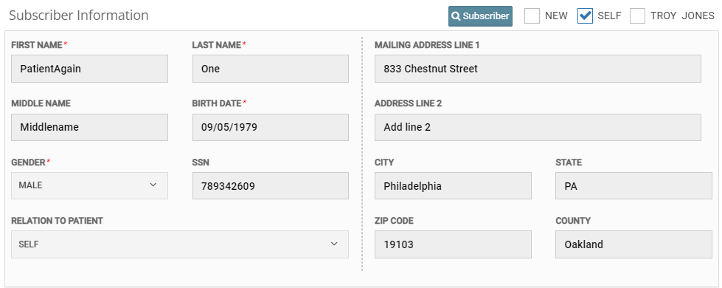
  • Corrected an issue related to the population of the “Relation to Patient” and “SSN” fields in the Subscriber Information section of the Insurance page. Previously, when the user indicated that the subscriber is the same as the guarantor, these fields did not pre-populate from the responses provided in the Guarantor Information section of the Demographics page. This issue has now been rectified.   

Audit reporting 

  • On the Appointment Details screen, the “Audit History” tab captures all activity pertaining to an appointment, such as updates to appointment comments and statuses. This is true whether the actions taken in DASH or the EHR. It has been observed that Audit History currently displays some duplicate information, making it difficult for the user to understand the exact updates. This duplication was occurring whenever a user opened the Appointment Details screen, and the duplicated version displayed the username of the user who opened the details. 

This issue has now been repaired for any New Appointment Scheduling and Cancellation workflows. Duplicate and redundant entries related to updates in the New Appointment and Cancellation workflows have now been eliminated, making the “Audit History” tab cleaner and more legible.

(Note that this fix is the first step towards making sure that only necessary updates are displayed in the “Audit History” tab. Additional workflows will be addressed in future releases.) 

  • Fixed a UI distortion issue on the Audit Reporting page that occurred when the search results contained long text strings (for example, during Guarantor and Subscriber updates). Updates to these fields caused the Audit Reporting page to skew left and required the user to reduce the browser zoom ratio to view the full page. Long text strings will no longer require this adjustment.  

Manual inventory sync 

  • Repaired a bug affecting the “Manual Inventory Sync” function. On selecting the provider and the date range for which the inventory needs to be obtained/synced, the page refreshed but did not respond with updated results. The issue has now been rectified.   

Patient instructions 

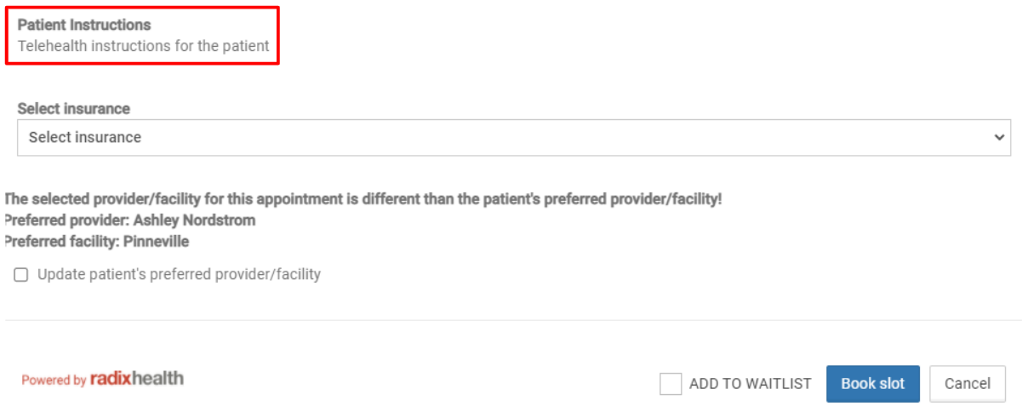
  • Repaired the display sequence of the instructions entered in the “Instructions to Patient” textbox on the Resource Services page. The instructions entered on this page are displayed to the user in the “Confirm Appointment” modal under the “Patient Instructions” heading. In some cases, if the “Enter” key was used to insert line breaks between instructions, the displayed sequence did not match the sequence as entered by the user. (There was no observable pattern to the displayed sequence.) Extensive testing has been performed to ensure the issue is fixed.  

DASHself 

User interface 

  • Resolved a bug that caused providers’ titles to run onto a second line when hovered over by the user, causing distortion to the surrounding text. 

  • Updated the wording of the final button in the self-scheduling process from “Next” to “Confirm.” This will indicate to clients that they have reached the last step in the process and will have a scheduled appointment when the button is clicked.  

Multiple appointment scheduling 

  •  A bug was identified in which the automated URL redirection following a successful appointment booking was interfering with patients’ attempts to schedule another appointment. This was occurring when a patient booked one appointment and then used the “back” button in their browser to return to the initial search screen to book their subsequent appointment. In these cases, the system was not resetting the automated URL redirection time. As a result, the patient’s subsequent booking attempt would be interrupted with a redirection to the designated website once the redirection time limit had been met. (Note that this did not occur in cases when the patient booked the subsequent appointment in a new browser window or used the “refresh” button in their browser.) This bug has been resolved.  

Data fidelity 

  • Resolved a bug that was displaying inactive providers and PAs in the "Need More” options. 

  • Repaired a bug that allowed the application to reference expired age rules. Moving forward, only active patient age-related rules will be considered on the provider search screen.  

Geographic search 

  • The patient’s home ZIP code, which is entered on the initial DASHself screen, will no longer be auto-populated at the patient demographic stage. Many patients prefer to search for providers in or near a ZIP code other than their home ZIP code, and therefore this field will no longer auto-populate.  

Integrations   

Modernizing Medicine 

  • DASH will now utilize the patient MRN instead of individual patient IDs. 


Self-configuration 

  • The “Execute Attribute at Slot” checkbox on the “Preference Attributes” screen is used to indicate whether an attribute should be applied at the slot level. Previously, this box was checked by default when creating a new attribute. This has been changed so that the box will be unchecked by default, and the user will need to manually check it to apply the preference at the slot level.  

Additionally, the tooltip for the “Execute Attribute at Slot” checkbox has been modified to improve its usefulness to users during configuration. The tooltip now reads:  

“Slot-level attributes are utilized to calculate data for each slot that will be offered, such as appointment counts, consecutiveness, or time-based rules. Attributes that can be evaluated at the patient or provider-level, such as Age, Visit Reason, or Insurance, should not be executed at the slot level. Attributes that utilize the @date@, @time@, or @appt_type_id@ variables must be executed at the slot level.” 

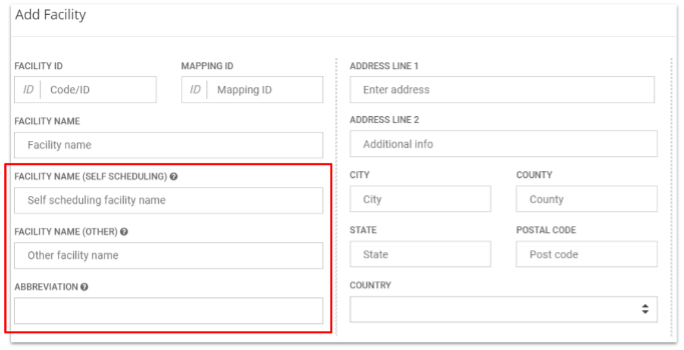
  • The character limit for the Facility Name, Facility Name (Other), and Facility Abbreviation fields has been increased to 200 to accommodate longer facility names. Tooltips for these fields have been updated to indicate the 200-character limit.


DASH 21.1 Service Pack #4 Release Notes

<BACK

DASH 21.1 Service Pack #4 contains bug fixes and minor enhancements for the DASHcentral and DASHself. Please contact your Client Success Manager with any questions.

DASHcentral 

Insurance 

  • Made a cosmetic correction to maintain the letter case of text entered in the “Group ID” and “Policy ID” fields on the Insurance page and the Patient landing page. The text in these fields will now be consistently displayed in uppercase on these pages. 

  • Corrected a minor issue related to the display of the Guarantor Name checkbox in the Subscriber Information section of the Insurance page. This checkbox will no longer display when no guarantor information exists on the Patient Demographics page. Previously, a blank checkbox without a label displayed when no guarantor information was present. 

  • Fixed an issue related to the display of the “Guarantor Full Name” field on the Patient Demographics page. Previously, upon changing the guarantor (i.e., changing from “Guarantor is same as patient” to selecting a guarantor via the “Search Guarantor” function, or vice versa), the field continued to show the details of the previously selected guarantor. The issue has been rectified and the field will now populate correctly based on the newly selected guarantor information.

  • Users who attempt to check the eligibility of a newly created/updated insurance record will now be shown an error message indicating that they must first “save” the insurance information prior to checking eligibility. Previously, when a user attempted to check insurance eligibility without first saving it, a failure error would be shown. The error message, however, would not provide remedial instruction to save the changes prior to running an eligibility check. 

    The new message will read “You are trying to check insurance eligibility without saving the changes. Please save your changes by clicking the SAVE CHANGES button or click Close button to go back.” Clicking “Save Changes” will save the newly added or updated insurance directly from this screen, whereas clicking the “Close” button (or the “X” in the upper right corner) will take the user back to the Insurance listing screen without saving the insurance record. 


Waitlist 

  • Repaired a bug affecting the Task List page. Previously, “Call Waitlisted Patient” tasks were being created even if the patient responded “No” to a Waitlist text message (i.e., even after the patient indicated their preference to keep their original appointment time). Moving forward, the Task List page will no longer include tasks for patients who have responded to a Waitlist text message, regardless of whether or not they choose the earlier appointment option.  

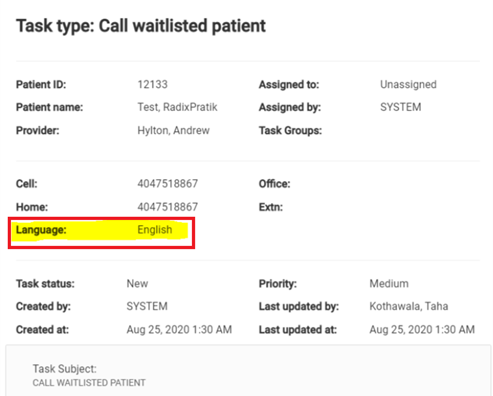
  • For all task types on the Task Details modal, the patient’s primary language will now be displayed below the “Home Phone” field. Inclusion of this information will particularly benefit the users that work on “Call Waitlisted Patient” tasks, as they will now be able to identify the language that can be used for communicating with the patient. The newly added “Language” field will be in sync with the “Language” information displayed on the Patient Demographics page (i.e., any updates made to the patient's language on the Demographics page will be reflected on the Task Details screen.  


Audit reporting 

  • Audit Reporting functionality now captures all updates made on the Demographics and Insurance screens, including Consent changes, Guarantor Information, Subscriber Information, Emergency Contact, and more. The display format of Audit Log will also include a description of the change so as to make the information more readable and meaningful. The “Report Parameters” button has been renamed “Set Audit Criteria” for clarity.


  • Fixed an issue related to the display of the “Submit Report” button on the Audit Report page. Previously, the button remained enabled even when no patient was selected for audit, resulting in the creation of a blank report. Now the Submit Report button will only be enabled when the user selects a patient for whom to generate an audit report.  

Visit reasons 

  • Repaired a bug that was causing Triage responses to be displayed erroneously on the Appointment Details screen. This was occurring in cases in which, during the appointment scheduling process, the Visit Reason was changed from one with an associated triage process, to another without an associated triage process. In these instances, the triage attributes from the original Visit Reason selection were continuing to display in Appointment Details. 

  • Repaired a bug on the Appointment Scheduling page that was infrequently preventing the Triage, Service, Specialty, Provider, and Location selections, as well as available appointment slots, from refreshing when the Visit Reason is changed.  


Password reset 

  • In an effort to simplify the DASH password reset process, users can now update their passwords without responding to security questions. Users will now be able to reset their password just by keying in and confirming their new password. (Note: DASH will continue to retain previously recorded security question and answer information for any users who have already gone through the reset process.) 

Coordinated care 

  • Repaired a bug that was affecting the accuracy of provider details on the Confirm Appointment page during the coordinated care workflow. Certain details pertaining to the second provider, such as facility address and telephone number, were missing from the display. This has now been fully rectified.  

Recalls 

  • Fixed an issue related to the display of patient Recalls. The Recalls modal appeared when the patient’s first and last names were entered in the Search panel, but not when accessed through the Recent Patient Details list. Patient Recalls will now be accessible through either workflow.  

Appointment cancellation 

  • Fixed an issue related to the auto-selection of the previously selected cancellation reason, in cases when the appointment cancellation modal was closed and then opened a second time. Previously, if a user selected a cancellation reason, then closed the modal and reopened it, the same reason would be pre-selected. If the user then attempted to cancel the appointment using this pre-selected reason, an error message would be shown. Moving forward, the 'Choose' option will be pre-selected every time the appointment cancellation modal is opened, and the user will have to select again from the cancellation reasons in the dropdown menu. 

Today’s Appointment page 

  • A visual indicator has been added on the Today's Appointment page to indicate completion of patient paperwork. This will help check-in staff easily identify patients that have completed all their forms. The indicator will appear below the “Details” link when the patient’s paperwork completion status reaches 100%. The indicator will remain visible in the patient record until the patient checks out. 


DASHself 

Provider search 

  • The date range window for available appointment search has been reduced from six to three months. This change will improve the execution speed of DASHself search functionality.  

Thorough analysis shows that a reduced date range will not result in any provider being hidden that was not previously hidden. Currently, the system only displays results for providers who have availability within the next 90 days. As a result, providers with no availability beyond 90 days are not shown in the search results, which makes a search for appointment availability up to six months unnecessary. This update thus aligns the provider display criteria and the appointment availability window, while improving search speed.  

The only change to the patient experience as a result of this enhancement will be an improvement in search speed. Analytics also show that this enhancement will drastically reduce search timeouts. 

  • Repaired a bug that was causing filters not to be reset when a patient selects provider filters for their initial search, and then performs a second search from the provider results page. 

In these cases, the initial filter selections appeared reset in the user interface, but remained active in the back end. This has been fixed so that patients may perform multiple searches and select different filters without issue.  

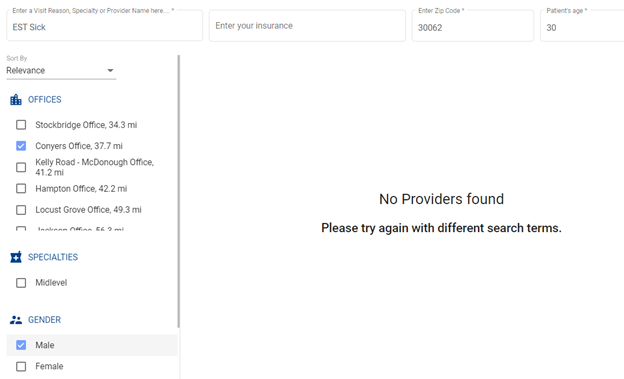
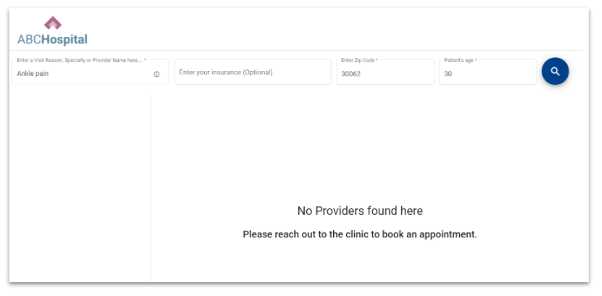
  • Repaired a bug that caused the provider search screen to go blank in the event that no providers matched the search criteria. The menu on the left side of the screen will now be available to help the user to make an appropriate selection. 

Before: 

After:


User interface 

  • Repaired a bug that was causing facility names to display in quotation marks in email reminders to patients. 

  • Patients will now see a “shimmer effect” (also known as a “skeleton loader”) while waiting for the Provider Search page and Search Results pages to load. Patients currently see a blank page while DASHself loads, which can take as long as four seconds or more depending on computer processing speeds. Now, patients will see an outline of the page while it loads, which will be indicated by gray spaces where the content will display. 

Navigation 

  • Repaired a bug that was preventing patients from clicking the “Previous” button if the provider they selected does not have any suitable appointment slots based on the patient’s input.  


Visit instructions 

  • Repaired a bug that was causing some links provided in visit instructions to break.  


Integrations 

GE Centricity 

  • Fixed a bug in GE Centricity-integrated DASH environments that was causing some booked appointment slots to be made available again in DASH for selection. This issue was caused by a lag in the “appointment sync” between DASH and the EHR. Previously, selecting these slots would display an error message. The lag has been eliminated so that booked slots are no longer shown for selection.   

Athena 

  • Made adjustments to ensure alignment of appointment-level insurance selection between DASH and the Athena EHR.   

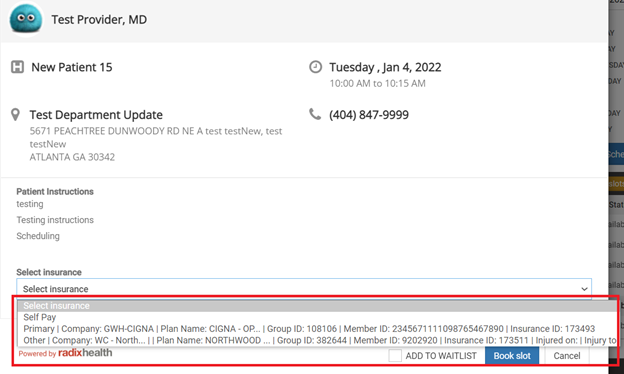
In DASH, the “Select Insurance” dropdown on the Appointment Confirmation page lets the user select the insurance that the patient wants to use as the “primary” insurance for the appointment that is currently being booked/scheduled. In other words, the option that is selected in DASH will be sent to Athena as the primary insurance for that appointment. The “Select Insurance” dropdown in DASH has historically listed all of the insurance options available on the patient record as options to choose from (e.g., primary, secondary, tertiary). However, this list has not been in alignment with the corresponding list when booking an appointment in Athena.  

The scope of this fix is to make sure that the appointment-level insurance selection in DASH is a permitted option for selection in Athena. As a result, the following changes have been made to the insurance dropdown menu on the Appointment Confirmation page in DASH: 

  1. Primary insurance: This option will be available for selection, if the patients' record has a primary (i.e., Priority 1) insurance. 

  2. Secondary and Tertiary insurancesThese options will no longer be available in the dropdown, even if they exist on the patient’s record. This will ensure that insurance stored in DASH as a secondary or tertiary option cannot be captured by Athena as the patient’s primary insurance for the appointment. 

  3. Priority 4 insurances (e.g., Worker’s Comp, Contracts): Any insurance that is listed as “Priority 4” in DASH will be available in the dropdown. (Note: It is possible to have multiple Priority 4 insurances that are active, but there can only be one active primary, secondary, or tertiary insurance in DASH at any given time.) 

  4. Self Pay: This option will always be seen. However, selecting this option will NOT assign “Self Pay” as the Primary Insurance for that appointment in Athena. This option is currently non-functional and is only displayed due to a legacy coding issue. (The issue will be addressed in a future iteration of DASH.) 

To reiterate: 

  • The insurance option chosen in DASH from the dropdown menu will be read as the primary insurance for that appointment by Athena.  

  • Self Pay is excluded from the rule above. It will be visible in the dropdown menu, but will not be passed to Athena if selected.  

  • DASH will no longer display secondary or tertiary insurance options in the dropdown menu when the user selects insurance information to pass to Athena at the appointment level. 

Previous Format

New Format


Self-configuration 

Role access setup 

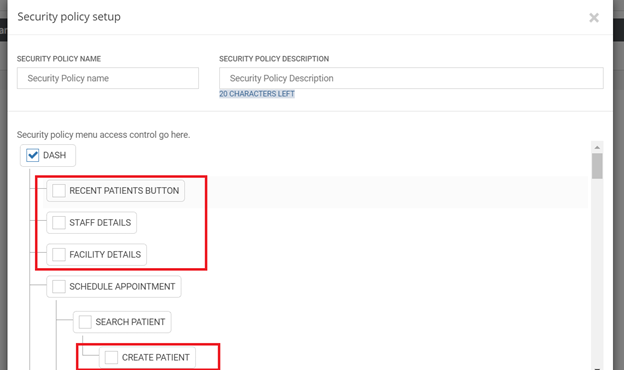
  • Improvements have been made to the “Role Access Set-up” screen in DASH. Additional menu items have been added so as to let the user control access to these screens from the user interface rather than via a database change.  

The following menu items were previously available in the database and have been added to the user interface: 

  • Recent Patient Button  

  • Staff Details  

  • Facility Details  

The following menu items are new in the database and are also present in the user interface: 

  • Create Patient  

  • Report Configuration  

  • Referral Configuration  

  • Self Visitor Log  

  • Referral Management  

  • Today’s Appointment   

The following menu item has been removed from the user interface: 

  • Visitor Logs (This menu item was present under root ‘DASH.’ There was no back-end code associated with this option, so it has been removed.) 

The following menu item has been added to the database in order to support functionality in the user interface: 

  • Coordinated Care Preferences  

Please note: All new menu items will default to “True” (i.e., checked) status. To remove access for a particular user role, it will need to be unchecked. 

Scheduling Protocols 

  • The “Enter” key on the user’s keyboard can now be used to create line breaks when populating the “Instructions for Scheduler” field on the Resource Services page. (The text in this field is used to populate the “Scheduler Instructions” section of the “Scheduling Protocols” on the Appointment Scheduling page.) Previously, the text indicator “:::” was required to insert a line break between instructions in this field. Typing the “:::” indicator will no longer be required; however, instructions that are already configured using this indicator will continue to function correctly in the Scheduling Protocols box.  

Additionally, the rendering sequence of the instructions in the Scheduling Protocols box will now match the sequence configured in the Resource Services page. (Previously, instructions separated by “:::” in Resource Services would display in random order in the Scheduling Protocols box.) 

Insurance 

  • The “Search Employer” field within the “Add Insurance” and “Update Insurance” screens can now be hidden from view via a configuration key. In the System Configuration → Misc → appUIConfig menu, setting the “PT044” key value to “true” will reveal the Search Employer field; setting this key value to “false” will hide the field. The default value for this new configuration key is “true,” so the Search Employer field will remain visible unless the key value is explicitly set to “false.”  

Configuration key

UI display:

Attributes 

  • On the Attributes configuration screen, the response in the ‘Pre-selected answer’ field will now appear selected by default when the associated provider preference question is asked at the time of scheduling.  

Attribute configuration

UI display:

Facility setup 

  • Updated the descriptive tooltip for the Abbreviation field in the Facility Update view. The tooltip will now read “Name of the Facility seen in On-Demand messages and Connect reminder emails, texts, and voice.” 

DASH 21.1 Service Pack #3 Release Notes

<BACK

DASH 21.1 Service Pack #3 contains bug fixes and minor enhancements for the DASHcentral and DASHself. Please contact your Client Success Manager with any questions.

DASHcentral

User Alerts

  • A “processing pop-up” has been added on the Today's Appointment page that will be displayed when the user clicks buttons such as 'Patient Arrived', 'Cancel Check-in' etc. This pop-up will provide an indication to the user that the current request is being processed and will eliminate the possibility of multiple clicks on the same button.

  • Fixed an issue that caused patient alerts to be displayed multiple times if the user clicks “Search” a second time after the search is already running. 

  • An error message will now display during the simultaneous/family scheduling workflow if the user attempts to select the same slot for multiple patients during the appointment booking process. The message will indicate to the scheduler that the intended slot has already been selected for another patient, and that a different slot needs to be selected for the patient in question.

Data Entry Validation

  • Validation has been added to the Email field on the Patient Demographics screen, so as to not allow the usage of the forward-slash (“/”) character. The field will now be highlighted in red if the entered email address contains a forward slash. This update ensures alignment with EHR systems.

  • Added a validation step to require that the “Cell Phone” field be populated on the Patient demographics page. The user will be shown an error message when attempting to add/update a patient without populating this field. Previously, patient add/update failed silently, without the user knowing that this field is mandatory.

Reschedule & Follow-up Workflows

  • In the Reschedule and Follow-up workflows, only Providers belonging to the Facility that was selected at the time of scheduling the original appointment will be shown, and the Provider for the original appointment will be pre-selected. If the provider of the original appointment is associated with multiple Facilities, all these Facilities will be displayed, with the Facility of the original appointment pre-selected. The purpose of this update is to keep the Provider and Facility list in sync with each other and avoid scenarios where Providers that do not belong to the selected Facility are displayed.

Waitlist

  • Repaired a bug to ensure that waitlist messages will now be sent to the patients whose original appointment scheduling process included triage questions. The system can now read the answers that were provided during triage for the original appointment, thus eliminating the need for those questions to be answered during the waitlist processing flow. As a result, waitlist execution is no longer blocked as a result of missing answers to triage questions, and waitlist availability is being offered to these patients as intended. 

  • For clients whose DASH system communicates asynchronously with the EHR (eCW), patients who select the “Yes” response to a waitlist message will not be shown an appointment reschedule success message until the appointment has been confirmed in the EHR. This will eliminate scenarios in which the patient receives a successful reschedule message, but the appointment fails to get booked in the EHR.

Coordinated Care

  • A fix has been made to coordinated care logic such that when two providers are mapped to each other in the coordinated care set up, appropriate preference questions and appointment slots get displayed for each of them. When scheduling coordinated care appointments with two providers who are mapped to each other, the system will now consistently display the correct provider for each appointment slot, and surface the appropriate preference questions for each provider. (Previously, for some coordinated care appointments, the same provider was showing for both appointments.)

  • Repaired a bug that prevented coordinated care from working in conjunction with telehealth appointments. When scheduling coordinated care appointments, there will no longer be any effect on the display of slots when switching between telehealth and non-telehealth appointments. 

  • Repaired a bug that was affecting the indicated Appointment Day for the second provider of a coordinated care setup on the Appointment Confirmation screen. The Appointment Day now seen on this screen will align with the day shown/selected while booking the slot.

User Interface

  • The "Update Extension" option has been removed. It will no longer be visible when the user clicks on the profile image of the landing page.

  • Fixed a UI distortion bug affecting the “Preferred Provider” and “Preferred Facility” fields on the Demographics page. These fields will now allow for larger text strings. The recommended browser zoom for this to display accurately is 100%.

  • Made a cosmetic fix in the “Referring Provider” field on the Demographics page. A referring provider without a listed address will no longer have a comma appear after their name.

DASH User Setup

  • The “Orders User Groups” field on the User Setup page has been made non-mandatory. The user will now be able to leave the field blank and proceed with creation of a new user. (In the event that a user enters data in this field, it will display again upon any edit/modify operation.)

  • Users with usernames longer than 50 characters will now be able to update their password without error.

Specialty filtering / type-ahead functionality

  • The Specialty dropdown displayed on the Appointment Scheduling page will now be filtered based on the selected Visit Reason. The specialties offered will be based on the specialty mapping (which can be set in the Visit Reason Configuration page or DASH360). An “All” option will be displayed at all times, along with any applicable specialties.

Data fidelity bug fixes

  • A fix has been made on the View Appointment page to ensure that the data displayed in the “Category” and “Facility” fields consistently matches the information seen in the Appointment Details page.

  • Repaired a bug that was causing some appointments to be duplicated in the patient’s Appointment History.

  • Repaired a bug that was causing Inactive flags to appear next to insurance names unintentionally. 

  • On the Provider Preferences page, only the preferences of the searched/entered provider will be displayed. Previously, a bug caused preferences for another provider to be listed, and not for the searched provider.

  • Repaired a bug that was preventing Urgent appointment slots from displaying on the “Eliminated Slots” screen.

DASHself

Specialty filtering / type-ahead functionality

  • Search functionality on the initial DASHself screen has been optimized. The dropdown menu for the chief complaint, specialty, and provider search will no longer be affected by the use of special characters in the patient’s search. Results will also update more accurately as the patient types their search terms. 

  • The search API has been optimized to display more relevant results in the Visit Reason and Insurance search dropdown menus. 

  • Repaired a bug that was preventing eligible providers from appearing on the provider search screen when the Specialty filter is applied. 

  • Made code updates to improve provider search speed when filtering by specialty.

User alerts

  • In workflow event functionality, “Warning” action items will now display to the user without putting a hard stop on the scheduling process. (Only “Stop” action items will have this effect.)

  • An alert message will be displayed in the event that no providers fit the patient’s search criteria.

Insurance Updates

  • DASHself will now ensure that all insurance information pertaining to the patient will be passed to the EHR. DASHself will still only allow patients to add their primary insurance plan; however, when updating the EHR, DASHself will also send secondary and tertiary insurance details if they are already stored in DASH.

Integrations

CPS

  • Fixed a bug that affected some List Order scenarios. (List Order is a CPS concept in which multiple appointment slots exist and are eligible for a single time, provider, and place.)

Cerner

  • An enhancement has been made to allow for Appointment-level consent to be stored as a part of DASH appointment data.

NextGen

  • The “Search in EHR” button will no longer be displayed on the Insurance Search page for NextGen clients. This button exists for other PM systems, but is unavailable with the NextGen integration. The insurances are pulled from patient records and populated.

Allscripts

  • For clients on the AllScripts EHR, a limit of 80 characters has been set for the Appointment Notes field on the DASH UI. This check aligns with the character limit that exists today in the AllScripts Appointment Notes field. The user will not be able to enter more than 80 characters in the “Notes” field under “Additional Details” on the Appointment Scheduling page.

  • Repaired a bug to ensure that the patient’s status in DASH will match the patient’s status in the EHR. 

Configuration

  • A new field, “Reason to Update,” has been added on the Preference Attributes configuration screen to track any updates made to Attributes. This field captures the user’s rationale for making the update. Other information related to the update, such as the user’s name, a timestamp, and the update reason are now displayed below the field. 

  • Repaired a bug to ensure that an Attribute’s value will now be visible when a 'Rule' is viewed or modified on the Rule Configuration screen.

  • Slot-level preferences now support ‘@duration@’ and ‘@date@’  variables. These variables represents the duration and date of the appointment, as determined in Resource Services or as used in rules that utilize these attributes.

  • Three new fields have been added to the Facility set up screen: Facility Name (Self Scheduling), Facility Name (Other), and Abbreviation. This enables immediate self-configuration, rather than requiring Radix support.

  • If multiple providers share an identical name (i.e., same first name, last name, and display name), the provider(s) in Active status will be displayed first, followed by Inactive provider(s). This will be true on both the DASH 360 and provider set-up screens.

Previous Format

New Format

  • Repaired a bug that, in rare circumstances, was causing Visit Reasons added through DASH 360 to get deselected unintentionally. This would block these Visit Reasons from appearing during the scheduling workflow. 

  • Repaired a bug that was causing some attributes not to display after modifying a rule. 

  • Fixed an issue with the “Tags” fields on the CPS Visit Reason Configuration page. The tags available in System Codes table 200 40 were not displayed as options to select from. The tag list will now populate correctly for this field and the user will be able to select from the available options.

  • Repaired a bug in order to support adding slot-level rules for detecting day of the week and assigning appointment type accordingly based on day-of-week configuration.

DASHself Functional Design Document

BACK

DASHself

DASHself leverages many of the rules and workflows within DASHcentral, but there are design considerations that should be reviewed to ensure your patient self-scheduling workflow meets your expectations. This document outlines a description of those features so you can choose the option that works best at your organization The implementation team will utilize a combination of these design decisions and your data template to design, configure, and test your DASHself environment. You will complete the grid by filling out your decisions in the third column as seen in the attached file. For any questions or clarifications, please reach out to your Client Operations Manager.

DOWNLOAD PDF HERE

DASHcentral Functional Design Document

Back


DASHcentral

DASHcentral has a variety of customizable features within the scheduling platform that are able to be modified or updated to meet your needs . This document outlines a description of those features so that you can choose the option that works best at your organization. The implementation team will utilize a combination of these design decisions and your data template to design, configure, and test your DASHcentral environment. You will complete the grid by filling out your decisions in the third column as seen in the attached file. For any questions or clarifications, please reach out to your Client Operations Manager

DOWNLOAD PDF HERE

DASH Marketing Recommendations: Introducing it to Your Patients

BACK

Introduction

Implementing DASH is more than simply purchasing a new technology subscription. In order to use the solution to truly transform the patient experience, it requires organization-wide collaboration internally, and a clear plan for roll-out and communication externally. In this guide we outline sample plans and resources that you can use to ensure a successful DASH implementation. The best way to use this document is as a template version of a checklist. Pick what you think is important, plan what is accessible via your existing marketing and communication channels, and modify as needed for your practice.  

Set A Goal

Setting a goal allows you to determine which tactics to deploy. Since you have limited time (even if you have unlimited money), it is important to focus only on tactics that will help you meet your goal. We outline some example goals below so you can pick one or two to align your campaign around:

  • Potential Operational Goals

    • DASHin:

      • At least 50% of patients overall can complete mobile check-in 

      • Reduce wait-time to under five minutes for 80% of patients

      • Collect co-pays from at least 50% of patient prior to appointment visit

    • DASHself:

      • At least 12% of patient appointments are self scheduled

    • DASHconnect:

      • At least 75% of patients are confirming, cancelling, or rescheduling appointments

  • Potential Financial Goals

    • DASHin:

      • Drive patient volume using mobile check-in as a differentiator, increasing utilization by 5% 

      • Increase POS collections by 10%

  • Potential Experience Goals 

    • DASHin:

      • Institute standardized patient intake experience across practices

    • DASHconnect:

      • Increase patient NPS by 10 points over a 3-month period 

Segment Your Audience 

Understanding your audience will help you execute on a successful launch for DASH. Messages and promotional activities that work for one segment of your audience may not be well suited for others. We advise clients to start with the following audience segment. Yours may be different.

  • Existing patients: these are patients that have recently visited your practice and are likely to visit you in the near future. 

  • Past or new patients: these are patients that have not recently visited your practice and may be a good target audience for patient acquisition.  

  • Employees: your internal teams can ensure that patients feel empowered and that their inputs are received, acknowledged, and appropriately addressed. Ensure they’re up to speed on the offerings, ways to communicate the information to your patients, and commonly asked questions.

  • Community stakeholders and influencers: these may be a smaller group of individuals that can help spread the word about your efforts on meeting consumer expectations to the benefit of your practice.

Plan Your Promotional Tactics

To get started we recommend the following tactics to ensure that your mobile check-in solution is adopted quickly and helps you meet your goals. You may already be working with an agency that can provide more tailored material for you but if that’s not the case, you’ll find some of these resources particularly valuable. 

  • Press Release - publish a press release highlighting your selection of a mobile check-in solution (audience: influencers) See Radix Health press release template

  • Contact reporters - use your local connections to secure an interview about your mobile check-in solutions to ensure that the impact of your press release is amplified (audience: influencers)  See Radix Health sample email

  • Communicate with your teams about the investment in DASHin and how they can help (audience: employees) See Radix Health sample email

  • Feature an image on the homepage of your website announcing mobile check-in or contactless check-in (audience: existing patients) See Radix Health website image example 

  • Create a landing page to highlight your investment in a digital check-in solution. We have created some material you can use as a starting point. See Radix Health website landing page template  

  • If you have an automated voice recording that plays when patients are on hold while scheduling an appointment, for example, update the messaging to include an announcement about activating mobile check-in (existing patients) See Radix Health sample script

  • If you currently have a monthly newsletter that goes out to all patients, include an announcement about activating mobile check-in (audience: existing or new patients) See Radix Health sample messaging

  • If you frequently run postcard campaigns to residents in certain zip codes, run a campaign around activating mobile check-in (audience: existing or new patients) See Radix Health postcard template

  • Do you have a patient advisory board? If so, ask them for ideas since they will have more creative and contextually relevant tactics and will amplify your message (audience: influencers)

  • Social media - plan a social media campaign that includes images of mobile check-in (audience: employees, existing patients) See Radix Health social media image templates

  • Get your providers on board. If they mention to patients that they are excited about mobile-check in, patients are likely to react positively and, in turn, tell others

  • Modify your appointment reminders to include messaging on digital check-in. When patients are scheduling an appointment, tell them that you will be sending them a link to complete their form electronically. See Radix Health sample messages

  • In-office artwork: Use posters and placards in your practice to advertise mobile check-in See Radix Health poster template

Plan Your Rollout

Not everything needs to or even should be activated at once. We recommend creating a roll-out plan as follows:

  • Three months before Go-Live: 

    • Review your check-in experience across your locations and create a plan for what it should look like. Too often we find that practices have disparate procedures in different locations. Sometimes, these add complexity to every part of roll-out without adding any value to the practice or benefit to the patients. Complexity isn’t always bad, just make sure that it’s worth the drag. 

  • One month before Go-Live: 

    • Ensure that your internal stakeholders are aware of the upcoming roll-out. 

    • Set the expectation that you will need their help in a successful roll-out.

    • Establish a point-person internally to answer stakeholder questions and concerns.  

    • Identify reporters to reach out to for a story around digital check-in.

    • Build social media posts, emails, and other assets, communications, and collateral to prepare for your roll out.

  • At Go-Live: 

    • Get your internal stakeholders excited. Their enthusiasm will be far more effective than any poster we can co-create. 

    • Appoint one person to collect, review, and share feedback on the mobile check-in process from clients and users across locations. 

    • Publish press release and push social media posts live.

  • Two weeks after Go-Live

    • Begin addressing feedback from patients. Identify any areas to fine tune and re-share via social, email, or other channels as appropriate.

  • One month after Go-Live

    • Share KPIs and success metrics internally. Pick one or two numbers that everyone can rally around. 

  • Six months after Go-Live

    • Review KPIs and create collateral highlighting positive patient feedback for subsequent campaigns.

  • One year after Go-Live: it’s time to take those posters down, if you haven’t already.

Templates & guidelines

Found in Appendix of linked PDF

DOWNLOAD PDF HERE

DASH 21.1 Service Pack #2 Release Notes

<BACK

DASH 21.1 Service Pack #2 contains bug fixes and minor enhancements for the DASHcentral, DASHself, and Dashin applications. Please contact your Client Success Manager with any questions.

DASHcentral

Guarantor / Subscriber Enhancements

  • Made the following enhancements to the system logic for managing Guarantor and Subscriber information:

    • The user will be able to auto-populate information in the Guarantor Details section of the Patient Demographics page if the guarantor is an existing person in the system. The user can either select the “Same as Patient” radio button; or perform a search for an existing person.

  • The patient insurance details will have the following toggle buttons to select the subscriber:

  • Subscriber Search: the user can search a person’s name if the subscriber is an existing person in the system.

  • New: Selecting this option will clear the subscriber information fields and allow the user to key-enter new details.

  • Self: The user may check this option if the subscriber is the same as the currently selected patient. Note that selecting this option will lock the Subscriber Information fields from editing.

  • Guarantor: If guarantor information is present in the patient’s Demographics, the user may select this option if the guarantor is also the subscriber.

Task List Bug Fixes & Enhancements

  •  Repaired a bug so that the Task List can now be filtered by the 'Cancelled' status.

  • Previously selected filter conditions in the Task List will now be retained in the 'Search' modal for a user session.

  • Fixed a minor issue that occasionally caused Task status updates to fail.

Patient Instructions Alert Screen Bug Fix

  • Repaired a bug to ensure that Patient Instructions will now display consistently on the Appointment Confirmation page for Telehealth appointments.

Self-configuration Enhancements and Bug Fixes 

  • Decision Trees created for Triage will now render correctly in the user interface, and will no longer display an error when Decision Tree ID is selected.

  • Repaired a bug that was causing a blank page when search for a provider in the Resource Template section of the Configuration menu.

  • Fixed a UI bug in the 'Tag' field on the Central > Configuration > Resource Service page. The overlapping boxes above the field are now removed.

  • The character limit for the fields “Attribute Question For DASH” and Attribute Question For DASHself” on the Preference Attribute screen has been increased from 100 to 200, in order to allow for the configuration of lengthier pop up questions/preferences.

Central Scheduling: Ease-of-Use Enhancements and Bug Fixes

  • A change has been made to the listing order of appointments on the View Appointments page. Sorting the appointments in 'ascending' order will list all the AM appointments for a given day, followed by the PM appointments. Sorting the appointments in 'descending' order will list all the PM appointments for a given day, followed by the AM appointments. When appointments for multiple days are viewed, sorting in ascending order will follow the 'From-date AM' to 'To-Date PM' sequence.

  • When rescheduling an appointment, the selected Specialty from the originally scheduled appointment will be retained. The resulting provider list will thus be limited only to providers in that specialty, instead of defaulting to “All.”

  • Repaired an issue causing duplication of the “Ineligible” label against provider names on the Appointment Scheduling screen.


DASHself

User Interface Improvements 

  • The Google Maps icon will no longer display on the appointment confirmation screen for telehealth appointments.

  • Repaired a bug that was preventing the patient’s preferred facility from displaying consistently across all self-scheduling steps.

  • The “Payment” option will no longer be displayed from the top screen menu when not applicable.

  • Removed the “Previous” button from the Patient Information screen.

User Experience Improvements

  • Repaired a bug that was forcing some patients to re-enter their insurance information when navigating to a prior step in the scheduling process, even if no updates were required.

  • Repaired a bug that caused the Insurance Information screen to be bypassed if the patient navigates back and makes a revision to information in the Patient Information screen.

  • Repaired a bug that was causing unpopulated non-mandatory fields to prevent the patient from progressing through the scheduling process.  

  • If the patient selects a facility from the drop-down list, that location will now display consistently as the primary facility on the provider search screen.

  • If a patient selects a Specialty from their initial DASHself search, they will now be prompted to indicate a Visit Reason after choosing their provider from the resulting screen. This change simplifies the search process and avoids the risk of patient confusion.

Communications Consent Bug Fix

  • A bug was found that caused self-scheduled patients who did not check the communications consent box at the time of scheduling, but who had already granted consent when their patient record was created in the EHR, to have their consent status set to “No.” This has been resolved so that if a client leaves the communications consent fields blank at the time of scheduling, no update will be made to their patient record.  

Appointment Date & Time Bug Fix

  • Fixed a bug to ensure that appointment date & time information matches correctly across all communication modes.

Linked Providers Improvements

  • DASHself logic for auto-selecting associated providers (i.e., PA with MD, or vice versa) will now be consistent with the equivalent logic in DASHcentral.

  • Repaired a bug to ensure that MDs or PAs with multiple linked providers will have all linked providers displayed in DASHself


DASHin

Signature Page user interface

  • Mobile & tablet user interface updates:

    • The patient will be prompted to both type their name, as well as provide a digital signature using the touchscreen.

    • A consent checkbox will be displayed below the signature box field with an asterisk requiring the patient to complete this portion prior to proceeding.

    • If the patient does not both type and sign their name, the field background will be highlighted in red and instructions will be displayed to the patient as follows: “Please make sure you provide your signature. You will need to fill out all the forms again if your signature is missing.”

    • Patients will not be permitted to type as an alternative to free-hand signing on mobile devices.

    • For witness signatures, the user will still have to type their name into a text field. This typed response will also be added to the PDF.

  • Desktop user interface update:

    • The patient will be prompted to type their name. A text box below this space will display a preview of their digital signature.

    • The digital signature will only be editable by changing the typed text.

    • A consent checkbox will be displayed below the signature box field with an asterisk requiring the patient to complete this portion prior to proceeding.

    • If the patient does not both type and sign their name, the field background will be highlighted in red and instructions will be displayed to the patient as follows: “Please make sure you provide your signature. You will need to fill out all the forms again if your signature is missing.”

    • A similar process will be followed for the witness signature. The prompt will read “Please have your witness type their name on the line below.”

  • The patient will be shown an error message if they type more than 50 characters in the space for their name on mobile, tablet, and desktop formats.

  • The “Next” button is clickable, as on previous DASHin screens, but will be disabled until all required portions of the form have been completed.

    • If any required fields are unanswered, a notification will prompt the patient to “Please fill in all required fields.”

    • Once the form has been completed, the next button will show “Next” when the user hovers over it.

Check-in Process Bug Fix 

  • Patients will not be prevented from advancing through the check-in process due to non-essential errors such as logos not displaying.

Patient Experience Improvements

  • Fixed an issue causing conditional questions to display in one long sequence. Conditional questions will now each display on a new text line.

  • Updated the rendering of "Yes" and "No" radio button responses in the DASHin PDF.

Previous Format

New Format

  •  Improved error messages for brevity and clarity to enable easy remediation.

  •  Fixed a spelling error on the DASHin Terms & Conditions page.

Check-in Staff Ease-of-Use Improvements

  • Repaired a bug to prevent a token from being generated if there are no attached forms.

  • Conditional questions will now be suppressed from the check-in PDF if the patient answers "No" to the parent question.


Integrations

ECW

  • Added an enhancement that allows for newly added referring providers in eCW to update consistently in DASH.

  • Fixed an issue with eCW integrations that was causing slots to be improperly booked on some providers’ schedules.

Allscripts

  • Made a fix to Allscripts integrations for APM patient syncing to correctly store patient balances when either positive or negative.

Athena

  • Updated Athena integrations to modify handling of exceptional cases where Deleted status patient records in one department caused the patient record to become inactivated during check-in.

Download

How to Optimize Triage In DASHcentral

Back

How Does Triage Work in DASH?

Triage is designed to guide the patient through a series of Yes/No & Either/Or questions that provide further detail for the reason for visit. Triage can be optional or required, and can be assigned to singular chief complaints or multiple chief complaints. 

Triage questions should be used if the patient’s answer could impact the scheduling workflow - triage can:

1) Limit the services offered

2) Prompt the provider specialty

3) Limit the providers able to treat the patient 

4) Guide the correct appointment type

You can view an example of how triage works here

How to Optimize Triage Workflows: 

Radix recommends using triage for the following scenarios:

  1. If a chief complaint can indicate symptoms that require emergency, stopping the scheduling process

    • Example 1: Patient has a compound arm fracture - direct patient to emergency room

    • Example 2: Patient has bowel or bladder dysfunction relating to a spine injury - direct patient to emergency room

  2. If a chief complaint may apply/overlap across multiple specialties, and different symptoms may prompt the scheduler to choose a particular specialty

    • Example 1: Patient has a shoulder injury that radiates down their back - schedule with a Spine specialist

    • Example 2: Patient is seeking a non-surgical opinion - schedule with a PM&R specialist

  3. If certain chief complaints require that certain process checks have been completed prior to scheduling

    • Example 1: Patient is having recurring migraines and wants to see a neurologist, but hasn't been to their PCP for the same issue

    • Example 2: Patient is scheduling an appointment for workers compensation, but can’t provide the required case policy information in order to proceed with schedule

Avoid Triage for:

  • Something that requires clinical expertise - Radix triage is not meant to replace a line of questioning that may require professional clinical training. Instead, consider a triage question that directs the scheduler to transfer the call to a medical professional 

  • Administrative reminders - adding stops and additional clicks in the scheduling process strictly for the purpose of a training reminder can frustrate schedulers. For example, refrain from building in reminders to greet patients a certain way or offer directions to the clinic

Data Collection for your DASH Environment:

Be sure to indicate what should happen in the scheduling process depending on how triage is answered. 

Chief Complaint:

Shoulder

Triage Question:

  1. Is your injury the result of a sports accident?

    • If yes: Schedule with a sports medicine specialist

    • If no: Proceed to question #2

  2. Have you had prior imaging performed?

    • If yes: Proceed to question #3

    • If no: Proceed with scheduling


DOWNLOAD A PDF OF THESE INSTRUCTIONS


DASH New Patient Flag Overview

BACK

What is the New Patient Flag?

The New Patient flag is a red icon in the DASHcentral scheduling screen that suggests to schedulers which provider should receive the next new patient. 

Assignment of the New Patient flag depends on the calculation option selected by the client (see available options below).  

Screen Shot 2021-10-07 at 10.17.25 AM.png

The New Patient Flag feature enables your practice to:

  • Discontinue manual new patient allocation tracking and assignment - the  flag will automatically display for providers who treat the selected chief complaint and age range of the patient

  • Collect the reason for why a scheduler did not schedule a new patient with the provider with the flag - the flag only serves as a suggestion. If you wish to track why the new patient flag is not being followed, a separate popup question to the scheduler must be configured for this. Answers to the popup can be viewed in PowerBI.

  • Customize which providers are included in the rotation. 

How is the New Patient Flag Calculated?

Practices can choose which calculation meets their needs. Please note that in order for the New Patient Flag distribution methods to have the desired outcome, schedulers should be trained to consistently follow the suggestion.

Option A: Equal Opportunity

The equal opportunity method is designed and calculated to give each provider an equal number of chances to receive a new patient by randomly assigning the flag to one of the available providers. This distribution method is statistically proven to even out over time. Providers with availability to see more patients (based on fewer restrictions from chief complaints, provider preferences, etc.) may be favored because they will appear in the list of eligible providers more often, and therefore have more chances to be assigned the flag.

Screen Shot 2021-10-07 at 10.17.45 AM.png

Considerations:

Randomization takes time for the new patient flag distribution to even out, and short term surpluses or shortages can occur. 

Option B: Equal Distribution

The equal distribution evaluation is designed to provide each provider with the same percentage of new patients coming into the practice. Based on the providers’ schedules, the provider with the lowest percentage of future new patients is assigned the New Patient flag to help balance out the distribution among the entire practice. In short, Provider A has 3 new patients on her schedule and Provider B only has 2, the flag will be assigned to Provider B to allow equal distribution of new patients.

Considerations:

Providers with a high number of new patient referrals will not be highlighted with the New Patient flag as often as other providers. Additionally, providers with more restrictive template rules may be highlighted more often because their percentage of new patients may be lower. This method is preferable for practices attempting to standardize rules.

DOWNLOAD A PDF OF THESE INSTRUCTIONS

DASH 21.1 Service Pack #1 Updates

< BACK

DASH 21.1 Service Pack #1 contains bug fixes and minor enhancements for the DASHcentral and DASHself applications. Please contact your Client Success Manager with any questions. 

DASHcentral

Appointment Scheduling

  • Fixed an issue that allowed some “view-only” users to cancel and reschedule appointments.

  • Fixed a bug that was causing some patient Q&A responses not to display in the Appointment Details page. 

  • Fixed an error causing the Today’s Appointments page not to show the total number of appointments scheduled for the day.

Alert Display

  • Patient alerts (e.g., bad debts, insurance verification) now display in all patient search results.

  • An error will now display if an Alert update was unsuccessful. 

Provider & Specialty Fixes

  • “Inactive” providers are no longer shown in the “referring providers” field on the demographics page. 

  • ‘Inactive’ specialties will no longer display during appointment search.

  • Primary Care and Referring provider phone numbers now display consistently when adding or updating a patient record. 

  • When a referral task is created, the Referring Provider will automatically populate the same field in the Patient Demographics page. 

  • Linked providers (e.g., MD-PA pairs) will now be auto-selected after the “Search” action, in addition to “Select.”

Other Fixes & Enhancements

  • Removed a restriction that prevented all relevant insurance plans with similar names from displaying in search results. 

  • Resolved an issue related to the duplication of Recall column headings, and ensured the display of relevant recall records based on search parameters. 

  • Resolved an issue affecting the parking wait time and the clinic wait time displays.

  • Fixed a bug that required a “Suffix” field entry on the “User Set Up” page.

DASHself

Date & Time Selection

  • Fixed a bug that caused the clinic logo not to display on some Rescheduling, Canceling, or Confirming appointment screens. 

  • Fixed a bug to allow patients belonging to multi-provider groups to schedule online appointments. 

  • When rescheduling an appointment, patients’ preference questions will no longer be asked a second time; they will be stored and reused for the new appointment. 

  • Appointment notes from previously scheduled appointments will now copy to the rescheduled date & time. 

Provider Selection

  • A fix has been made to enable adding provider photos for DASHself scheduling. 

  • Fixed a bug to consistently display images for associated providers. 

  • DASHself will no longer be able to override the “Referred Provider” and “Preferred Facility” fields in the patient demographics page. These fields will only be updated if the patient is new to the clinic. 

  • If a provider has only telehealth appointment availability, these time slots will now appear automatically.

  • Repaired an issue causing some provider preference questions to display twice. 

  • Improved DASHself provider search performance by reducing the time window for available appointments from six months to three months. 

Visit Reason Selection

  • Improved the rendering of Visit Reason and Insurance Plan descriptions to eliminate truncation on mobile devices. 

  • Users can now manually set the order in which visit reasons appear in the dropdown menu.

DOWNLOAD HERE

DASH 21.1: Triage Design Updates

< BACK

Overview

According to the triage workflows that your clinic wants to set up, you will now have the ability to set up triage questions and subsequent scheduling suggestions. You will first need to create triage questions and then group them together to form a triage decision tree for a particular chief complaint.


Setting the Stage: DASH Glossary

These are some common terms you’ll find in DASH.

Triage

The assignment of degrees of urgency to wounds or illnesses to decide the order of treatment.

DASH Triage Questions

A set of questions based on the chief complaint that you enter, which will guide you on which services, facilities, and providers to select to best treat the patient.

DASH Decision Tree

A chief complaint-driven workflow consists of a particular set of questions, each with two options, the outcome of which will help the scheduler arrive at a decision on how best to proceed with scheduling for the selected chief complaint.

DASH Terminal Node

The last step of a particular path of any triage decision tree, where the user is presented with the following options: display a text outcome to the user, assign specialties, assign services, assign facilities, assign providers, assign attributes to set (you can add multiple attributes).


How to Add a Triage Question

  1. Go to the triage configuration option under the configuration tab on DASH, and make sure the questions tab is selected.

  2. Click on the “Add” button to add your question and the two possible answers. The questions will now show up in the question list and will be assigned a question id. You will also be able to edit and delete and search for previously added questions.

image6.png

How to Create a Triage Decision Tree

  1. Click on the decision tree tab on the triage configuration screen, and click on “Add”.

  2. Specify the name you want to assign to your decision tree and select “Add” to the list with an associated ID.

  3. Click on the tree name and click on ‘Add root step.” You will be prompted to select a previously added question or add a new question for the root step.

  4. After you add the root question, it will show up below the decision tree name with two possible answers, so that you can add the next steps for each. After you click on one of those answers, you have two options- to either keep adding questions, or to mark that as a terminal node, meaning that the triage workflow will end there with suggestions for the scheduler on how to proceed.

  5. To keep adding questions, follow the same workflow as suggested above.

  6. When you want to mark an answer as a terminal node:

    Click on the “Mark as terminal node” checkbox.

Need to save this or use the information for training? Get a PDF version here:

DOWNLOAD HERE

DASH 21.1 Product Release Notes

< BACK


Need a PDF version of these to save or for training your team?

DOWNLOAD PDF HERE

Created April 2021


Updates for DASH 21.1 include new features, client enablement updates, and bug fixes/minor enhancements for DASHcentral, DASHself, DASHin, and DASHconnect as well as some integration updates. Details are included below and for any questions reach out to your Client Success Manager or support@radixhealth.com.

We are also currently planning live training webinars for clients covering DASH 21.1 updates. You can register to attend a training HERE.

DASHcentral

New Features

Telehealth Confirmation Pop Up

For any DASH environment with services and chief complaints enabled for Telehealth, the Telehealth Confirmation Pop Up which asks for the user’s approval in looking for telemedicine slots is now configurable. In earlier versions of DASHcentral, the following pop-up was shown every time a chief complaint and service combination which was enabled for Telehealth was selected while scheduling. 

image27.png

Users now have the option to decide if they would or would not like to view this pop-up question every time an appointment search with a chief complaint or service enabled for Telehealth is selected. If users would like to continue to view this pop question, DASH will continue to display the above pop-up. If users would not like to continue to view this pop-up question, DASH will search for telehealth slots in addition to office visit slots, each time you look for slots and if telehealth slots are available, DASH will prompt the user as outlined below:

image29.png

Please note that this change can currently be done by the client success team at Radix only. If you decide to change this configuration on your end, please reach out to your Client Success Manager. 


User Type: All Users

Feature: Configure the Televisit Confirmation Pop-Up

What You Can Now Do: For those chief complaints enabled for telehealth, users can choose whether or not they would like to see the pop-up display asking to also view telehealth slots during scheduling. If users select to not see the pop-up each time, the system will prompt the user when telehealth slots are available.


Password Security

DASH will now check for compromised passwords while adding or updating a user. The system will prompt the user to select a different password if the one created has had a security breach from DASH and other sites. The list of compromised passwords will be updated periodically.

In order to create a secure DASH password, please use a minimum of 8 and a maximum of 23 characters. Please make sure your password contains at least 1 uppercase letter, 1 lowercase letter, 1 numeric digit, and 1 special character.  

image17.png

User Type: All Users

Feature: Password Security Check

What You Can Now Do: When you add or update a user in DASH, the system will now check to ensure the password is not compromised. If the password the user selects has been found in a previous security breach, DASH will prompt them to select a different password. The list of compromised passwords will be updated periodically.

Client Enablement Updates (Coming Soon)

Triage Configuration UI

DASHcentral has a new user interface that enables users to design and maintain the triage scheduling workflow and outcomes from start to finish. Users will now be able to create triage questions, design dedicated scheduling outcomes and decision trees directly from the DASHcentral user interface

User Type: All Users

Feature: Triage Workflow UI Improvements & Added Maintenance

What You Can Now Do: You will have the ability to create triage questions and design scheduling suggestions and outcomes. First, you’ll need to create triage questions, and from there will be able to create a decision tree and workflows.


Bug Fixes & Enhancements

Appointment Scheduling page

There were issues with the facility map loading correctly for facilities where Address Line 2 was missing in Facility details. This has now been fixed.

Triage

Ideally, after a user answers the questions in a triage workflow, facilities and providers should load according to client specifications. Few bugs had been encountered with this workflow, which have now been addressed and fixes have been put in place.

Email validation

For clients where the email field in patient demographics was non-mandatory, users were able to enter incorrectly formatted text and save changes, causing errors with EHR integration. This has now been fixed, and validation has been put into place for any text in the email field even when the field is non-mandatory.

Appointment Detail pop-up

The preference override section in the appointment details window lets the user know whether or not the “override preferences” functionality had been used while scheduling that appointment. A few instances of this not working correctly each time were reported, which has now been addressed and fixed.

Today’s appointments page

Error messages while triggering a text or email while initiating check-in for a patient have been made user-friendly, which will help users pinpoint the cause of the error, and take necessary steps.

Deletion of staff icon

The Staff icon present at the top right-hand corner of the DASH screen will now be deprecated due to being unused.

Previous Icons

image22.png

Current Icons

image26.png

DASHin

New Features

Addition of two new fields on the patient validation page

The two new fields -- zip code and patient’s date of birth -- are added on the patient validation page in DASHin. Both of these fields are mandatory and you have to enter valid patient information in them.

If you enter invalid information in one or both fields, you will not be redirected to the next page unless the correct values are entered.

DASHin will display respective error messages if the zip code or the patient’s date of birth do not match the values given in the DASH system.

NOTE: DASHin will accept only the first 5 digits for the zip code field.

image15.png

Addition of new links on the patient validation page
The links added on the patient validation page are:

  • Terms & Conditions link

  • HIPAA link

  • Privacy policy link

image5.png

You can click on the links and the respective information will open in a pop-up.

image21.png

Image capture enhancements in DASHin

This enhancement has been implemented on all the pages where image upload is required. The amin pages where these enhancements are done are:

  • Patient Picture

  • Drivers license and

  • Patient Insurance

The new enhanced features added for image capture improvements are:

Crop functionality
You can crop the chosen image while uploading this image.

Zoom functionality
You can zoom in and out on the chosen image.

Reset functionality
You can undo all changes applied and reset the image to its original state by pressing this button.

image8.png

Rotate functionality
You can rotate the selected image (right or left).

image1.png

DASHself

New Features

Patient Matching Algorithm

Previously, in order to identify existing or new patients, DASHself used five patient data points to match: Patient First Name, Last Name, Date of Birth, Zip Code, and Phone Number.

In 21.1, DASHself adds a patient e-mail address to the patient matching algorithm in order to improve patient matching accuracy. Please refer to this document to review full details on the DASHself patient matching algorithm HERE.

Authorization Checkboxes

Patient Consent and HIPAA authorization check boxes have been moved to the beginning of the self-scheduling process. The purpose of this change is to ensure patients provide authorization and consent at the beginning of the scheduling process.

image23.png

Patients who start the online scheduling from the Provider search will see the Terms of use, Privacy, and HIPAA consents as highlighted below.

image12.png

Patients who start the online scheduling from the Direct Provider link will see the Terms of use, Privacy, and HIPAA consents as highlighted in the above screenshot.

Track Patient Activity with Google Tag Manager

For practices that use multiple websites for patients to access self-scheduling, DASHself now has the ability to trace patient activity using Google Tag Manager (GTM) from multiple sites. If you are interested in leveraging this new feature, please contact Radix Support or your Client Operations Manager to review the details and complete the setup.

Redesigned User Experience for Reschedule and Cancel Appointment Workflow  

DASHself has redesigned the user screen workflow for patients rescheduling or canceling appointments. The following outlines the new user screen workflow for appointment rescheduling and cancellation:

Redesigned Workflow: Appointment Reschedule

1. Once the patient clicks on a reschedule link, the screen appears as outlined below. Patients are required to complete the Date of Birth, Zip Code, and Terms of Use.

image19.png

2. Once the patient is authenticated successfully, they are redirected to either a pop-up screen (if it is configured) or to the slots screen as below. The patient can choose any suitable slot and click Next.

3. After the patient selects an appointment slot and clicks “Next”, the patient has successfully rescheduled their appointment. Outlined below is the confirmation screen displayed to the patient. The patient has the option to “Add a reminder to the calendar”, “Book a ride with Uber or Lyft”, “Get directions” and can view any Visit instructions as configured by the clinic.

image9.png
image24.png


Redesigned Workflow: Appointment Cancellation

1. Once the patient clicks on a cancellation link, the following screen displays. The patient is required to enter the Date of Birth, Zip Code, and accept terms of use.

image11.png

2. Once the patient is authenticated successfully, the following screen is displayed presenting the patient with an option to select a cancellation reason from a menu of options. The patient can select the appropriate cancellation reason and click on the cancel appointment.

image10.png
image3.png

3. Once the appointment is canceled successfully, the following message will display to the patient as outlined below.

4. Once the patient clicks OK, a feedback screen will be displayed to capture the patient’s experience on self-scheduling. If the patient does not want to provide feedback, they can close the browser tab. The Radix support team can help with the report if you want to view it. You’ll need to submit a support ticket for the same.

image14.png
image20.png

Redesigned User Experience for Self-Scheduling Referral Appointments

DASHself has newly redesigned the user screen workflow for patients scheduling referral appointments. The following outlines the new user screen workflow:

1.Once the patient clicks on a referral link, the following screen is displayed. Patients are required to enter the Date of Birth, Zip Code, and accept terms of use.

image4.png

2. Once the patient is authenticated successfully, the following screen will display (following any pre-configured pop questions as applicable).

image16.png

3. Once the patient selects the slot and clicks next, they have now booked the appointment successfully. The following screen is displayed to the patient providing any appointment-related information.

image25.png
image2.png
image7.png
image28.png

Bug Fixes & Enhancements

Information in Google

GoogleMaps is now able to locate facilities on associated maps. A fix has addressed the issue of the facility address being combined with the city name in Google Calendar/Google.

DASHconnect

Bug Fixes & Enhancements

Secondary Phone Number Notifications

DASHconnect will send a text message to the secondary phone number if the primary number attempt fails.

Security Enhancements

Security Enhancements for PHI while sending a message or calling.

Integration Updates

New Features

Epic Integration with DASH

Patient self-scheduling is now fully integrated with Epic PM/EHR. The DASH application is now available on the Epic App Orchard marketplace.

ModMed Integration with DASH

DASHself and DASHcentral are now integrated into the Modernizing Medicine EHR system.

NOTE: Writing insurance back to ModMed is not yet supported.

APM - Forcebooking on Reschedule

When rescheduling an appointment in APM, if you select to use the Urgent overbooking or forcebooking, you won’t be able to do so. You are now able to forcebook appointments as part of the rescheduling workflow.

Bug Fixes & Enhancements

athena Retry

athena's API infrastructure has a maximum query per second limit. We found that we were hitting this more frequently and now have the functionality to automatically retry API calls that result in a QPS limit error.

athenaOne - Frozen Slot Support

There were unique situations where frozen slots were not interpreted correctly and caused provider schedules to not align with athena. This fix allows for frozen slots to be handled appropriately in the situations identified.

athena Cancellation Dropdown

The cancellation dropdown reasons are not passing over to athena: Cancellation reasons are rarely changed, however, we found an instance where a client did indeed have reasons outside of the normal athena offering. We now are syncing this as part of our constant jobs.
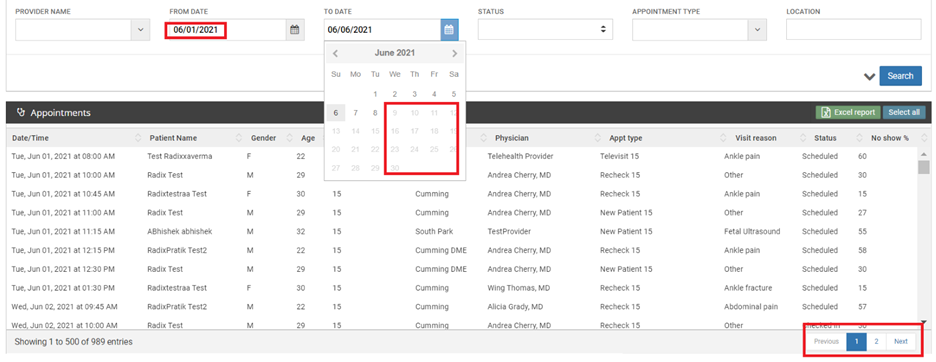
athenaPractice

DASHconnect appointment reminders and confirmations can set appointments to 'Confirmed' when the patient response indicates to do so.

eCW - Fix for when existing recall updates were failing

When a recall already existed, an update to that recall would fail, causing it to not update appropriately if there was a change in date or description.

Need these in a PDF to save or train your team?

DOWNLOAD HERE

DASH 21.1 Update: DASHself Patient Matching Algorithm

< BACK

Overview

The DASHself Patient Matching Algorithm provides a thorough way to match patient information with their existing patient record and update it accordingly. This process reduces the likelihood of creating duplicate patient entries in your system. This page contains additional information about the matching process, specifically what is used to find a matching record.

image3.png

Patient Enters in Demographic Information

Our patient matching algorithm uses a combination of the six pieces of demographic information collected on the first screen.

  • Patient First Name

  • Patient Last Name

  • Date of Birth

  • Patient e-mail address

  • Zip Code

  • Phone Number

In the logic below, you will see how our algorithm attempts different combinations of the demographic fields. We try seven combinations that can lead to the below results. When we try the first combination, if no record is found, we will try the second combination, and so on until all are complete. We try multiple combinations to ensure we are not erroneously creating new patients.

image2.png

General Info & FAQs

When opening up access to patients, we cannot account for every scenario. Please see the below notes on this algorithm.

  • We do not account for nicknames. We will search for the name that exists on the patient record.

  • When searching across phone numbers, we are searching home, cell, work.

  • We do not reference historical demographic information in our algorithm. For example, if a patient updated their address three months prior, our algorithm cannot reference this information.

  • We do not collect SSN in DASHself. Our data shows that many patients abandon the process due to the risk of this not being secure.

  • This algorithm does not differentiate if any of the fields are NULL or do not contain the data. It requires the appropriate values in the fields. It works when the value is present on the above-mentioned fields.

  • Once the right match is found with the few of the data that are different and are not considered in the algorithm above, the system only updates those values once the patient reaches the last screen and fills in the additional demographic information.

Q: What isn’t accounted for in the patient matching algorithm?

A: The matching is created to account for as many scenarios as possible to reduce the likelihood of duplicate patient entries being created in your system. For example, we do not have the ability to account for misspellings. If a patient accidentally spells their name wrong, there is a risk of a new patient record being created. Additionally, nicknames aren’t included -- just the name existing on the patient record.

Q: What phone numbers are included in the phone matching?

A: Home, cell, and work phone numbers are searched.

Q: Does the algorithm reference historical demographic information?

A: Only current information is searched for matching. For instance, if a patient updated their address three months prior, it’s not referenced in the algorithm.
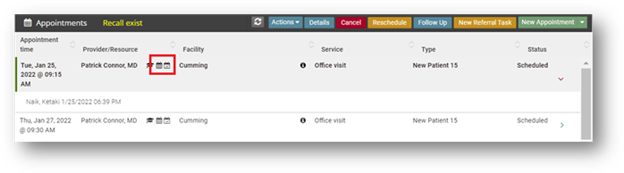
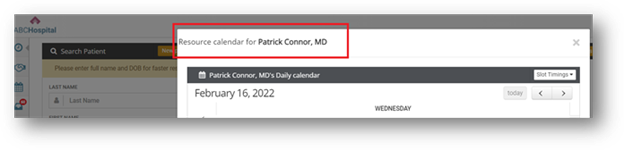
Q: Do you collect SSNs in DASHself?

A: No, data shows that many patients abandon the process due to a perceived security risk if SSN is requested.

Q: How does the patient matching algorithm respond to empty fields?

A: This algorithm does not differentiate if any of the fields are NULL or do not contain the data. It requires the appropriate values in the fields, matching when the value is present on the above-mentioned fields.

Q: When is the patient’s data actually updated in the system?

A: While the patient enters information early on in the registration process, the patient’s data is not updated until the entire scheduling flow is completed.  This allows for additional information to be collected before updating the patient record.  This is true for both updating a matched patient record as well as when a new (unmatched) record is created.


Need a PDF version to share with your team for training?

DOWNLOAD HERE