
Overview
According to the triage workflows that your clinic wants to set up, you will now have the ability to set up triage questions and subsequent scheduling suggestions. You will first need to create triage questions and then group them together to form a triage decision tree for a particular chief complaint.
Setting the Stage: DASH Glossary
These are some common terms you’ll find in DASH.
Triage
The assignment of degrees of urgency to wounds or illnesses to decide the order of treatment.
DASH Triage Questions
A set of questions based on the chief complaint that you enter, which will guide you on which services, facilities, and providers to select to best treat the patient.
DASH Decision Tree
A chief complaint-driven workflow consists of a particular set of questions, each with two options, the outcome of which will help the scheduler arrive at a decision on how best to proceed with scheduling for the selected chief complaint.
DASH Terminal Node
The last step of a particular path of any triage decision tree, where the user is presented with the following options: display a text outcome to the user, assign specialties, assign services, assign facilities, assign providers, assign attributes to set (you can add multiple attributes).
How to Add a Triage Question
Go to the triage configuration option under the configuration tab on DASH, and make sure the questions tab is selected.
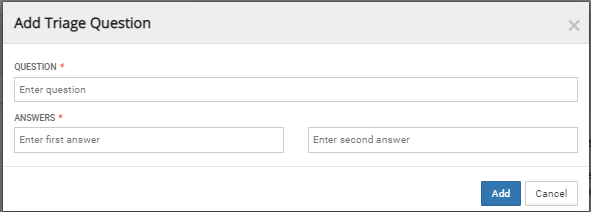
Click on the “Add” button to add your question and the two possible answers. The questions will now show up in the question list and will be assigned a question id. You will also be able to edit and delete and search for previously added questions.
How to Create a Triage Decision Tree
Click on the decision tree tab on the triage configuration screen, and click on “Add”.
Specify the name you want to assign to your decision tree and select “Add” to the list with an associated ID.
Click on the tree name and click on ‘Add root step.” You will be prompted to select a previously added question or add a new question for the root step.
After you add the root question, it will show up below the decision tree name with two possible answers, so that you can add the next steps for each. After you click on one of those answers, you have two options- to either keep adding questions, or to mark that as a terminal node, meaning that the triage workflow will end there with suggestions for the scheduler on how to proceed.
To keep adding questions, follow the same workflow as suggested above.
When you want to mark an answer as a terminal node:
Click on the “Mark as terminal node” checkbox.
Need to save this or use the information for training? Get a PDF version here: