

Need a PDF version of these to save or for training your team?
Created April 2021
Updates for DASH 21.1 include new features, client enablement updates, and bug fixes/minor enhancements for DASHcentral, DASHself, DASHin, and DASHconnect as well as some integration updates. Details are included below and for any questions reach out to your Client Success Manager or support@radixhealth.com.
We are also currently planning live training webinars for clients covering DASH 21.1 updates. You can register to attend a training HERE.
DASHcentral
New Features
Telehealth Confirmation Pop Up
For any DASH environment with services and chief complaints enabled for Telehealth, the Telehealth Confirmation Pop Up which asks for the user’s approval in looking for telemedicine slots is now configurable. In earlier versions of DASHcentral, the following pop-up was shown every time a chief complaint and service combination which was enabled for Telehealth was selected while scheduling.
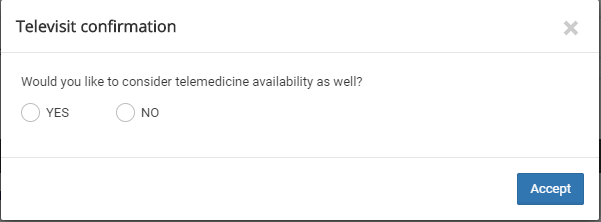
Users now have the option to decide if they would or would not like to view this pop-up question every time an appointment search with a chief complaint or service enabled for Telehealth is selected. If users would like to continue to view this pop question, DASH will continue to display the above pop-up. If users would not like to continue to view this pop-up question, DASH will search for telehealth slots in addition to office visit slots, each time you look for slots and if telehealth slots are available, DASH will prompt the user as outlined below:
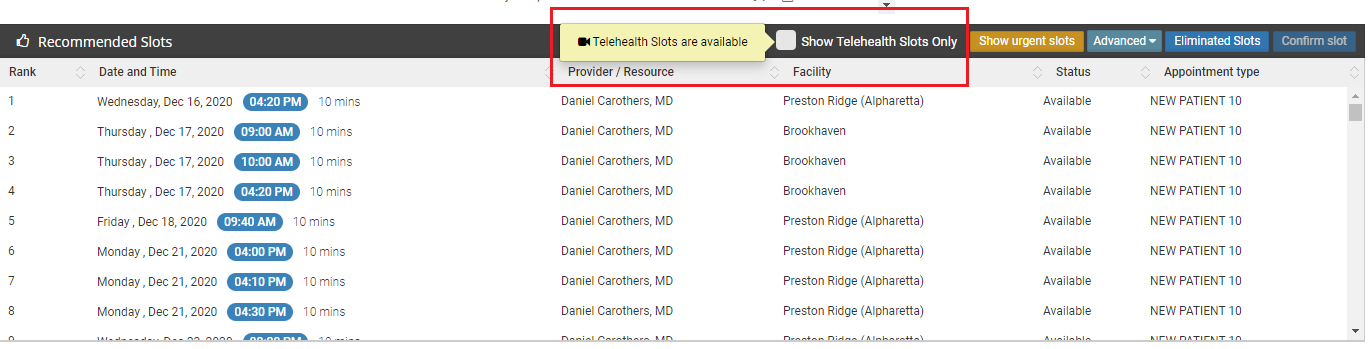
Please note that this change can currently be done by the client success team at Radix only. If you decide to change this configuration on your end, please reach out to your Client Success Manager.
User Type: All Users
Feature: Configure the Televisit Confirmation Pop-Up
What You Can Now Do: For those chief complaints enabled for telehealth, users can choose whether or not they would like to see the pop-up display asking to also view telehealth slots during scheduling. If users select to not see the pop-up each time, the system will prompt the user when telehealth slots are available.
Password Security
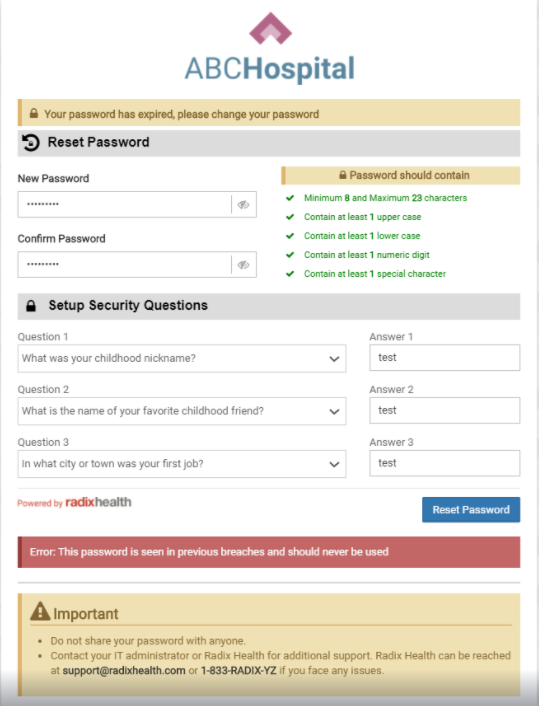
DASH will now check for compromised passwords while adding or updating a user. The system will prompt the user to select a different password if the one created has had a security breach from DASH and other sites. The list of compromised passwords will be updated periodically.
In order to create a secure DASH password, please use a minimum of 8 and a maximum of 23 characters. Please make sure your password contains at least 1 uppercase letter, 1 lowercase letter, 1 numeric digit, and 1 special character.
User Type: All Users
Feature: Password Security Check
What You Can Now Do: When you add or update a user in DASH, the system will now check to ensure the password is not compromised. If the password the user selects has been found in a previous security breach, DASH will prompt them to select a different password. The list of compromised passwords will be updated periodically.
Client Enablement Updates (Coming Soon)
Triage Configuration UI
DASHcentral has a new user interface that enables users to design and maintain the triage scheduling workflow and outcomes from start to finish. Users will now be able to create triage questions, design dedicated scheduling outcomes and decision trees directly from the DASHcentral user interface
User Type: All Users
Feature: Triage Workflow UI Improvements & Added Maintenance
What You Can Now Do: You will have the ability to create triage questions and design scheduling suggestions and outcomes. First, you’ll need to create triage questions, and from there will be able to create a decision tree and workflows.
Bug Fixes & Enhancements
Appointment Scheduling page
There were issues with the facility map loading correctly for facilities where Address Line 2 was missing in Facility details. This has now been fixed.
Triage
Ideally, after a user answers the questions in a triage workflow, facilities and providers should load according to client specifications. Few bugs had been encountered with this workflow, which have now been addressed and fixes have been put in place.
Email validation
For clients where the email field in patient demographics was non-mandatory, users were able to enter incorrectly formatted text and save changes, causing errors with EHR integration. This has now been fixed, and validation has been put into place for any text in the email field even when the field is non-mandatory.
Appointment Detail pop-up
The preference override section in the appointment details window lets the user know whether or not the “override preferences” functionality had been used while scheduling that appointment. A few instances of this not working correctly each time were reported, which has now been addressed and fixed.
Today’s appointments page
Error messages while triggering a text or email while initiating check-in for a patient have been made user-friendly, which will help users pinpoint the cause of the error, and take necessary steps.
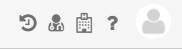
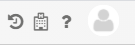
Deletion of staff icon
The Staff icon present at the top right-hand corner of the DASH screen will now be deprecated due to being unused.
Previous Icons
Current Icons
DASHin
New Features
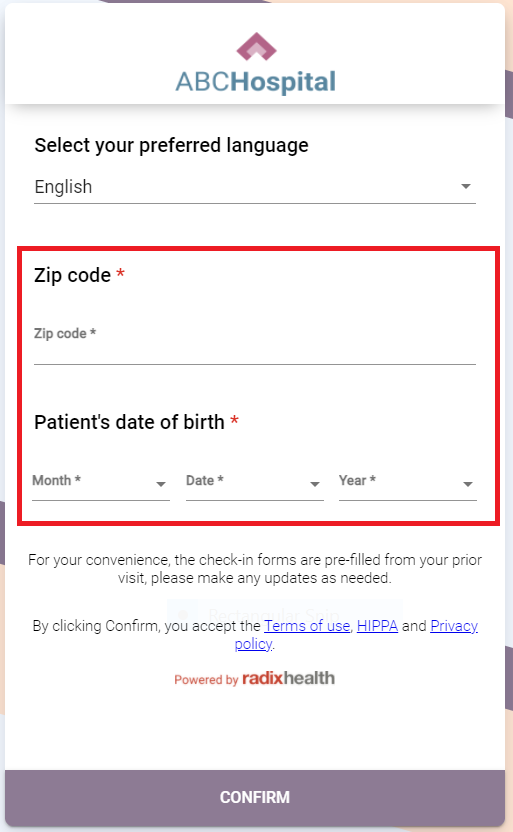
Addition of two new fields on the patient validation page
The two new fields -- zip code and patient’s date of birth -- are added on the patient validation page in DASHin. Both of these fields are mandatory and you have to enter valid patient information in them.
If you enter invalid information in one or both fields, you will not be redirected to the next page unless the correct values are entered.
DASHin will display respective error messages if the zip code or the patient’s date of birth do not match the values given in the DASH system.
NOTE: DASHin will accept only the first 5 digits for the zip code field.
Addition of new links on the patient validation page
The links added on the patient validation page are:
Terms & Conditions link
HIPAA link
Privacy policy link
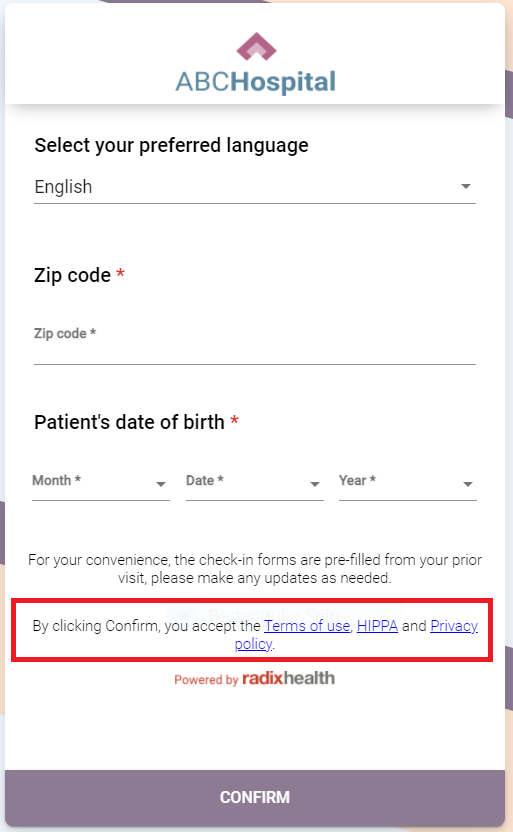
You can click on the links and the respective information will open in a pop-up.

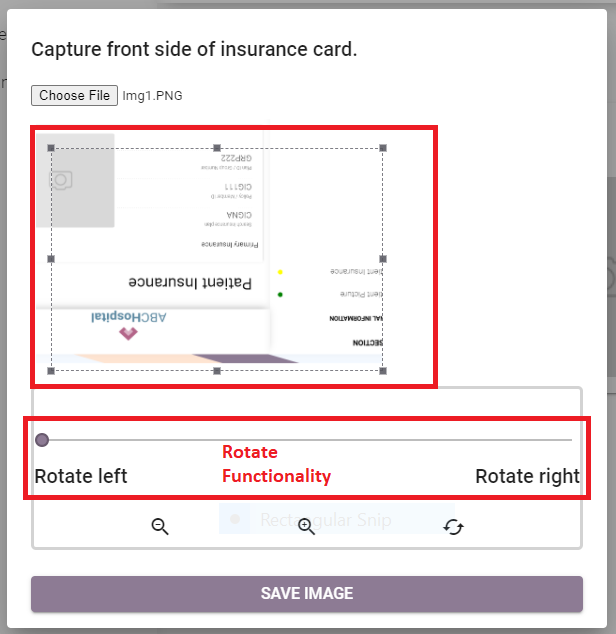
Image capture enhancements in DASHin
This enhancement has been implemented on all the pages where image upload is required. The amin pages where these enhancements are done are:
Patient Picture
Drivers license and
Patient Insurance
The new enhanced features added for image capture improvements are:
Crop functionality
You can crop the chosen image while uploading this image.
Zoom functionality
You can zoom in and out on the chosen image.
Reset functionality
You can undo all changes applied and reset the image to its original state by pressing this button.
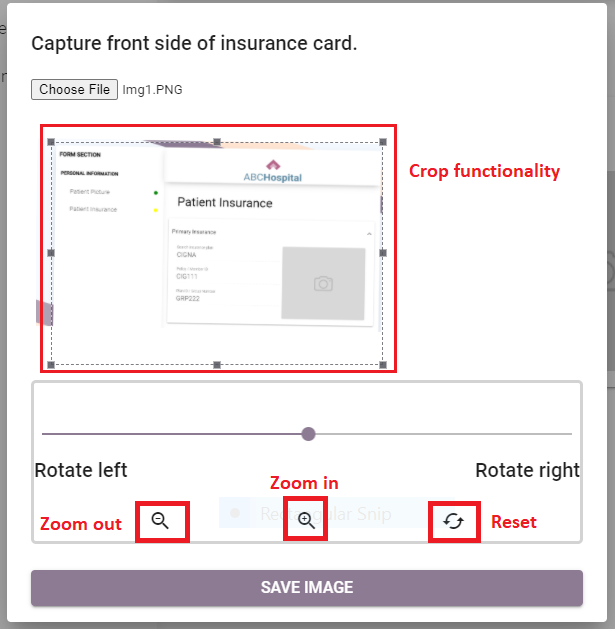
Rotate functionality
You can rotate the selected image (right or left).
DASHself
New Features
Patient Matching Algorithm
Previously, in order to identify existing or new patients, DASHself used five patient data points to match: Patient First Name, Last Name, Date of Birth, Zip Code, and Phone Number.
In 21.1, DASHself adds a patient e-mail address to the patient matching algorithm in order to improve patient matching accuracy. Please refer to this document to review full details on the DASHself patient matching algorithm HERE.
Authorization Checkboxes
Patient Consent and HIPAA authorization check boxes have been moved to the beginning of the self-scheduling process. The purpose of this change is to ensure patients provide authorization and consent at the beginning of the scheduling process.

Patients who start the online scheduling from the Provider search will see the Terms of use, Privacy, and HIPAA consents as highlighted below.
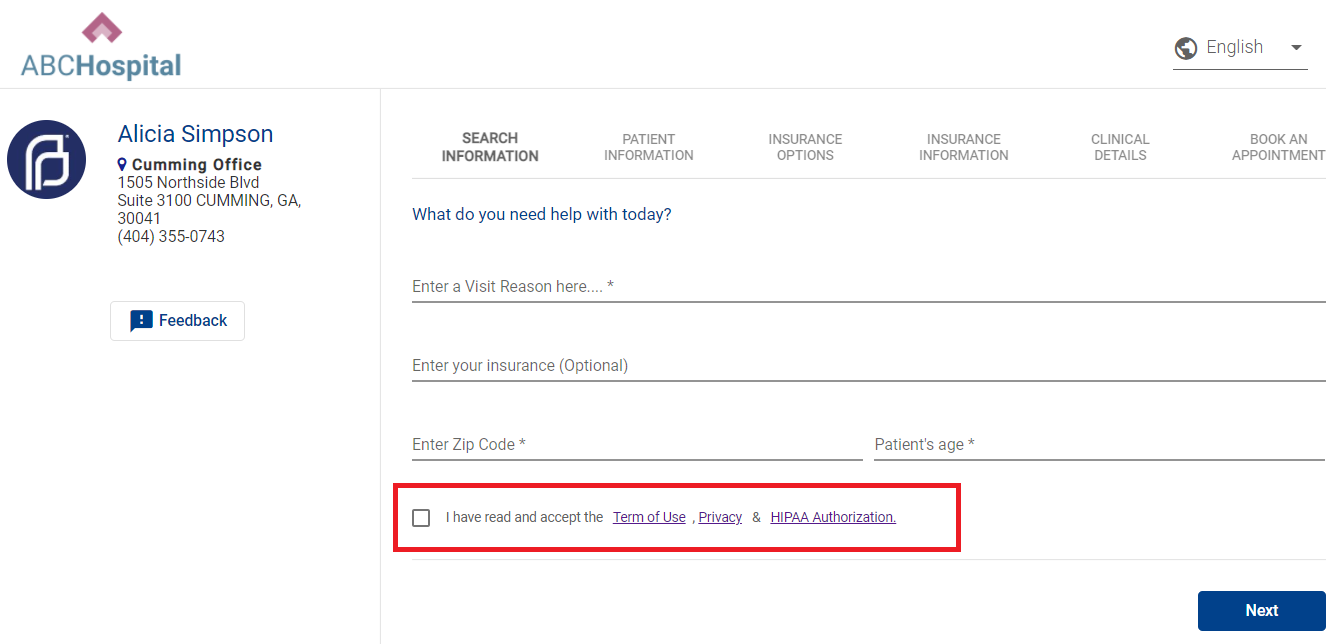
Patients who start the online scheduling from the Direct Provider link will see the Terms of use, Privacy, and HIPAA consents as highlighted in the above screenshot.
Track Patient Activity with Google Tag Manager
For practices that use multiple websites for patients to access self-scheduling, DASHself now has the ability to trace patient activity using Google Tag Manager (GTM) from multiple sites. If you are interested in leveraging this new feature, please contact Radix Support or your Client Operations Manager to review the details and complete the setup.
Redesigned User Experience for Reschedule and Cancel Appointment Workflow
DASHself has redesigned the user screen workflow for patients rescheduling or canceling appointments. The following outlines the new user screen workflow for appointment rescheduling and cancellation:
Redesigned Workflow: Appointment Reschedule
1. Once the patient clicks on a reschedule link, the screen appears as outlined below. Patients are required to complete the Date of Birth, Zip Code, and Terms of Use.
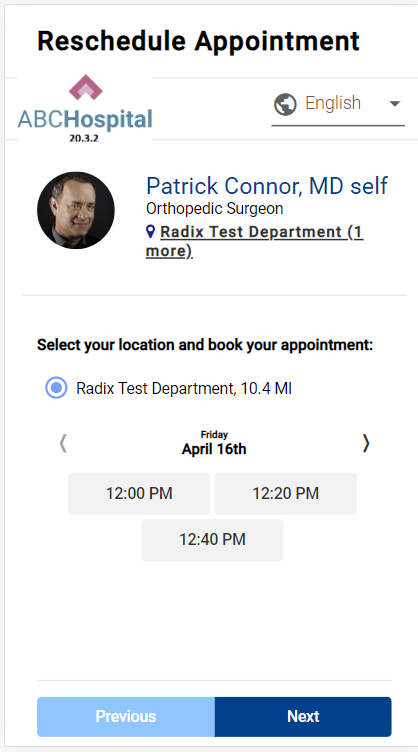
2. Once the patient is authenticated successfully, they are redirected to either a pop-up screen (if it is configured) or to the slots screen as below. The patient can choose any suitable slot and click Next.
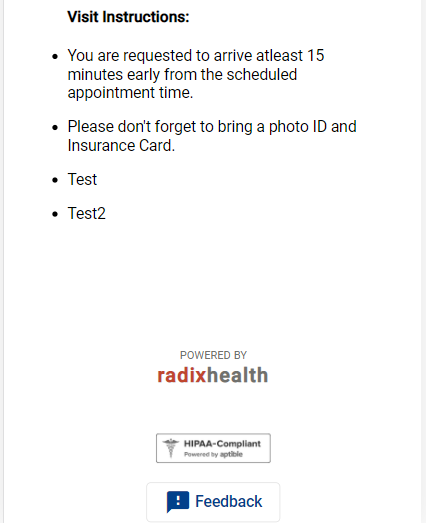
3. After the patient selects an appointment slot and clicks “Next”, the patient has successfully rescheduled their appointment. Outlined below is the confirmation screen displayed to the patient. The patient has the option to “Add a reminder to the calendar”, “Book a ride with Uber or Lyft”, “Get directions” and can view any Visit instructions as configured by the clinic.

Redesigned Workflow: Appointment Cancellation
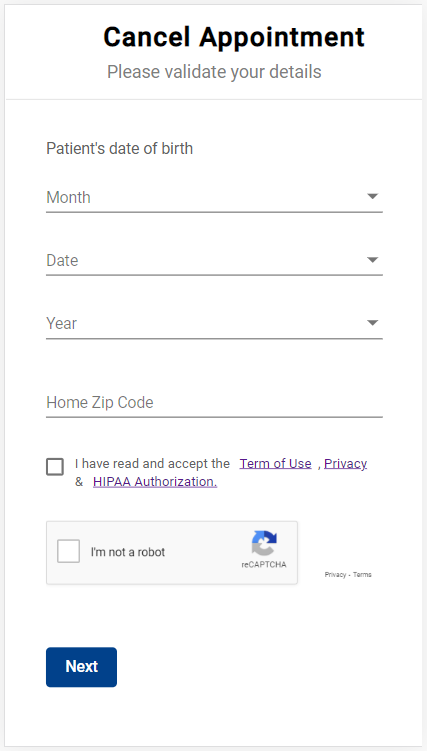
1. Once the patient clicks on a cancellation link, the following screen displays. The patient is required to enter the Date of Birth, Zip Code, and accept terms of use.
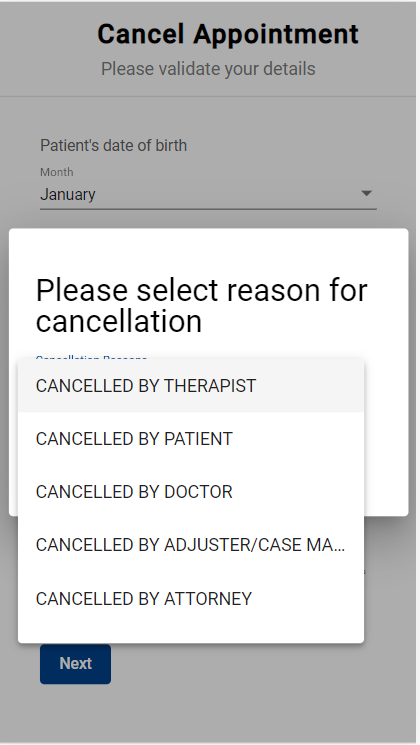
2. Once the patient is authenticated successfully, the following screen is displayed presenting the patient with an option to select a cancellation reason from a menu of options. The patient can select the appropriate cancellation reason and click on the cancel appointment.

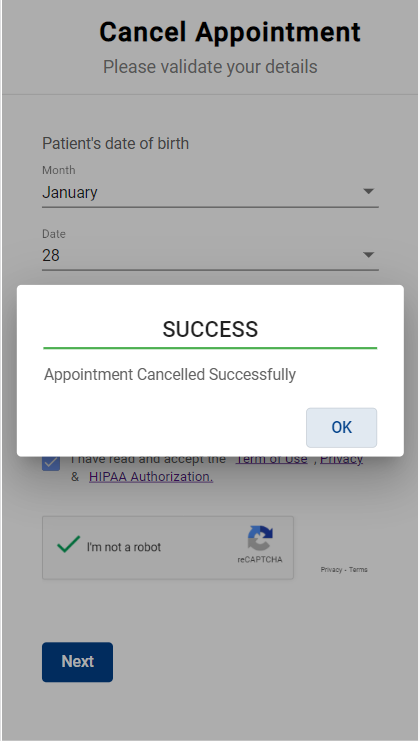
3. Once the appointment is canceled successfully, the following message will display to the patient as outlined below.
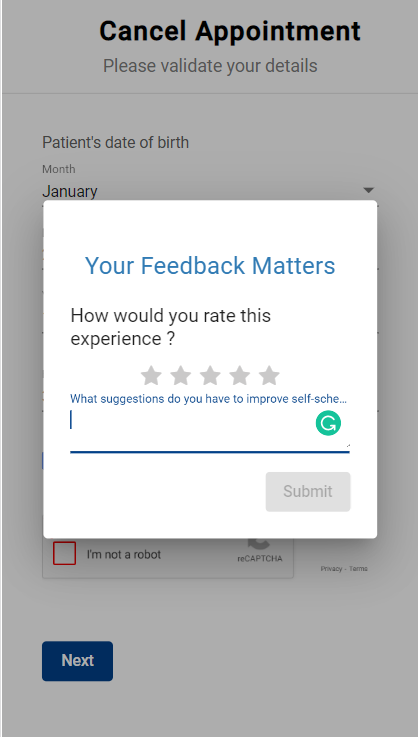
4. Once the patient clicks OK, a feedback screen will be displayed to capture the patient’s experience on self-scheduling. If the patient does not want to provide feedback, they can close the browser tab. The Radix support team can help with the report if you want to view it. You’ll need to submit a support ticket for the same.
Redesigned User Experience for Self-Scheduling Referral Appointments
DASHself has newly redesigned the user screen workflow for patients scheduling referral appointments. The following outlines the new user screen workflow:
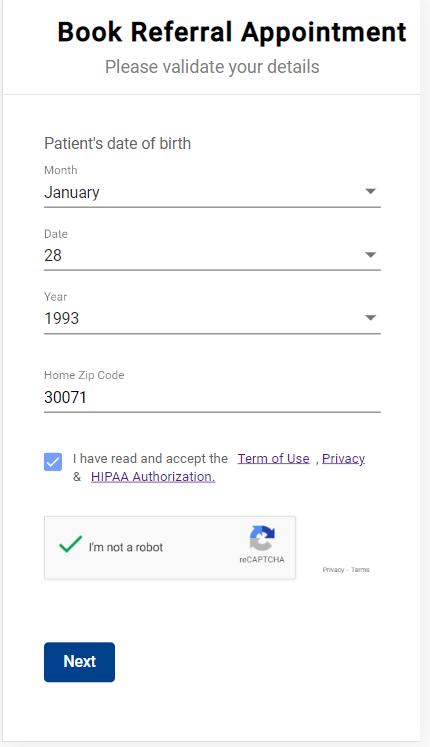
1.Once the patient clicks on a referral link, the following screen is displayed. Patients are required to enter the Date of Birth, Zip Code, and accept terms of use.
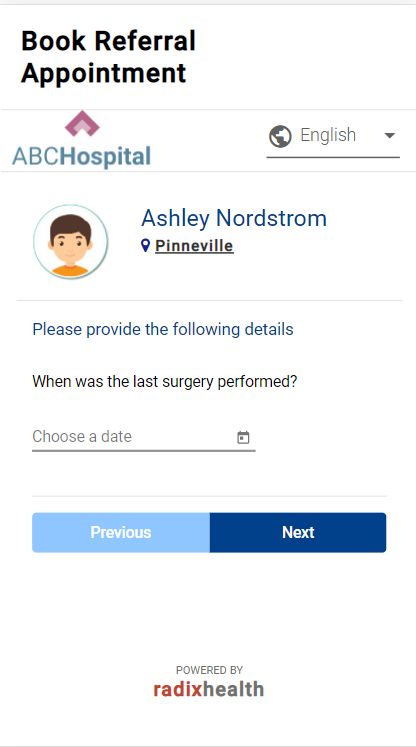
2. Once the patient is authenticated successfully, the following screen will display (following any pre-configured pop questions as applicable).
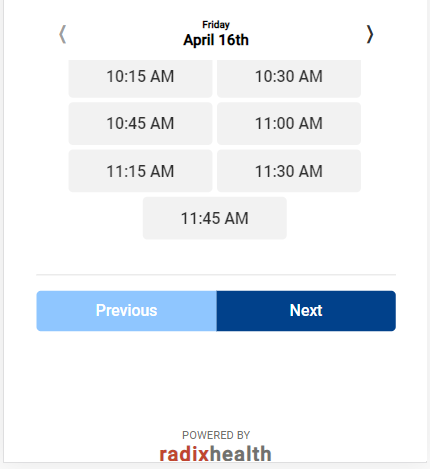
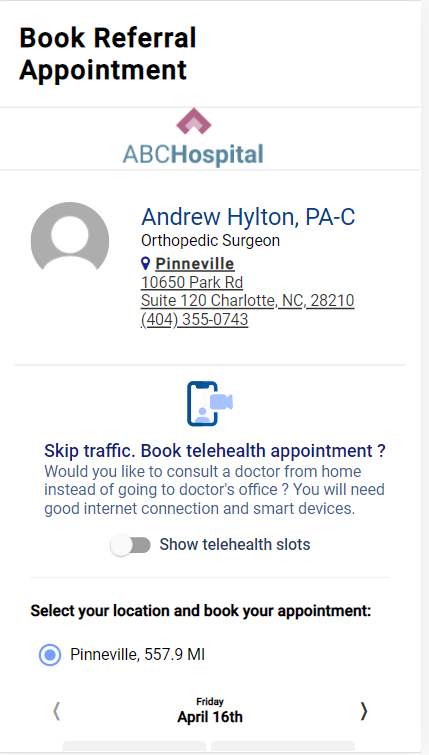
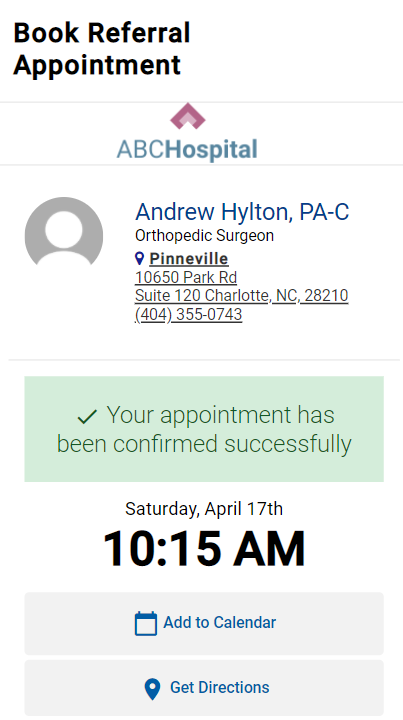
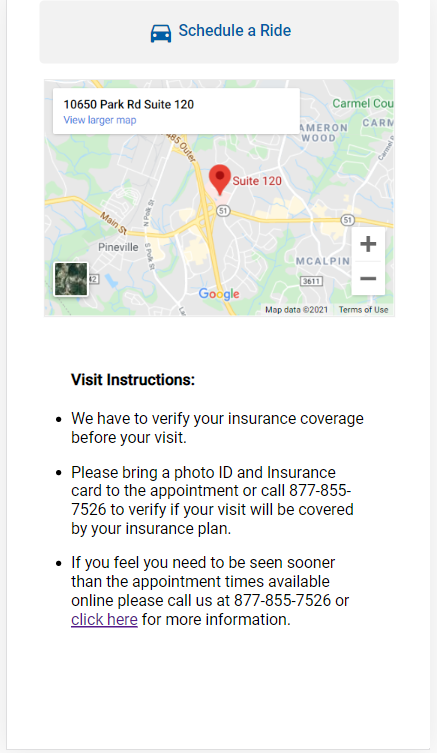
3. Once the patient selects the slot and clicks next, they have now booked the appointment successfully. The following screen is displayed to the patient providing any appointment-related information.
Bug Fixes & Enhancements
Information in Google
GoogleMaps is now able to locate facilities on associated maps. A fix has addressed the issue of the facility address being combined with the city name in Google Calendar/Google.
DASHconnect
Bug Fixes & Enhancements
Secondary Phone Number Notifications
DASHconnect will send a text message to the secondary phone number if the primary number attempt fails.
Security Enhancements
Security Enhancements for PHI while sending a message or calling.
Integration Updates
New Features
Epic Integration with DASH
Patient self-scheduling is now fully integrated with Epic PM/EHR. The DASH application is now available on the Epic App Orchard marketplace.
ModMed Integration with DASH
DASHself and DASHcentral are now integrated into the Modernizing Medicine EHR system.
NOTE: Writing insurance back to ModMed is not yet supported.
APM - Forcebooking on Reschedule
When rescheduling an appointment in APM, if you select to use the Urgent overbooking or forcebooking, you won’t be able to do so. You are now able to forcebook appointments as part of the rescheduling workflow.
Bug Fixes & Enhancements
athena Retry
athena's API infrastructure has a maximum query per second limit. We found that we were hitting this more frequently and now have the functionality to automatically retry API calls that result in a QPS limit error.
athenaOne - Frozen Slot Support
There were unique situations where frozen slots were not interpreted correctly and caused provider schedules to not align with athena. This fix allows for frozen slots to be handled appropriately in the situations identified.
athena Cancellation Dropdown
The cancellation dropdown reasons are not passing over to athena: Cancellation reasons are rarely changed, however, we found an instance where a client did indeed have reasons outside of the normal athena offering. We now are syncing this as part of our constant jobs.
athenaPractice
DASHconnect appointment reminders and confirmations can set appointments to 'Confirmed' when the patient response indicates to do so.
eCW - Fix for when existing recall updates were failing
When a recall already existed, an update to that recall would fail, causing it to not update appropriately if there was a change in date or description.