
DASH 21.1 Service Pack #1 Updates
DASH 21.1 Service Pack #1 contains bug fixes and minor enhancements for the DASHcentral and DASHself applications. Please contact your Client Success Manager with any questions.
DASHcentral
Appointment Scheduling
Fixed an issue that allowed some “view-only” users to cancel and reschedule appointments.
Fixed a bug that was causing some patient Q&A responses not to display in the Appointment Details page.
Fixed an error causing the Today’s Appointments page not to show the total number of appointments scheduled for the day.
Alert Display
Patient alerts (e.g., bad debts, insurance verification) now display in all patient search results.
An error will now display if an Alert update was unsuccessful.
Provider & Specialty Fixes
“Inactive” providers are no longer shown in the “referring providers” field on the demographics page.
‘Inactive’ specialties will no longer display during appointment search.
Primary Care and Referring provider phone numbers now display consistently when adding or updating a patient record.
When a referral task is created, the Referring Provider will automatically populate the same field in the Patient Demographics page.
Linked providers (e.g., MD-PA pairs) will now be auto-selected after the “Search” action, in addition to “Select.”
Other Fixes & Enhancements
Removed a restriction that prevented all relevant insurance plans with similar names from displaying in search results.
Resolved an issue related to the duplication of Recall column headings, and ensured the display of relevant recall records based on search parameters.
Resolved an issue affecting the parking wait time and the clinic wait time displays.
Fixed a bug that required a “Suffix” field entry on the “User Set Up” page.
DASHself
Date & Time Selection
Fixed a bug that caused the clinic logo not to display on some Rescheduling, Canceling, or Confirming appointment screens.
Fixed a bug to allow patients belonging to multi-provider groups to schedule online appointments.
When rescheduling an appointment, patients’ preference questions will no longer be asked a second time; they will be stored and reused for the new appointment.
Appointment notes from previously scheduled appointments will now copy to the rescheduled date & time.
Provider Selection
A fix has been made to enable adding provider photos for DASHself scheduling.
Fixed a bug to consistently display images for associated providers.
DASHself will no longer be able to override the “Referred Provider” and “Preferred Facility” fields in the patient demographics page. These fields will only be updated if the patient is new to the clinic.
If a provider has only telehealth appointment availability, these time slots will now appear automatically.
Repaired an issue causing some provider preference questions to display twice.
Improved DASHself provider search performance by reducing the time window for available appointments from six months to three months.
Visit Reason Selection
Improved the rendering of Visit Reason and Insurance Plan descriptions to eliminate truncation on mobile devices.
Users can now manually set the order in which visit reasons appear in the dropdown menu.
DASH 21.1: Triage Design Updates
Overview
According to the triage workflows that your clinic wants to set up, you will now have the ability to set up triage questions and subsequent scheduling suggestions. You will first need to create triage questions and then group them together to form a triage decision tree for a particular chief complaint.
Setting the Stage: DASH Glossary
These are some common terms you’ll find in DASH.
Triage
The assignment of degrees of urgency to wounds or illnesses to decide the order of treatment.
DASH Triage Questions
A set of questions based on the chief complaint that you enter, which will guide you on which services, facilities, and providers to select to best treat the patient.
DASH Decision Tree
A chief complaint-driven workflow consists of a particular set of questions, each with two options, the outcome of which will help the scheduler arrive at a decision on how best to proceed with scheduling for the selected chief complaint.
DASH Terminal Node
The last step of a particular path of any triage decision tree, where the user is presented with the following options: display a text outcome to the user, assign specialties, assign services, assign facilities, assign providers, assign attributes to set (you can add multiple attributes).
How to Add a Triage Question
Go to the triage configuration option under the configuration tab on DASH, and make sure the questions tab is selected.
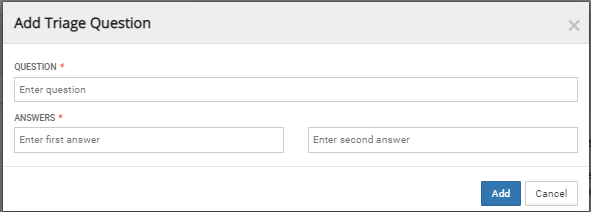
Click on the “Add” button to add your question and the two possible answers. The questions will now show up in the question list and will be assigned a question id. You will also be able to edit and delete and search for previously added questions.
How to Create a Triage Decision Tree
Click on the decision tree tab on the triage configuration screen, and click on “Add”.
Specify the name you want to assign to your decision tree and select “Add” to the list with an associated ID.
Click on the tree name and click on ‘Add root step.” You will be prompted to select a previously added question or add a new question for the root step.
After you add the root question, it will show up below the decision tree name with two possible answers, so that you can add the next steps for each. After you click on one of those answers, you have two options- to either keep adding questions, or to mark that as a terminal node, meaning that the triage workflow will end there with suggestions for the scheduler on how to proceed.
To keep adding questions, follow the same workflow as suggested above.
When you want to mark an answer as a terminal node:
Click on the “Mark as terminal node” checkbox.
Need to save this or use the information for training? Get a PDF version here:
DASH 21.1 Product Release Notes
Need a PDF version of these to save or for training your team?
Created April 2021
Updates for DASH 21.1 include new features, client enablement updates, and bug fixes/minor enhancements for DASHcentral, DASHself, DASHin, and DASHconnect as well as some integration updates. Details are included below and for any questions reach out to your Client Success Manager or support@radixhealth.com.
We are also currently planning live training webinars for clients covering DASH 21.1 updates. You can register to attend a training HERE.
DASHcentral
New Features
Telehealth Confirmation Pop Up
For any DASH environment with services and chief complaints enabled for Telehealth, the Telehealth Confirmation Pop Up which asks for the user’s approval in looking for telemedicine slots is now configurable. In earlier versions of DASHcentral, the following pop-up was shown every time a chief complaint and service combination which was enabled for Telehealth was selected while scheduling.
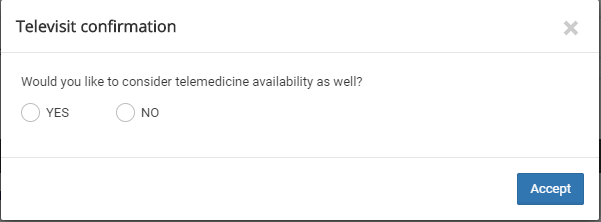
Users now have the option to decide if they would or would not like to view this pop-up question every time an appointment search with a chief complaint or service enabled for Telehealth is selected. If users would like to continue to view this pop question, DASH will continue to display the above pop-up. If users would not like to continue to view this pop-up question, DASH will search for telehealth slots in addition to office visit slots, each time you look for slots and if telehealth slots are available, DASH will prompt the user as outlined below:
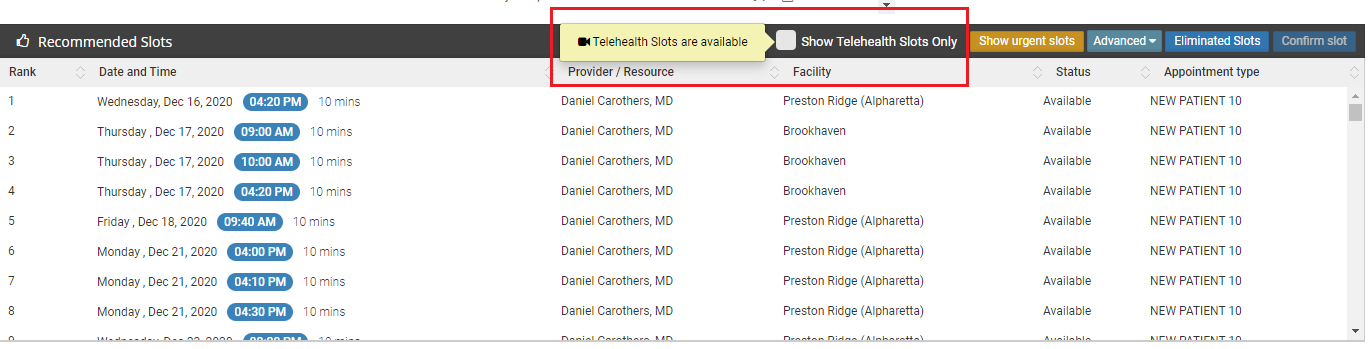
Please note that this change can currently be done by the client success team at Radix only. If you decide to change this configuration on your end, please reach out to your Client Success Manager.
User Type: All Users
Feature: Configure the Televisit Confirmation Pop-Up
What You Can Now Do: For those chief complaints enabled for telehealth, users can choose whether or not they would like to see the pop-up display asking to also view telehealth slots during scheduling. If users select to not see the pop-up each time, the system will prompt the user when telehealth slots are available.
Password Security
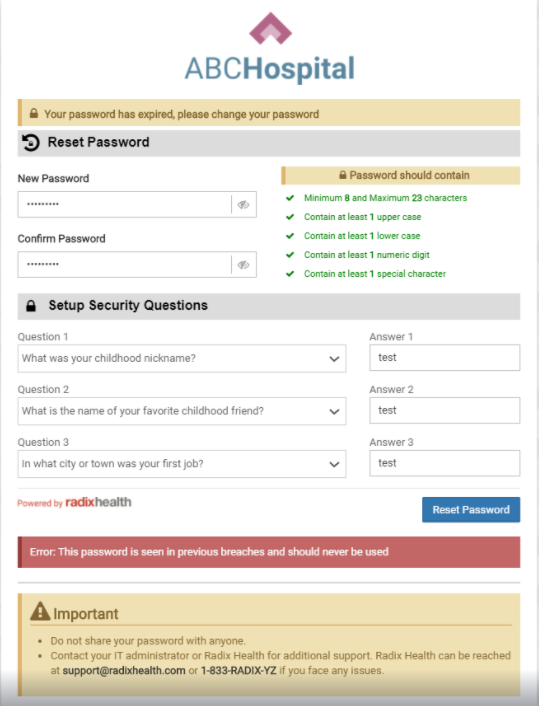
DASH will now check for compromised passwords while adding or updating a user. The system will prompt the user to select a different password if the one created has had a security breach from DASH and other sites. The list of compromised passwords will be updated periodically.
In order to create a secure DASH password, please use a minimum of 8 and a maximum of 23 characters. Please make sure your password contains at least 1 uppercase letter, 1 lowercase letter, 1 numeric digit, and 1 special character.
User Type: All Users
Feature: Password Security Check
What You Can Now Do: When you add or update a user in DASH, the system will now check to ensure the password is not compromised. If the password the user selects has been found in a previous security breach, DASH will prompt them to select a different password. The list of compromised passwords will be updated periodically.
Client Enablement Updates (Coming Soon)
Triage Configuration UI
DASHcentral has a new user interface that enables users to design and maintain the triage scheduling workflow and outcomes from start to finish. Users will now be able to create triage questions, design dedicated scheduling outcomes and decision trees directly from the DASHcentral user interface
User Type: All Users
Feature: Triage Workflow UI Improvements & Added Maintenance
What You Can Now Do: You will have the ability to create triage questions and design scheduling suggestions and outcomes. First, you’ll need to create triage questions, and from there will be able to create a decision tree and workflows.
Bug Fixes & Enhancements
Appointment Scheduling page
There were issues with the facility map loading correctly for facilities where Address Line 2 was missing in Facility details. This has now been fixed.
Triage
Ideally, after a user answers the questions in a triage workflow, facilities and providers should load according to client specifications. Few bugs had been encountered with this workflow, which have now been addressed and fixes have been put in place.
Email validation
For clients where the email field in patient demographics was non-mandatory, users were able to enter incorrectly formatted text and save changes, causing errors with EHR integration. This has now been fixed, and validation has been put into place for any text in the email field even when the field is non-mandatory.
Appointment Detail pop-up
The preference override section in the appointment details window lets the user know whether or not the “override preferences” functionality had been used while scheduling that appointment. A few instances of this not working correctly each time were reported, which has now been addressed and fixed.
Today’s appointments page
Error messages while triggering a text or email while initiating check-in for a patient have been made user-friendly, which will help users pinpoint the cause of the error, and take necessary steps.
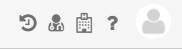
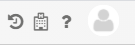
Deletion of staff icon
The Staff icon present at the top right-hand corner of the DASH screen will now be deprecated due to being unused.
Previous Icons
Current Icons
DASHin
New Features
Addition of two new fields on the patient validation page
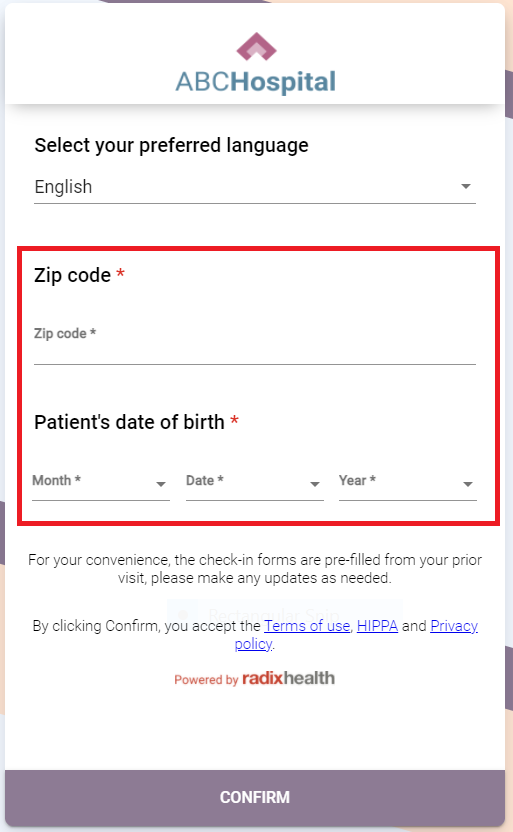
The two new fields -- zip code and patient’s date of birth -- are added on the patient validation page in DASHin. Both of these fields are mandatory and you have to enter valid patient information in them.
If you enter invalid information in one or both fields, you will not be redirected to the next page unless the correct values are entered.
DASHin will display respective error messages if the zip code or the patient’s date of birth do not match the values given in the DASH system.
NOTE: DASHin will accept only the first 5 digits for the zip code field.
Addition of new links on the patient validation page
The links added on the patient validation page are:
Terms & Conditions link
HIPAA link
Privacy policy link
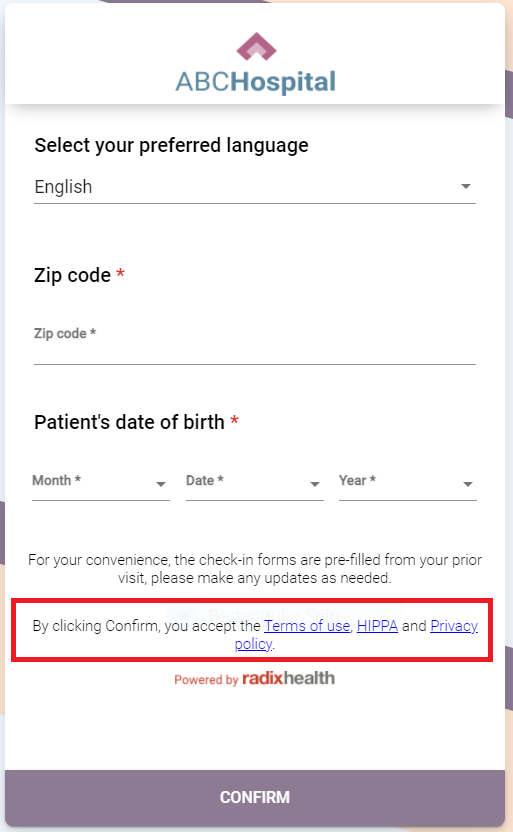
You can click on the links and the respective information will open in a pop-up.

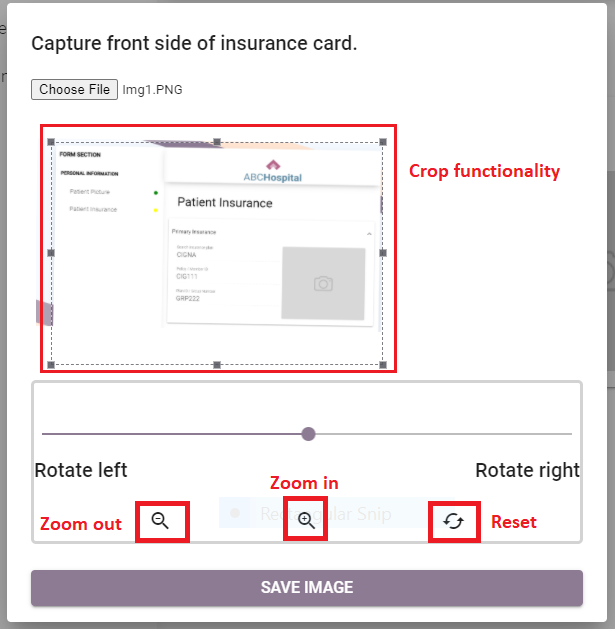
Image capture enhancements in DASHin
This enhancement has been implemented on all the pages where image upload is required. The amin pages where these enhancements are done are:
Patient Picture
Drivers license and
Patient Insurance
The new enhanced features added for image capture improvements are:
Crop functionality
You can crop the chosen image while uploading this image.
Zoom functionality
You can zoom in and out on the chosen image.
Reset functionality
You can undo all changes applied and reset the image to its original state by pressing this button.
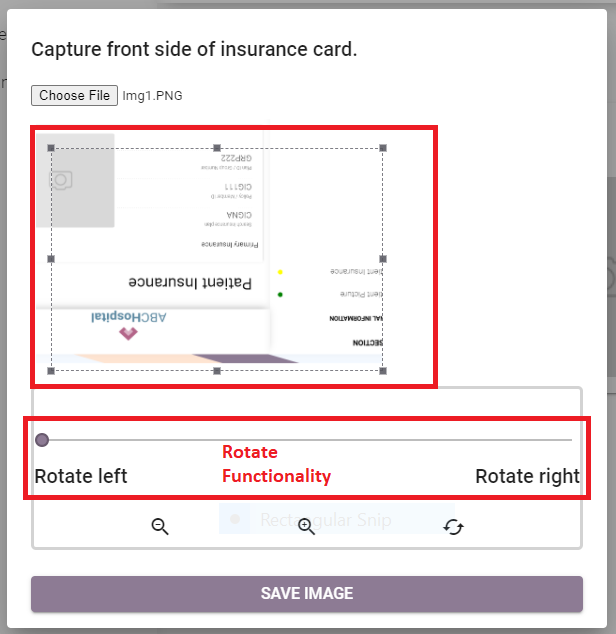
Rotate functionality
You can rotate the selected image (right or left).
DASHself
New Features
Patient Matching Algorithm
Previously, in order to identify existing or new patients, DASHself used five patient data points to match: Patient First Name, Last Name, Date of Birth, Zip Code, and Phone Number.
In 21.1, DASHself adds a patient e-mail address to the patient matching algorithm in order to improve patient matching accuracy. Please refer to this document to review full details on the DASHself patient matching algorithm HERE.
Authorization Checkboxes
Patient Consent and HIPAA authorization check boxes have been moved to the beginning of the self-scheduling process. The purpose of this change is to ensure patients provide authorization and consent at the beginning of the scheduling process.

Patients who start the online scheduling from the Provider search will see the Terms of use, Privacy, and HIPAA consents as highlighted below.
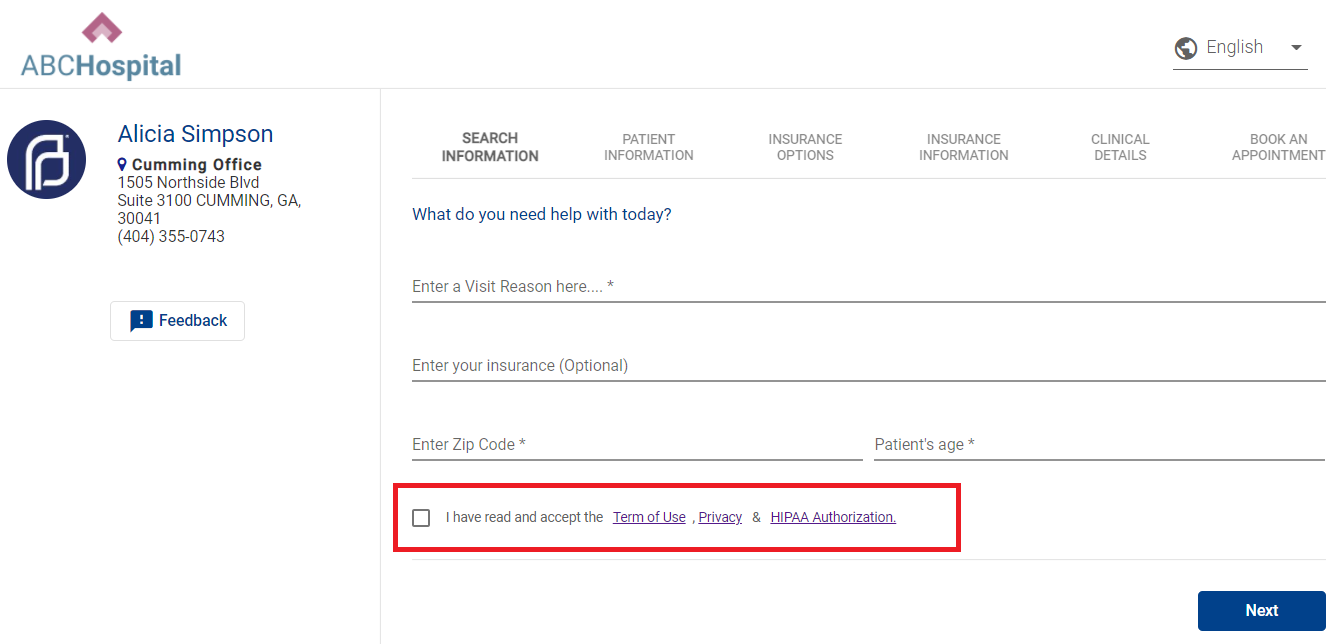
Patients who start the online scheduling from the Direct Provider link will see the Terms of use, Privacy, and HIPAA consents as highlighted in the above screenshot.
Track Patient Activity with Google Tag Manager
For practices that use multiple websites for patients to access self-scheduling, DASHself now has the ability to trace patient activity using Google Tag Manager (GTM) from multiple sites. If you are interested in leveraging this new feature, please contact Radix Support or your Client Operations Manager to review the details and complete the setup.
Redesigned User Experience for Reschedule and Cancel Appointment Workflow
DASHself has redesigned the user screen workflow for patients rescheduling or canceling appointments. The following outlines the new user screen workflow for appointment rescheduling and cancellation:
Redesigned Workflow: Appointment Reschedule
1. Once the patient clicks on a reschedule link, the screen appears as outlined below. Patients are required to complete the Date of Birth, Zip Code, and Terms of Use.
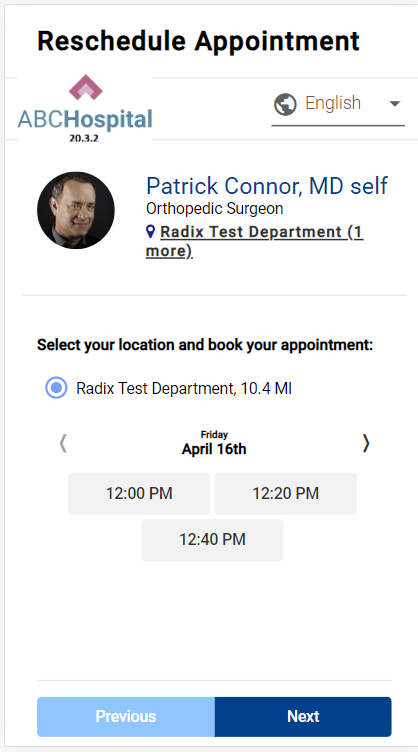
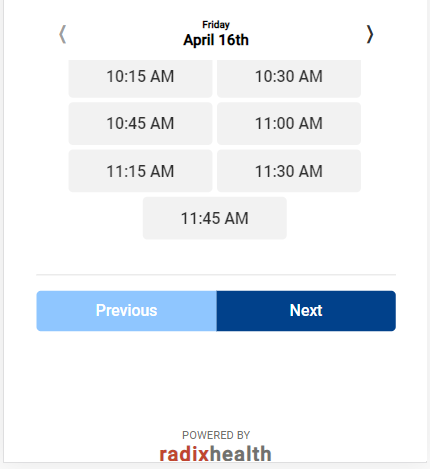
2. Once the patient is authenticated successfully, they are redirected to either a pop-up screen (if it is configured) or to the slots screen as below. The patient can choose any suitable slot and click Next.
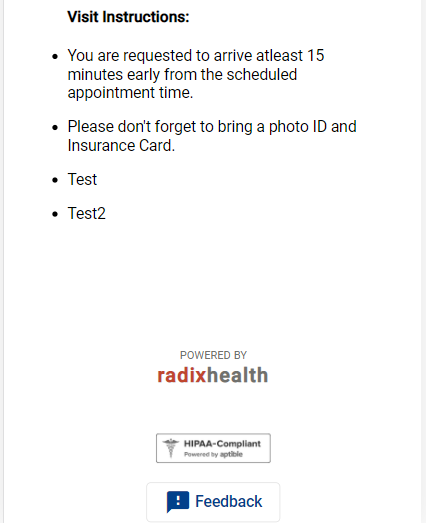
3. After the patient selects an appointment slot and clicks “Next”, the patient has successfully rescheduled their appointment. Outlined below is the confirmation screen displayed to the patient. The patient has the option to “Add a reminder to the calendar”, “Book a ride with Uber or Lyft”, “Get directions” and can view any Visit instructions as configured by the clinic.

Redesigned Workflow: Appointment Cancellation
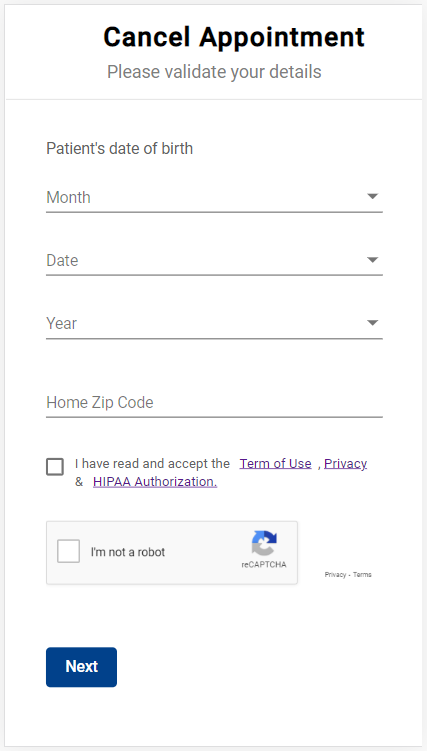
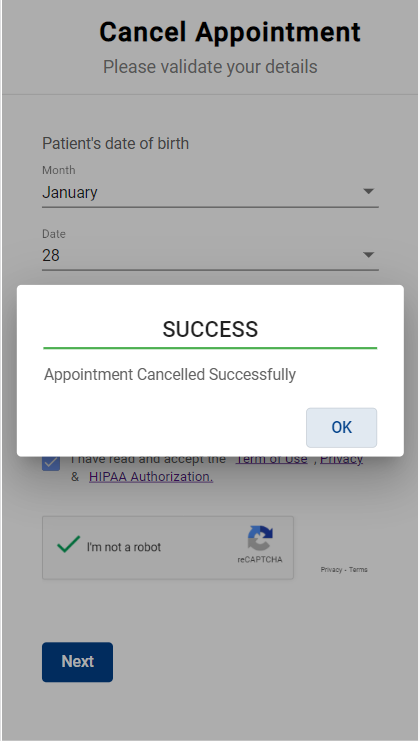
1. Once the patient clicks on a cancellation link, the following screen displays. The patient is required to enter the Date of Birth, Zip Code, and accept terms of use.
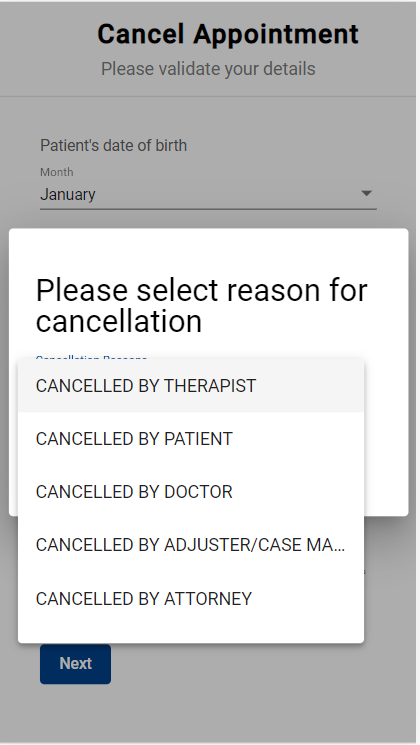
2. Once the patient is authenticated successfully, the following screen is displayed presenting the patient with an option to select a cancellation reason from a menu of options. The patient can select the appropriate cancellation reason and click on the cancel appointment.

3. Once the appointment is canceled successfully, the following message will display to the patient as outlined below.
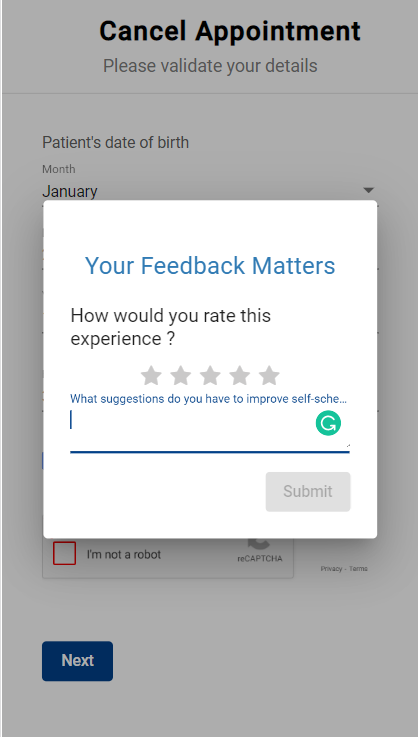
4. Once the patient clicks OK, a feedback screen will be displayed to capture the patient’s experience on self-scheduling. If the patient does not want to provide feedback, they can close the browser tab. The Radix support team can help with the report if you want to view it. You’ll need to submit a support ticket for the same.
Redesigned User Experience for Self-Scheduling Referral Appointments
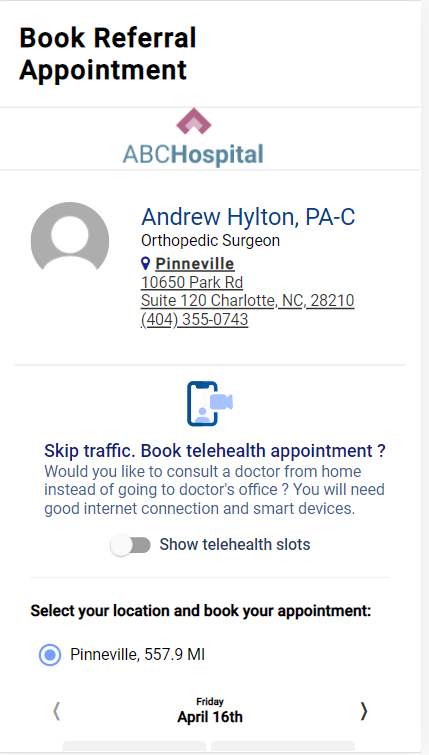
DASHself has newly redesigned the user screen workflow for patients scheduling referral appointments. The following outlines the new user screen workflow:
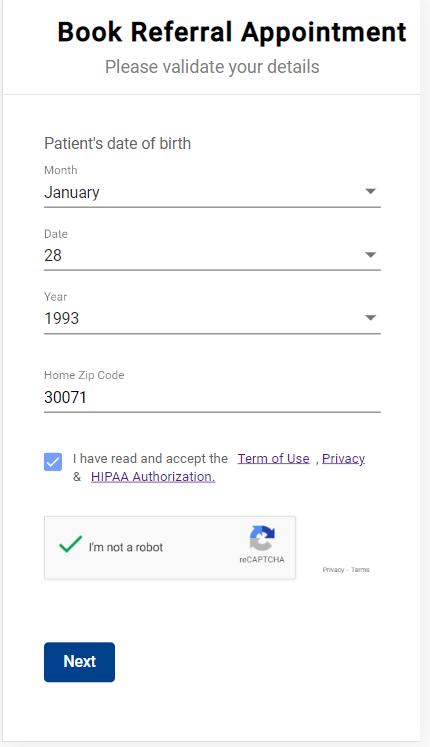
1.Once the patient clicks on a referral link, the following screen is displayed. Patients are required to enter the Date of Birth, Zip Code, and accept terms of use.
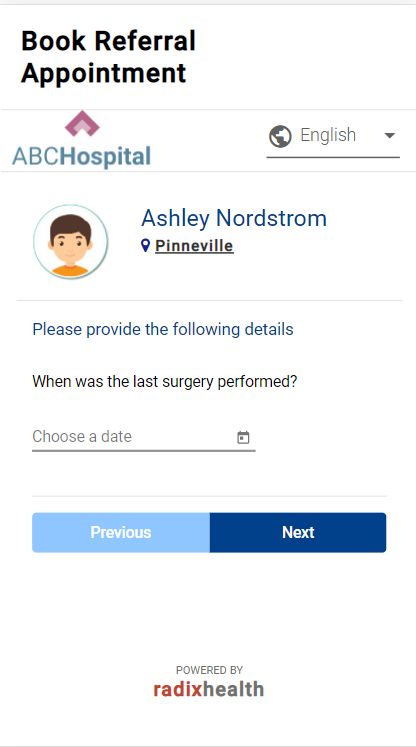
2. Once the patient is authenticated successfully, the following screen will display (following any pre-configured pop questions as applicable).
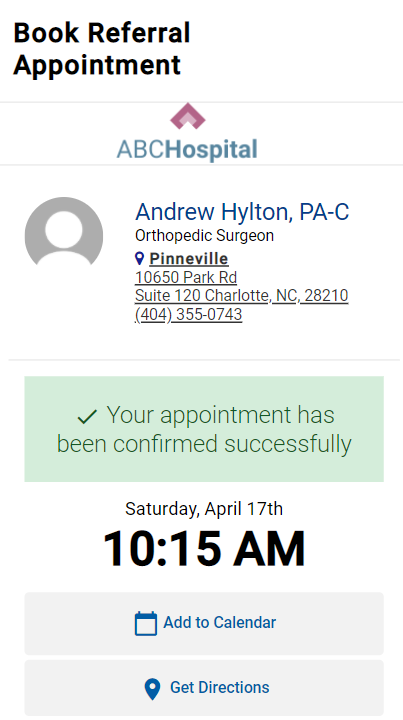
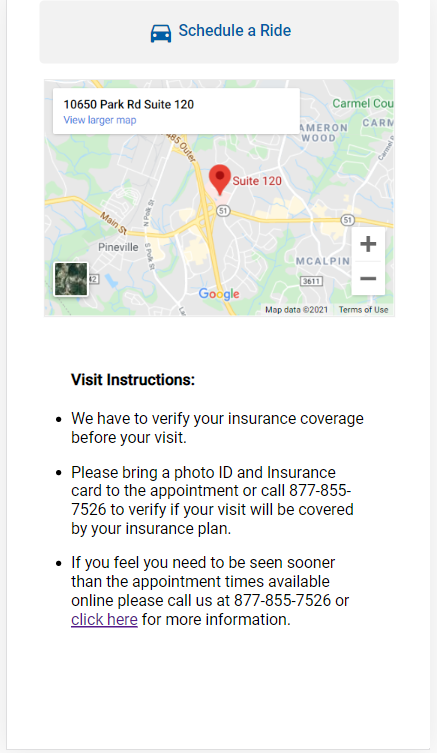
3. Once the patient selects the slot and clicks next, they have now booked the appointment successfully. The following screen is displayed to the patient providing any appointment-related information.
Bug Fixes & Enhancements
Information in Google
GoogleMaps is now able to locate facilities on associated maps. A fix has addressed the issue of the facility address being combined with the city name in Google Calendar/Google.
DASHconnect
Bug Fixes & Enhancements
Secondary Phone Number Notifications
DASHconnect will send a text message to the secondary phone number if the primary number attempt fails.
Security Enhancements
Security Enhancements for PHI while sending a message or calling.
Integration Updates
New Features
Epic Integration with DASH
Patient self-scheduling is now fully integrated with Epic PM/EHR. The DASH application is now available on the Epic App Orchard marketplace.
ModMed Integration with DASH
DASHself and DASHcentral are now integrated into the Modernizing Medicine EHR system.
NOTE: Writing insurance back to ModMed is not yet supported.
APM - Forcebooking on Reschedule
When rescheduling an appointment in APM, if you select to use the Urgent overbooking or forcebooking, you won’t be able to do so. You are now able to forcebook appointments as part of the rescheduling workflow.
Bug Fixes & Enhancements
athena Retry
athena's API infrastructure has a maximum query per second limit. We found that we were hitting this more frequently and now have the functionality to automatically retry API calls that result in a QPS limit error.
athenaOne - Frozen Slot Support
There were unique situations where frozen slots were not interpreted correctly and caused provider schedules to not align with athena. This fix allows for frozen slots to be handled appropriately in the situations identified.
athena Cancellation Dropdown
The cancellation dropdown reasons are not passing over to athena: Cancellation reasons are rarely changed, however, we found an instance where a client did indeed have reasons outside of the normal athena offering. We now are syncing this as part of our constant jobs.
athenaPractice
DASHconnect appointment reminders and confirmations can set appointments to 'Confirmed' when the patient response indicates to do so.
eCW - Fix for when existing recall updates were failing
When a recall already existed, an update to that recall would fail, causing it to not update appropriately if there was a change in date or description.
Need these in a PDF to save or train your team?
DASH 21.1 Update: DASHself Patient Matching Algorithm
Overview
The DASHself Patient Matching Algorithm provides a thorough way to match patient information with their existing patient record and update it accordingly. This process reduces the likelihood of creating duplicate patient entries in your system. This page contains additional information about the matching process, specifically what is used to find a matching record.
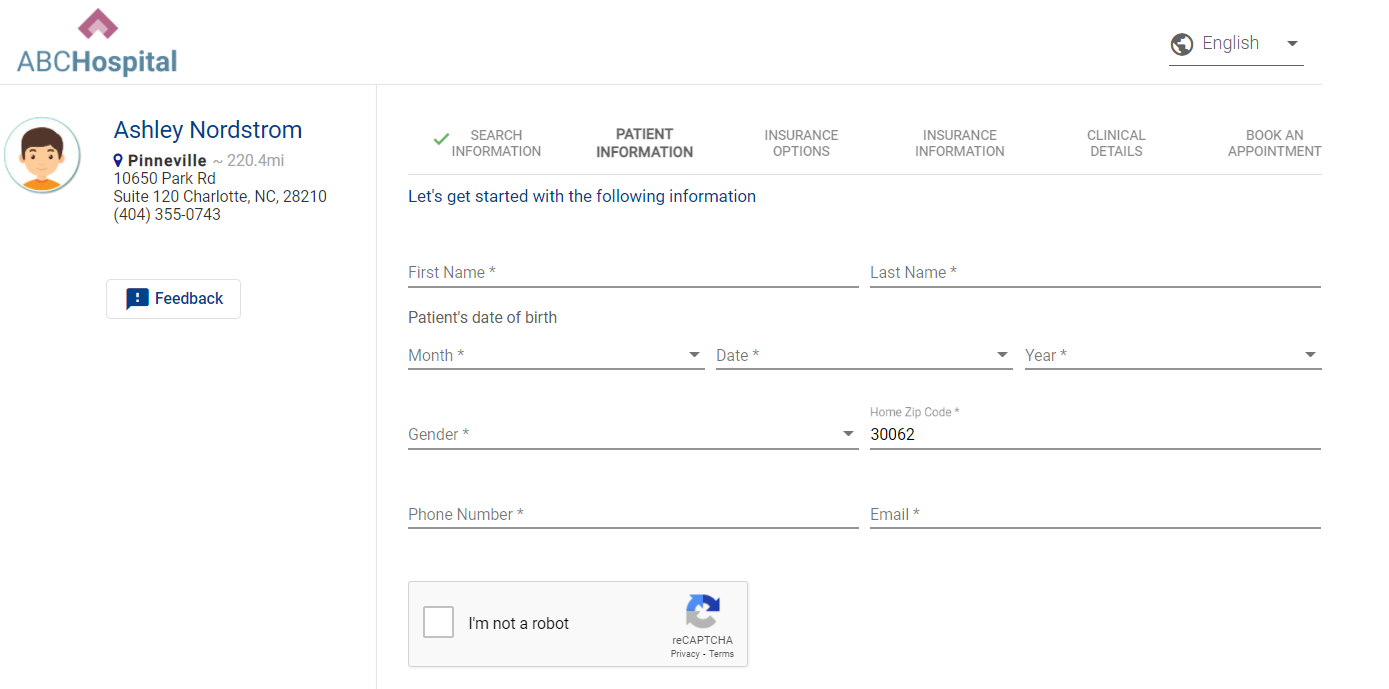
Patient Enters in Demographic Information
Our patient matching algorithm uses a combination of the six pieces of demographic information collected on the first screen.
Patient First Name
Patient Last Name
Date of Birth
Patient e-mail address
Zip Code
Phone Number
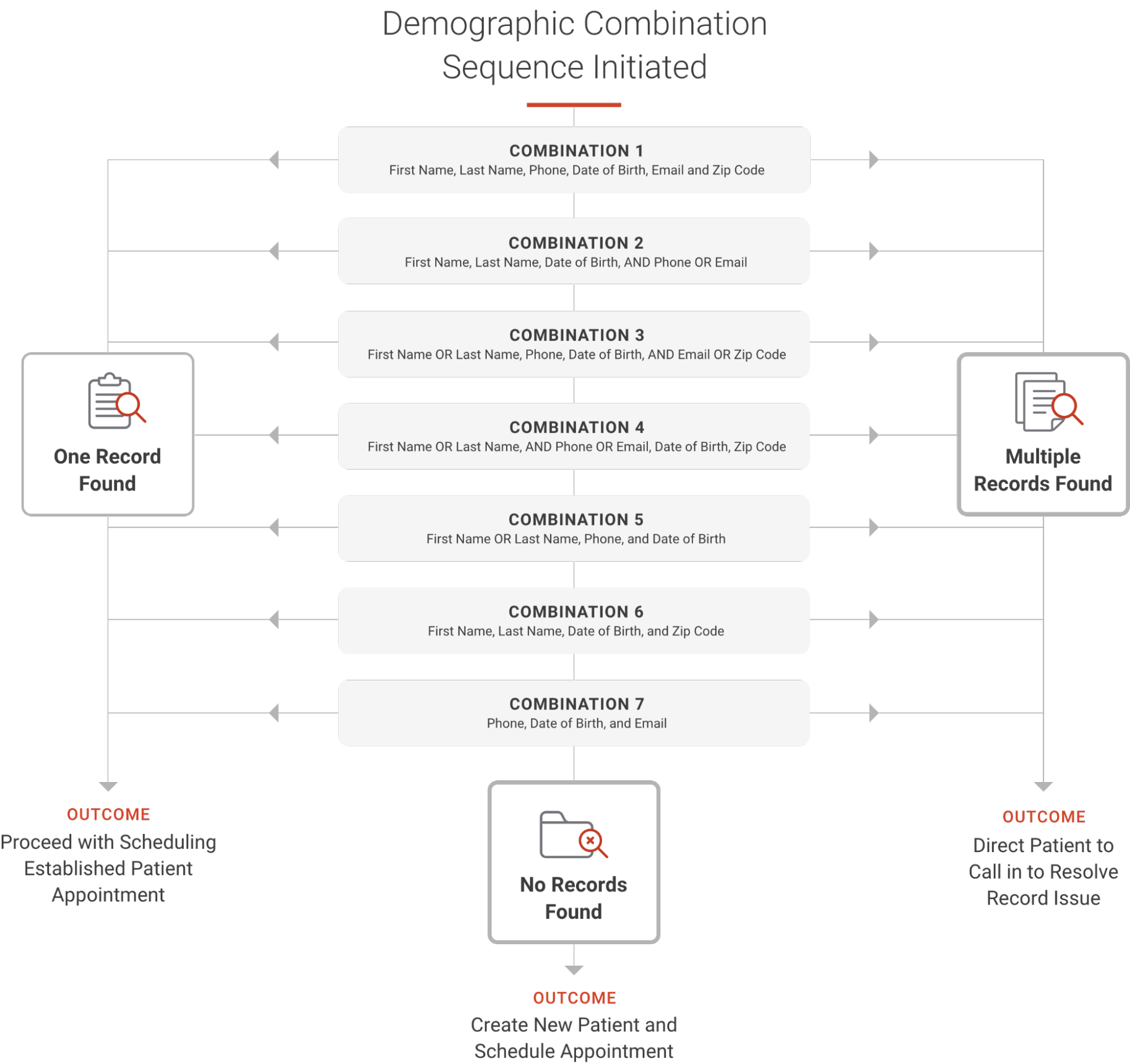
In the logic below, you will see how our algorithm attempts different combinations of the demographic fields. We try seven combinations that can lead to the below results. When we try the first combination, if no record is found, we will try the second combination, and so on until all are complete. We try multiple combinations to ensure we are not erroneously creating new patients.
General Info & FAQs
When opening up access to patients, we cannot account for every scenario. Please see the below notes on this algorithm.
We do not account for nicknames. We will search for the name that exists on the patient record.
When searching across phone numbers, we are searching home, cell, work.
We do not reference historical demographic information in our algorithm. For example, if a patient updated their address three months prior, our algorithm cannot reference this information.
We do not collect SSN in DASHself. Our data shows that many patients abandon the process due to the risk of this not being secure.
This algorithm does not differentiate if any of the fields are NULL or do not contain the data. It requires the appropriate values in the fields. It works when the value is present on the above-mentioned fields.
Once the right match is found with the few of the data that are different and are not considered in the algorithm above, the system only updates those values once the patient reaches the last screen and fills in the additional demographic information.
Q: What isn’t accounted for in the patient matching algorithm?
A: The matching is created to account for as many scenarios as possible to reduce the likelihood of duplicate patient entries being created in your system. For example, we do not have the ability to account for misspellings. If a patient accidentally spells their name wrong, there is a risk of a new patient record being created. Additionally, nicknames aren’t included -- just the name existing on the patient record.
Q: What phone numbers are included in the phone matching?
A: Home, cell, and work phone numbers are searched.
Q: Does the algorithm reference historical demographic information?
A: Only current information is searched for matching. For instance, if a patient updated their address three months prior, it’s not referenced in the algorithm.
Q: Do you collect SSNs in DASHself?
A: No, data shows that many patients abandon the process due to a perceived security risk if SSN is requested.
Q: How does the patient matching algorithm respond to empty fields?
A: This algorithm does not differentiate if any of the fields are NULL or do not contain the data. It requires the appropriate values in the fields, matching when the value is present on the above-mentioned fields.
Q: When is the patient’s data actually updated in the system?
A: While the patient enters information early on in the registration process, the patient’s data is not updated until the entire scheduling flow is completed. This allows for additional information to be collected before updating the patient record. This is true for both updating a matched patient record as well as when a new (unmatched) record is created.
Need a PDF version to share with your team for training?
DASH360 - General FAQs & Best Practices
Get a PDF version of the General FAQs and Best Practices for DASH360 here:
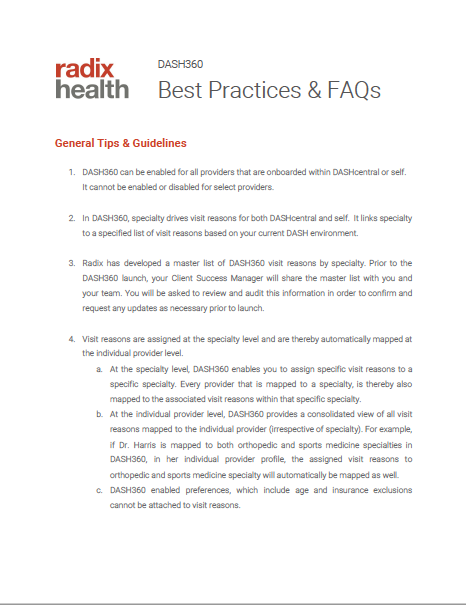
DASH360 - How to Add Provider Preferences
Get a PDF version of How to Add Provider Preferences in DASH360 here:
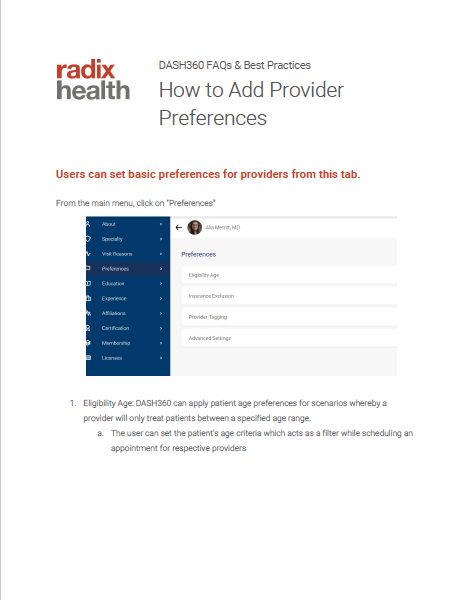
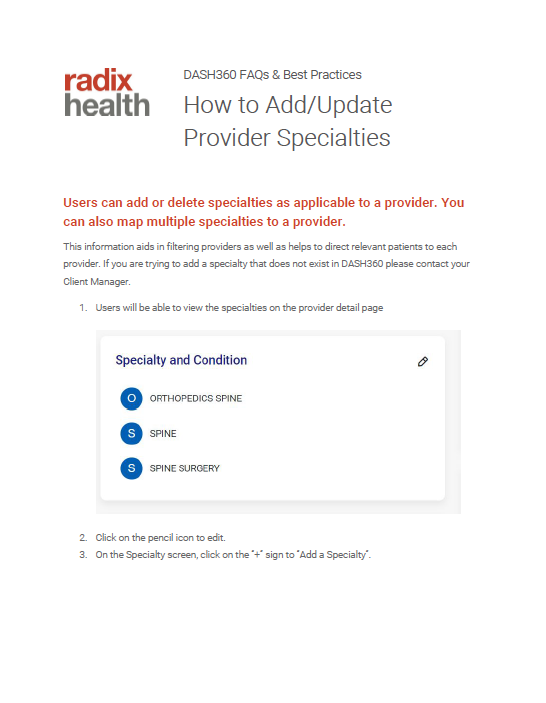
DASH360 - How to Add Provider Specialties
Get a PDF version of How to Add Provider Specialties in DASH360 here:
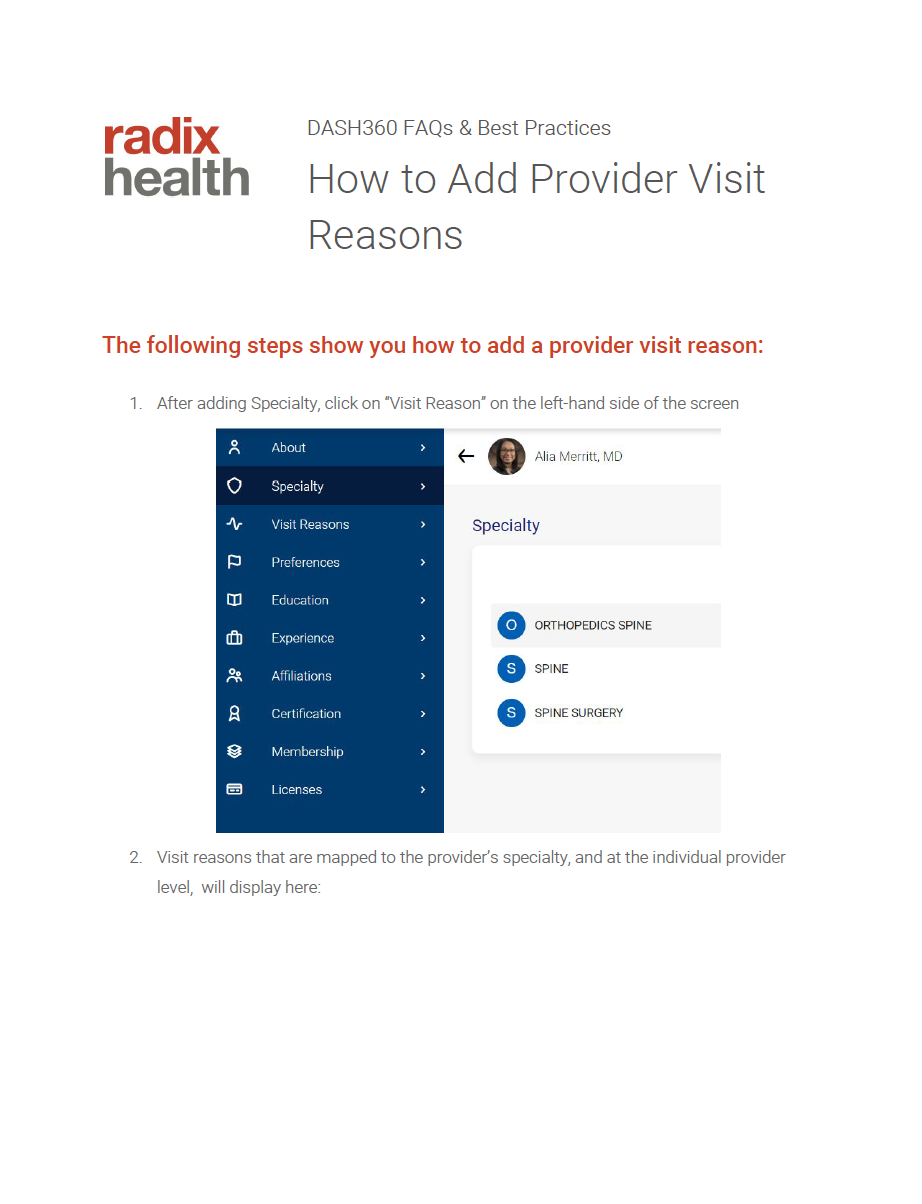
DASH360 - How to Add Provider Visit Reasons
Get a PDF version of How to Add Provider Visit Reasons in DASH360 here:
20.3 Release Notes
DASH®️ 20.3.1 Release Notes
Last Updated: 10/30/20
Questions or Concerns?
Please email support@radixhealth.com
Radix Health Confidentiality, Brand, and Proprietary Rights Notice:
This document and the contents herein are the intellectual property and confidential proprietary information of Radix Health, Inc. and may only be used, copied or distributed with the express permission of Radix Health, Inc.
© 2021 Radix Health, Inc. - All Rights Reserved.
Licensee agrees that it will not remove, alter or otherwise obscure any proprietary rights notices appearing in the product.
DASH® and RADIX HEALTH® are federally registered service marks of Radix Health, Inc.
Table of Contents
Table of Contents 2
Introduction 3
NEW FEATURES: DASH Central 3
Appointment Details 3
Family Scheduling/Simultaneous Scheduling 3-4
Searchable Drop Down: Facility, Chief Complaint, Resource 5-6
Accessing E-mailed Reports through DASH Login 6-7
Most Visited Patient Flag 8
Provider Resources Configuration: Search by Provider 8
Option to configure “Email Us” 8
System Administrator Audit Reporting New Location 8-9
Patient Search UI Option 9-10
Option to View Telehealth Appointments 10-11
Patient Record Auto-Population from Direct Extension Dialing 11
OrthoLive Integration: OrthoLive Clients Only 11
NEW FEATURES: DASH Self 11
Patient View of Telehealth Appointment Availability 11-12
Coordinated Care 12
NEW FEATURES: DASH Connect 13
Patient Satisfaction Survey UI Enhancements 13-15
PROM Survey: Pre-Survey Enablement (athenahealth EHR clients only) 15
NEW FEATURES: DASH In 15
Encounter less Check-In 15
Skip/Bypass Form Option to Complete Check-In 16
APPENDIX 17-22
DASH Central: How to add a new user
DASH Central: How to reset a password
Introduction
This document contains all the new features, enhancements and bug fixes done for Version 20.3.1
NEW FEATURES
The following outlines new features available by DASH solution as part of the 20.3.1 release.
DASH Central:
Appointment Details
Sometimes you want more information without having to ask for it! We now have the ability to track appointment notes, provider preference questions & answers, triage questions & answers, and audit history within the appointment details screen. (Our DASHconnect clients will see DASHconnect appointment communication logs populate here as well.) Under “Booking Source” you can also audit if the urgent appointment icon, or override preferences icon were utilized.
In the appointment details section, users will be able to access the following information from the respective tabs- Notes: Appointment Notes; Q&A: Preference Questions and Answers; Audit History: DASH user actions on a patient record; Communication History (Connect Customers): Patient communication logs by phone/text/e-mail.
Family Scheduling/Simultaneous Scheduling
The scheduler can now book an appointment for multiple family members in one appointment by executing the following steps:
Navigate to the Appointment Scheduling Tab and select “Simultaneous Appointment”
Enter schedule preference details and once completed, select “Add to Patient List” to add the first patient
The patient is added to the list for scheduling. To add additional patients, select “Add more patients,” locate the name of the additional patient(s) through the DASH patient search screen and enter schedule preference details. Once all patients have been added, select “Find simultaneous slots.”
Select respective slots for respective patients and then click on “Confirm Slots” to book the appointments. Click the left and right arrows in line with the date to change the date.
Note: Simultaneous Scheduling does not work in conjunction with Coordinated Care scheduling.
Scheduling Screen UI Updates
There are several UI changes on the scheduling screen meant to improve the end-user experience and scheduler workflow as follows:
Search Service
The CHIEF COMPLAINT box will not be called VISIT REASON
Most Visited Flag for facilities
DASH introduces a most-visited facility flag, which will highlight the top 2 most frequently visited facilities a patient has presented to since the patient initially presented at your practice.
New patient flag
Flag color changed to blueIneligible tag
A separate tag called “Ineligible” will display for providers who do not fit the search preferences. Clicking on the tag will show you the list of preferences that caused this provider to be eliminated.
Template icon removal
The “template” icon next to the provider name has been removed as it is not actively used.
Searchable Drop Down: Chief Complaint, Facility and Resource
In previous DASH versions, a user would need to select chief complaint (now called visit reason), facility and resource from a list of available drop down options in the respective text boxes. In 20.3, these fields are enabled with a dynamic search text box, where the user will begin to type the visit reason, facility and/or resource they are searching for to preview all available options. The following outlines how this dynamic searchable drop down field operates in the 20.3 version:
Search Visit Reason
For example: If the user needs to schedule an appointment with “ankle” as the chief complaint. The user would begin to type ‘ankle’ for the available visit reasons (aka chief complaints) containing “ankle” to appear. From there, the user will then select the applicable visit reason.
Search Facility
In previous DASH versions, all available facilities were statically displayed on the “Select Facility” screen for the user to select. The facility search will now be paginated. Clients can control the maximum number of facilities that will be shown at one time. Clicking on the “More” button will display more facilities. The number of facilities to be displayed at one time is set to a default of “10”. Per practice preference this can be set to a higher or lower number or to all facilities. 10 or less is recommended for improving system performance, since it does not search slots across all facilities by default. The facilities displayed will be those that are geographically closest to the zip code of the patient. In order to preview additional facilities, the user will need to select the “More” button on the lower right hand side. Every time the “More” button is selected, additional facilities will be displayed. The user also has the option to type in the specific facility in the search box.
Search Resource:
In 20.3, similar to the above dynamic search box fields, the user will need to begin to type the specified resource to enable preview and selection.
Provider and Facility searchable dropdown behavior
When you search and select a provider or facility, that entry will get added to the top of the list. The list that you get while searching is a list for all providers, and it does not have any rules applied to it. If the provider that was selected is blocked due to preferences, they will get tagged as “ineligible”.
Tooltip and processing icon
The “Searching” tooltip and processing icon will display while searching for both resource and facility to alert the user the system is working to find results
Accessing Emailed Reports through DASH Login
In previous versions, reports emailed to DASH users were sent by way of an encrypted email attachment (as seen below). The user would then access the report directly through the attachment provided in the email.
In the 20.3 version of DASH software, in order to increase security, DASH will email the respective report recipients with a link to download the report as outlined below.
In order to download and access the report:
Click on the ‘Download’ Icon provided in the email.
The user will be redirected to the DASH login page, where they will be asked to enter their credentials.
After successful login, the report will be downloaded on the user’s device..
Important Note: In order to download and access the report, the recipient must have an active DASH login and password credentials. If your organization has DASH report recipients that do not have an active DASH login OR existing users require a password reset to access; due to Radix updated security protocols, these queries must be completed by your organization’s system administrator. For further instructions on how to add new users and/or reset passwords as a system administrator, please refer to the Appendix.
Provider Resources Configuration: Search by Provider
From the Provider/Resource Configuration Page, the provider search box is now dynamic. In order to view available providers, the user will have to begin typing the provider in the search box to preview and select the desired provider (as outlined below). In previous DASH versions, this page would have a static list of all providers to select from.
Option to Configure: “E-mail Us”
DASH Central is now enabled for the “E-mail Us” to be configured to route to internal email addresses if preferred , instead of routing directly to Radix Support. This gives you insight into and oversight of Support requests before they are addressed by the Radix team. This is an optional feature and will be configured only per practice request.
Audit Reporting: New Location
In 20.3, the Audit Reporting fields have been moved to the “System Admin” tab. In previous DASH versions, audit reporting was accessed from the “Analytics” tab.
Additionally, all other fields in the “Analytics Tab” have been removed, and in order to access, the user will select and be automatically redirected to access these reports in PowerBI.
Patient Search: UI Option
From the DASH Central landing page, users have the option to configure what appears on the patient search section to either include patient search from DASH or both DASH and the practice management system. (please see below). Per practice preference , you have the option to disable the PM search from showing on the user interface.
Option to View Telehealth Appointments
For organizations offering telehealth appointments, telehealth can be added as a service option when scheduling an appointment.
Users can select telehealth as a service, and will be able to view the earliest available telehealth only based on the preferred selections. To view office visits or other services, the user will need to deselect the “Show Telehealth Slots Only” check box. This appointment view can be configured as optional per the practice preference.
Patient Record Auto-Population from Direct Extension Dialing
For practices who provide their patients with direct scheduling phone numbers to the scheduling team, DASH can now update an individual scheduler’s extension and upload the number into DASH. When a patient dials this direct phone number, the patient phone number will automatically pre-populate. This is an optional configuration, and if interested in configuring please contact your Client Success Manager.
OrthoLive Integration: For OrthoLive Clients Only
OrthoLive is a leading orthopedic telemedicine platform. Built by an orthopedic surgeon for orthopedic surgeons, the OrthoLive communication platform provides convenient secure access to care for patients by enabling virtual appointment scheduling. For Radix clients who partner with OrthoLive, in the previous DASH version, schedulers and/or patients would be required to schedule their virtual appointment both in OrthoLive and in DASH.
In 20.3, the patient or scheduler will only have to book the appointment in DASH. DASH will automatically sync the appointment details in the OrthoLive application. After the appointment has been successfully booked, OrthoLive will send the videolink/appointment email to the patient.
NEW FEATURES: The following outlines new features available by DASH SELF as part of the 20.3.1 release.
DASH Self:
Patient View of Telehealth Appointment Availability
For practices offering telehealth appointments, patients who book these appointment types via DASHSelf will now be able to toggle and view telehealth appointment availability from the appointment booking screen. This feature can be configured as optional per practice preference.
Coordinated Care
DASHSelf is now enabled for patients to schedule 2 appointments for the same chief complaint and multiple providers at the desired time preference in the same instance. For example, if a patient needs to schedule an appointment with a provider, followed up by a PA, for the same chief complaint, they will be able to schedule both appointments simultaneously. (Please see below).
Your organization has the option of configuring a customized note to display to patients as they are scheduling their appointment for any further instruction or guidance. *Note - Patients will not be able to modify or reschedule coordinated care appointments through DASHSelf. In order to reschedule, they will have to contact your practice’s office for the scheduling team to reschedule on their behalf.
NEW FEATURES: The following outlines new features available by DASH Connect as part of the 20.3.1 release.
DASH Connect:
Patient Satisfaction Survey UI Enhancement
For practices who leverage Connect to send patient satisfaction surveys, the following outlines the user interface enhancements to enable an improved user and mobile device friendly experience. Please note, any existing practice configurations that determine what scores patients will receive either the survey or google review links will remain in place. This is only intended to outline the enhanced UI experience to the patient.
A link requesting patient feedback will be sent to the patient via text message
If the patient score is between 0-8, then they will receive a feedback link asking for more distinct feedback, and if the the patient score is between 9-10, then the patient will receive a google review link asking them to leave a review on their experience
The following outlines the workflow if a patient scores between 0-8:
The patient will receive a link to submit additional feedback via survey, and will be redirected to complete upon clicking the link.
The patient will be redirected to the survey as outlined below. After selecting the link to complete the feedback survey, the patient will be asked to select their preferred language, and enter their date of birth. If the date of birth is valid then the patient will be directed to the main feedback form.
After selecting the link to complete the feedback survey, the patient will be asked to select their preferred language, and enter their date of birth. If the date of birth is valid then the patient will be directed to the main feedback form.
The patient will complete the questions on the survey and select submit when complete.
After the feedback has been successfully submitted, the patient will be directed to a “Thank You” page to close out the process.
PROM Survey: Pre-Survey Enablement (athenahealth EHR Clients Only)
In 20.3.1, PROM pre-surveys are now enabled to send to the patient after the appointment visit. The user will be able to access the PDF survey from the EHR (athena) for patient outcome related surveys (i.e. PROMS, HOOS, cases, etc.), however DASH is not enabled to download the PDF directly.
NEW FEATURES: The following outlines new features available by DASH In as part of the 20.3.1 release.
DASH In:
Encounterless Check-In
In previous DASH versions, if an encounter was not generated for patients, users were unable to change the appointment status to initiate check-in. In 20.3.1, DASHIn has introduced a new “Override” button so users will now be able to facilitate check-in without a patient encounter.
To check in a patient without an encounter, the user will first select the patient appointment record.
The “Override” button is located in the lower right hand of the appointment screen. Once selected, a drop down menu will appear, with three options to either Initiate Check-In, Complete Check In, or Complete CheckOut.
The user will select the appropriate option to initiate check-in to initiate the check-in process
Option to Skip/Bypass Forms to Complete Check-In
In 20.3, DASHIn now introduces an option to enable completing check-in through bypassing check in forms and generating a token.
The user will select the “Patient Arrived” button.
The user selects the “Initiate Check-In” button , where the forms will become available for preview
The user selects the “Skip Forms” button to bypass the completion of the forms, and will then select “Complete Check-In” to complete the check-in process
APPENDIX
DASH CENTRAL - How to Add a New User to DASH Central
Per the updated security process requiring active DASH logins to access emailed reports, the following outlines the process for system administrators to add new users to DASH.
As a DASH admin, you have the ability to create/add new users! If you need assistance with this, please see below:
In DASHcentral, you can create new users quickly and easily. This helps expedite the user management process for you. DASH requires the user's EHR user ID, first and last name, and org email address during user setup - so please have these handy, when adding new users.
1) To begin, first navigate to User Setup in DASH, as seen here by hovering over the lock icon:-
2) On the subsequent screen that opens up, navigate to the green "Add" button in the top-right corner of your screen:-
3) Fill in the user ID desired for DASH, the user's existing EHR user ID, and the user's name. It is best practice (but not mandatory) to match the username in DASH with the username in the EHR. You can also describe the user's role at your organization, here ("Patient Services Representative", for instance):-
4) Next, attribute one of the user tasking groups that have already been pre-determined, as well as the user's email address, for your organization. Once all the steps in points 3) and 4) have been completed, click the blue "Save" button:-
5) A new pop-up window now opens, for security settings. Set the access level for the user that you would prefer for them to have, a new temporary password up for the user to be able to log in with, and toggle the "FORCE TO CHANGE PASSWORD" option so that the user will be forced to create their own specific password when they first sign in:-
(Please note:- After a user has signed in successfully the first time, if they ever need a reset of their password, we strongly recommend using the SEND PASSWORD RESET LINK option instead of the FORCE TO CHANGE PASSWORD workflow.)
DASH CENTRAL - How to Reset a Password
Per the updated security process requiring active DASH logins to access emailed reports, the following outlines the process for system administrators to reset passwords for existing users.
As a DASH admin, you have the ability to trigger password reset links to be sent out to your users! Users set up in DASHcentral can be sent password reset links via email. This helps expedite the user management process. If you need assistance with this, please see below:
1) To begin, first navigate to User Setup in DASH, as seen here by hovering over the lock icon:-
2) Next, search for the user(s) in question:-
3) Then, click on the desired user. A blue "Security Setting" button will populate in the top-right corner of your screen - click on this button:-
4) In the new mini-screen that populates, toggle the "SEND PASSWORD RESET LINK" option to YES and then press the blue "Save" button. Now, the user will receive an email complete with simple instructions on how to reset their password and log into DASH successfully:-
What's New in 20.3
DASHCentral
Family / Simultaneous Scheduling will allow the user to book appointments for two or more family members in one go
Searchable dropdown for chief complaint, facility, and resource
Provider/Research set up to be a Search Field
Updates in Analytics Section in DASHcentral Tool Bar
DASHcentral to search providers from specialties
Connector message on Appointments page
Patient Search button configurable in DASH
Configurable "Email Us" button
Telehealth appointment Slots for Central
Auto-populating patient details in DASH using a third party application when patients call the scheduler for appointment scheduling
Non Email Based Automatic Reports
DASHconnect
Multiple validations for DASHConnect to send limited messages per day
DASHin
DASH supports Encounter-less Check-in
Bypass/Skip the initiate check-in and still allow the complete check-in
DASHself
Telehealth appointments for Self
Allow hyperlink on the Appointment confirmation page
Co-ordinated care for DASHself
What's New in 20.2
20.2 Updates
The mentioned features are added in the DASHSelf application
Multi-lingual support
More Info button for chief complaint/visit reasons
Map multiple Providers with multiple PAs and vice-a-versa
Introducing “Feedback” button from Patient Information page
Collection of generalized additional insurance details for all patients
Provision of a direct link to schedule an appointment from facility's landing page
Add “Nickname/ Preferred Name” field on Clinical Detail page
Enrolling in waitlist feature
New workflow for “Cancelling” & “Rescheduling” a successful booked appointment
Multiple provider listing options (individual, group, mixed)
Availability Banner for all provider
“Support Triage” feature
Addition of Toaster messages